.png?width=46&height=30&name=Logo-symbol%20(1).png)
The “Document” step provides one or more files to download: a quick reference sheet, course material, a template to fill in… The learner finds them directly in their training path.
Table of contents
- Add a document
- Set up the step
- Set up the advanced options
- What the learner sees
- Frequently asked questions
Add a document
- Open the training path, then the section where you want to add the step.
- Click “Add a step”.
- Choose “Document”.
- Click “IMPORT ONE OR MORE FILES” or drag and drop your file into the area (for example a PDF or an image). You can upload several files: they then form a folder.
Set up the step
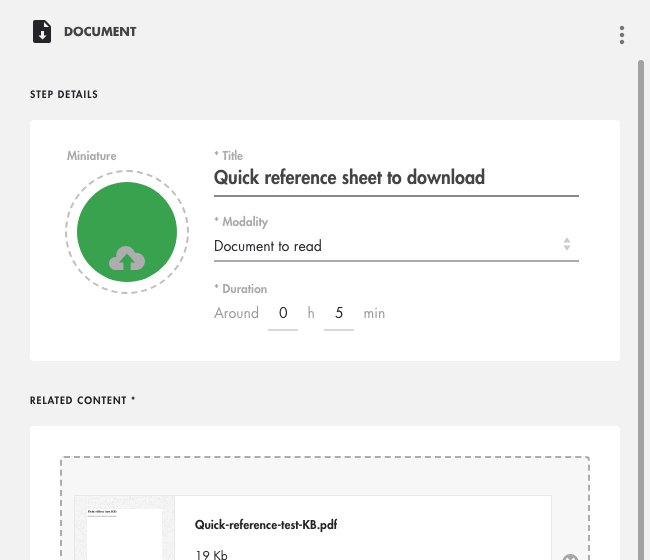
- “Title” (required): “Document title”, or “File title” if there are several files;
- “Modality”: “Document to read” by default;
- “Duration” (required): the estimated reading time;
- “RELATED CONTENT”: the list of files, with their size and a “DOWNLOAD” button. “IMPORT ONE OR SEVERAL DOCUMENTS” adds more.
Click on the image to open it in a new tab.
Set up the advanced options
In “ADVANCED OPTIONS”, at the bottom of the panel:
- “Conditions of access”: “Always accessible” (default), “Validate first...” (then “…the previous step” or “…all previous steps”), “From…” or “Until…”;
- “Include the step in the calculation of the total mastery”: leave it off; this type of step does not provide mastery (only Teach Up modules, assessments and SCORM packages do);
- “Validation condition”: “The learner has downloaded the file”.
These options are explained in Create a training path.
What the learner sees
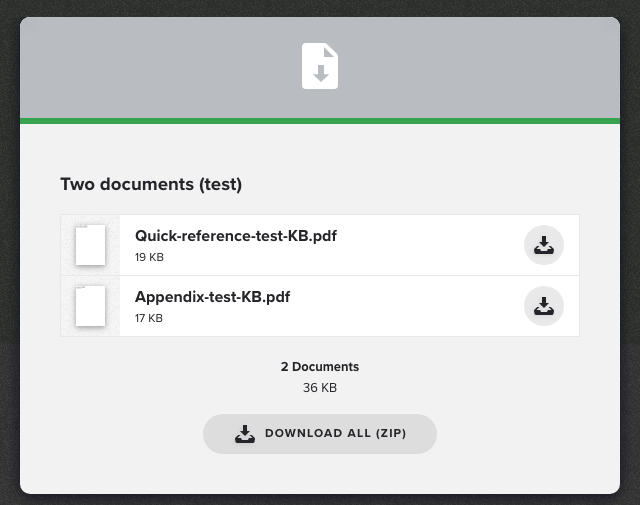
By clicking the tile, the learner opens a window with the file and a download button. If there are several files, each has its own download icon, and “DOWNLOAD ALL (ZIP)” gets them all at once.
Click on the image to open it in a new tab.
The step shows “Completed” as soon as the learner downloads one file. Opening the window without downloading anything is not enough.
Frequently asked questions
Does the learner have to download all the files?
No: downloading just one of the files is enough to complete the step.
Can I replace a file after distribution?
Yes: open the step, remove the file (cross on the right) and upload the new version.