
On Teach Up, several authors can work on the same activities, but not at the same time: a course opened in the editor by one author is locked for the others. This article explains what an author sees when a course is locked and how access is released.
Table of contents
Only one author at a time on a course
When an author opens a course in the editor, other authors cannot open it until they have left it. This rule prevents two people from editing the same content at the same time and overwriting each other's changes.
The message displayed
An author who tries to open a course that is already being edited sees the "Module currently unavailable" window: "The module you are trying to open cannot be accessed as [author name] is currently editing it. Try again later or contact the author to gain access." Only the "Cancel" button is available.
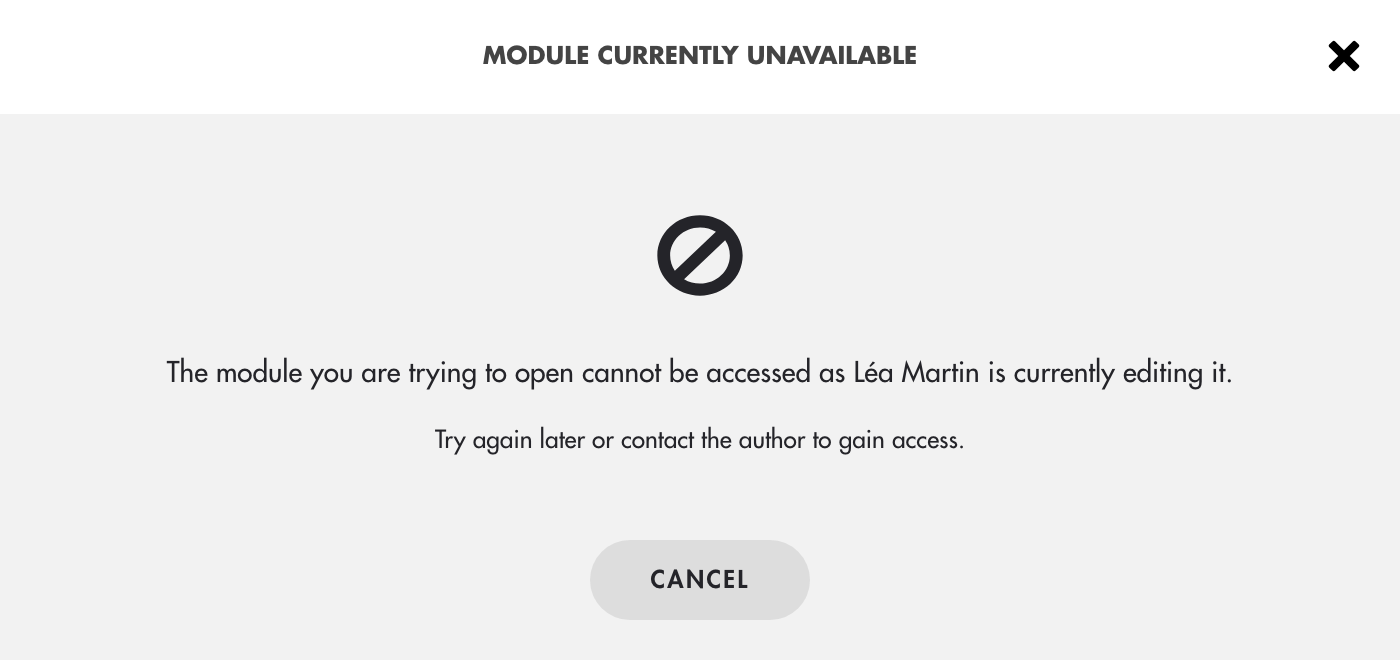
Click on the image to open it in a new tab.
Release access to a course
The lock is released in three cases:
- The author clicks "Back to my studio", at the top left of the editor: the course is released immediately. This is the good practice to follow as soon as you have finished.
- The author closes their tab or browser without going back to the studio: the course is released automatically after about one to two minutes.
- The author stays inactive for too long: Teach Up displays "Are you still connected?" with a countdown, then saves and closes the course if they do not resume ("Resume" button). They then see: "The module you had open has been closed to let another author work on it." Their latest changes are saved.
Frequently asked questions
Can several people edit a course at the same time?
No. Only one author at a time can open a course in the editor. The others see the "Module currently unavailable" window.
What should I do if an author is blocking access to a course?
Ask them to click "Back to my studio": access is released immediately. If they simply closed their tab, wait one to two minutes and try again. The window does not offer a way to force access: if the course stays locked longer, contact Teach Up support.
Is the lock released automatically?
Yes: about one to two minutes after the author closes their tab, or after a period of inactivity, once the "Are you still connected?" countdown has run out. The author's latest changes are saved.
Can I open the same course in two tabs?
Yes. The lock only applies between different authors: an author is not blocked by themselves.