.png?width=46&height=30&name=Logo-symbol%20(1).png)
The last page shows the learner their result: score, messages, scores per subsection and, depending on your settings, the correction, the PDF results, the certificate of achievement or a link to follow.
Table of contents
- Access the last page
- Set the thresholds and messages
- Choose what is displayed
- What the learner sees
- Allow learners to retake the assessment
- Frequently asked questions
Access the last page
In the assessment outline, click “Last page”, at the very bottom. A preview of the score gauge appears, followed by the options.
Set the thresholds and messages
The passing score and score-based messages are set in the assessment settings: click “Modify” under the gauge. Details: Configure global assessment settings.
Choose what is displayed
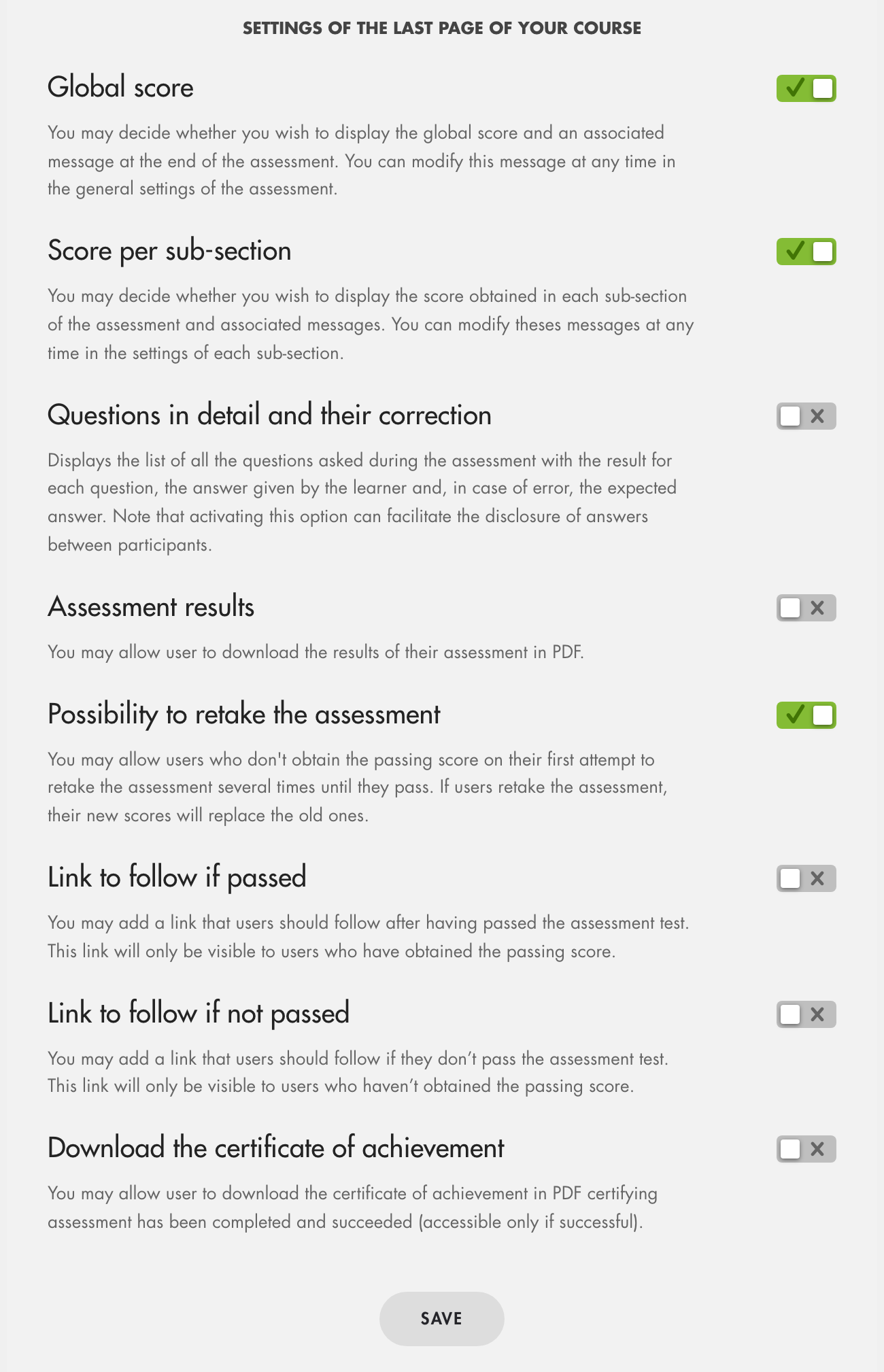
Enable or disable each option, then click “Save”.
Click on the image to open it in a new tab.
- “Global score”: the gauge with the score, the passing score and the message matching the score;
- “Score per sub-section”: the score obtained in each subsection, with its messages if you set any;
- “Questions in detail and their correction”: a “See details” button under each subsection lists all the questions asked, with the result; for a mistake, it shows the “Correct answers” and “Show my answer”. Note that this option can make it easier for answers to circulate between learners;
- “Assessment results”: the learner can download their results in PDF (“Download the scorecard”);
- “Possibility to retake the assessment”: see below;
- “Link to follow if passed”: a link shown only if the learner passes;
- “Link to follow if not passed”: a link shown only if the learner fails, for example to a review course;
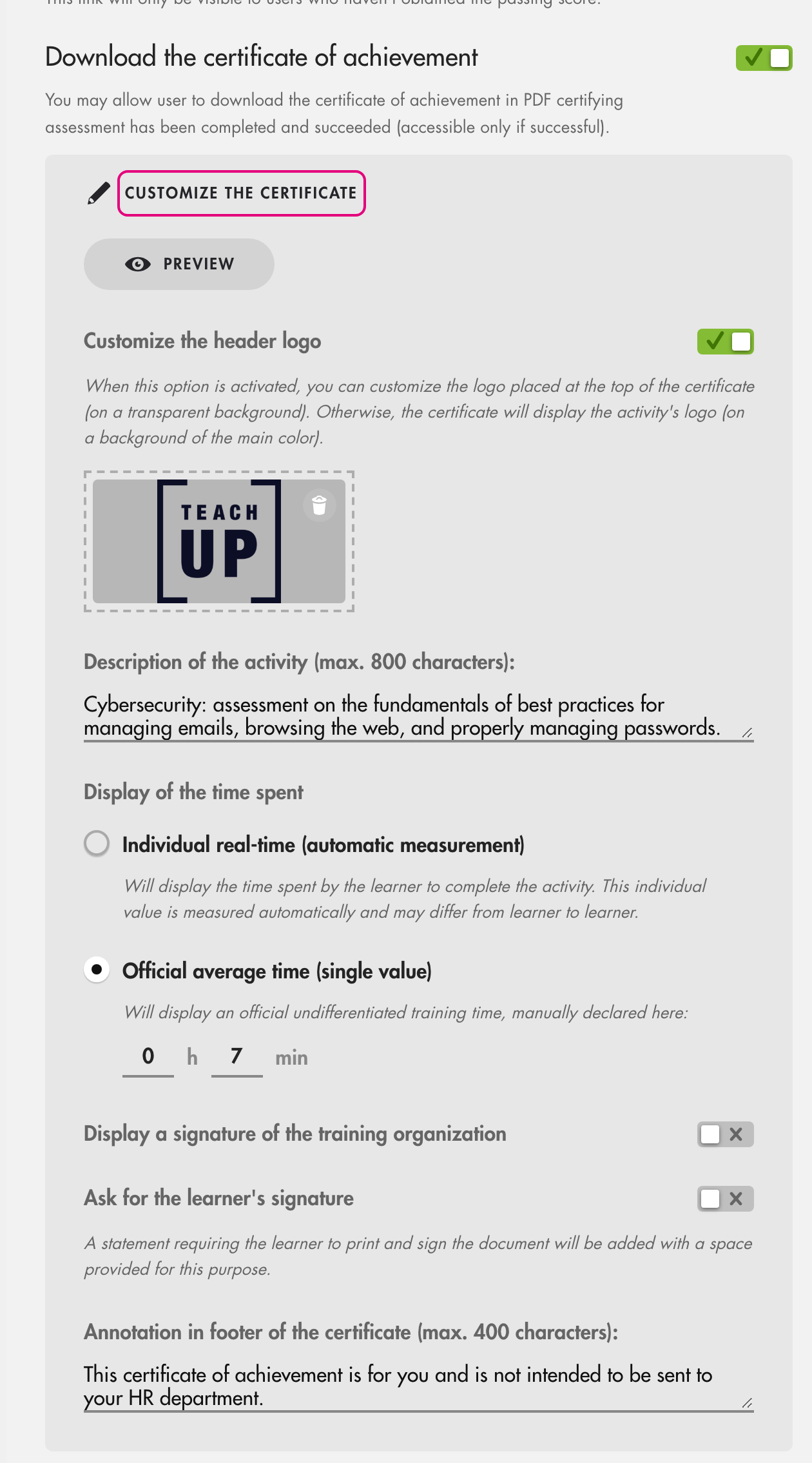
- “Download the certificate of achievement”: the learner downloads a PDF certificate, only if they passed. Click “Customize the certificate” to configure it.
Once the option is enabled, click “Customize the certificate” (framed) to expand its settings: preview, header logo, description, time spent displayed, signatures and footer annotation. See Configure and retrieve the training certificates.
Click on the image to open it in a new tab.
What the learner sees
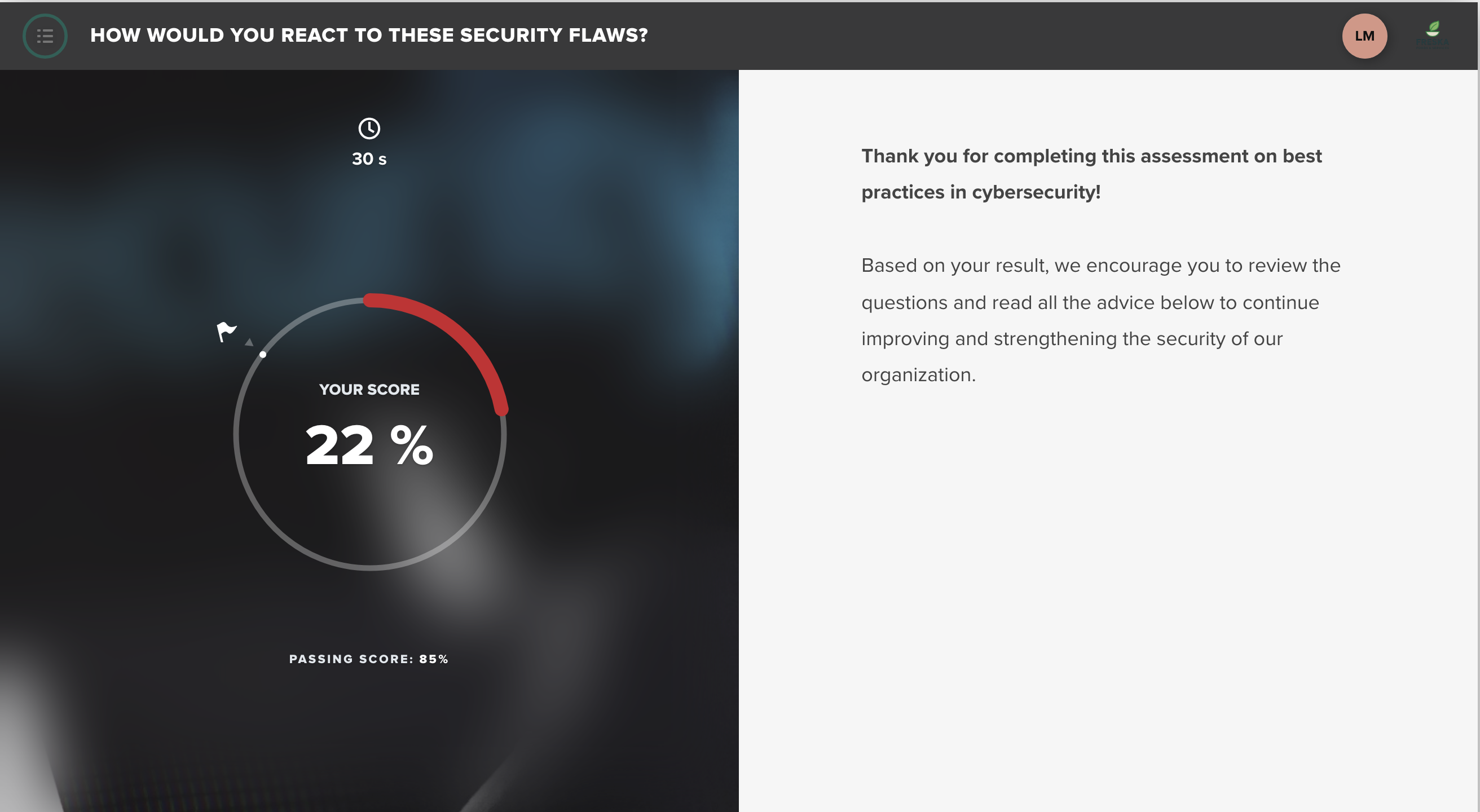
With the global score enabled, the learner sees their score, the passing score and the matching message, then their results per subsection.
Click on the image to open it in a new tab.
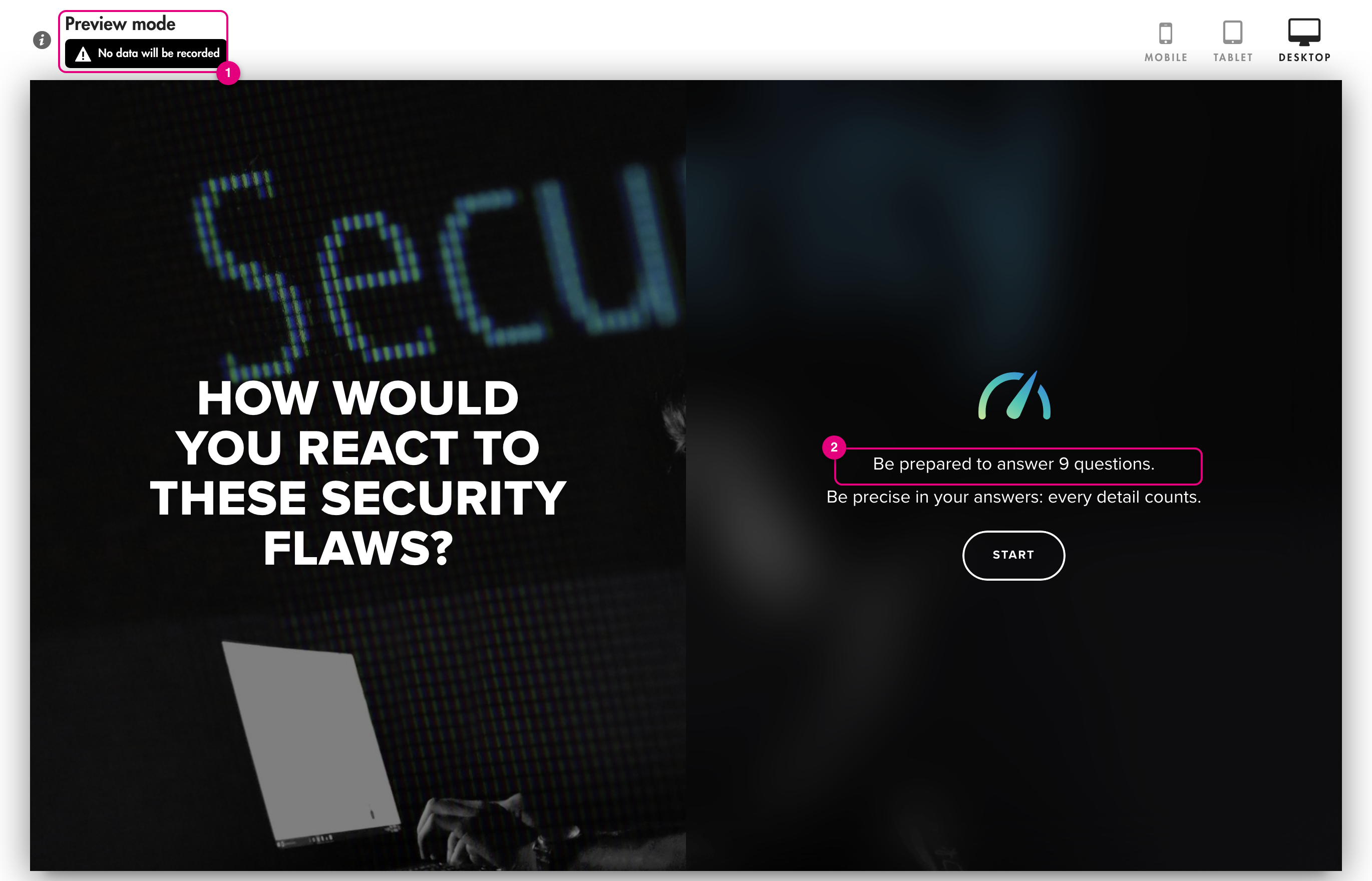
To see this, click “Preview” at the top left of the editor: the assessment opens in “Preview mode” (1), “No data will be recorded”. The number of questions announced (2) takes random draws into account. See Test content on Teach Up.
Click on the image to open it in a new tab.
Allow learners to retake the assessment
If the option is enabled, a learner who did not reach the passing score sees the “Start over” button. After confirming, they retake the assessment; their previous score is replaced by the new one. A learner who passed does not see this button.

Click on the image to open it in a new tab.
In a training path: if the step is validated by “has reached the minimum passing score”, the learner can always retake the assessment until they pass, even if “Possibility to retake the assessment” is disabled. Each new attempt replaces the previous one. Once the passing score is reached, the step is validated and the assessment can no longer be retaken. See Insert a course or an assessment within a training path.
Frequently asked questions
Can the correction be shown after each question?
No. In an assessment, the correction is only shown at the end, with the “Questions in detail and their correction” option.
What happens if “Global score” is disabled?
The last page shows neither the gauge, the score nor the score-based message. The assessment title is displayed instead, with the other enabled elements (scores per subsection, details, results…).
Can the assessment results be customized?
You can add your company logo to the results. They automatically show the learner's name, the time spent, the passing score, the completion date, the logo (if set) and the assessment name, and, depending on the options enabled, the global score and the score per subsection with their messages.
How do I test the last page?
Click “Preview” at the top left of the editor and answer all the questions. See Test content on Teach Up.
In a training path, can the learner retake the assessment if the option is disabled?
Yes, if the step is validated by “has reached the minimum passing score”: they can retake it until they pass. Each attempt replaces the previous one, and once the passing score is reached, the assessment can no longer be retaken.