
Summary
- Access the settings of the end screen of a course
- Customize the last page
- Frequently asked questions
Access the settings of the last page of a course
To access the configuration of the last page of a course, follow the steps below:
- Go to the desired module.
- Select the button “Last page
 ” , at the very bottom of your content.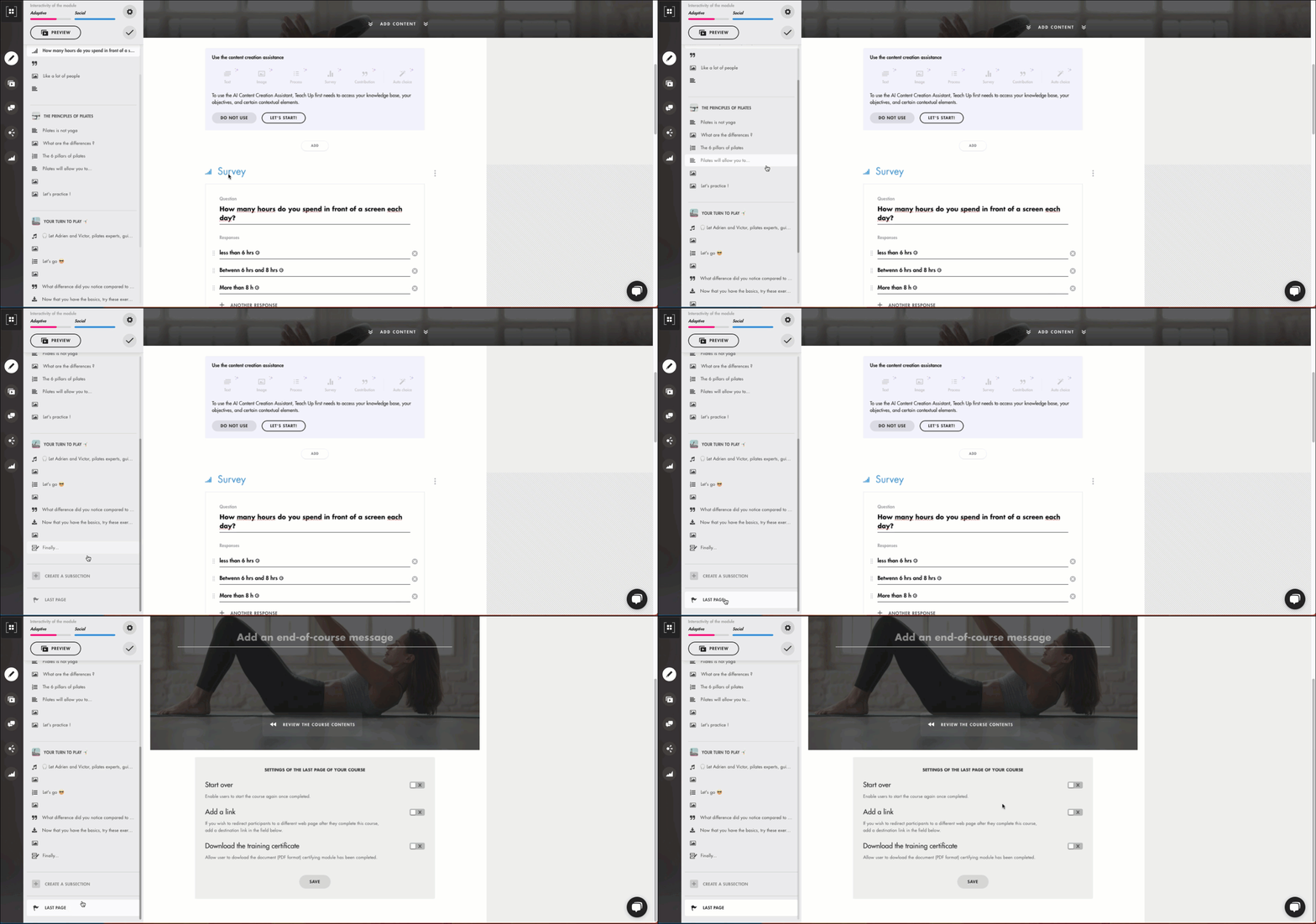
Click on the image to open it in a new tab

Customize the last page
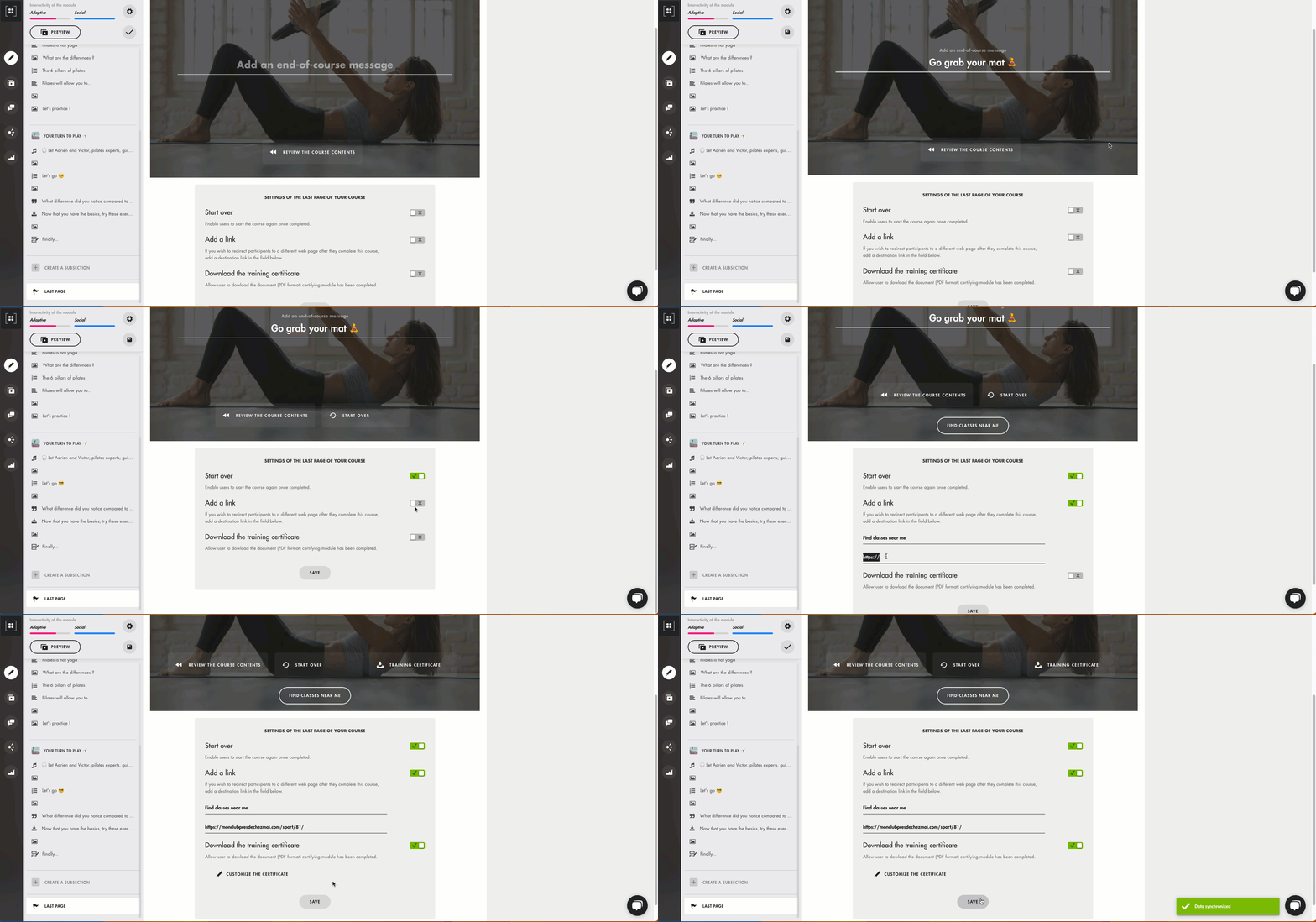
Edit end message
The end message allows you to conclude the training with a personalized note. For example, you can thank learners for their involvement and encourage them to apply what they've learned.
Configure clickable buttons
The "Review the course content" button is always displayed on the last page. Each of the three options below adds a button:
- “Start over”: adds the “Start over” button. This option allows learners to restart the module from the beginning, giving them the opportunity to relive the training experience. The system keeps track of all their attempts, which will be visible on the course dashboard.
-
“Add a link”: this option lets you direct learners to external resources for further learning. You can include a link to an article, video, or other relevant material to reinforce the knowledge gained in the course. Simply insert the full URL of the external resource and enter a title, which will appear on the clickable button. Without a title, the button shows “Finish”.
Note: some links may not work in “Preview” mode but function correctly when the course is played in a real setting (via distribution).
- “Download the training certificate”: adds the “Training certificate” button, which learners can use to download a PDF certificate that verifies they have successfully completed the course. Learn how to configure this feature in this article..
Click on the image to open it in a new tab.
Frequently asked questions
Is it possible to change the last page background image?
Yes, the background image is the same one chosen for the module's cover. You can modify it by updating the module's cover image.
Can I add more clickable buttons?
No. The last page shows at most four buttons: “Review the course content” (always displayed), “Start over”, “Training certificate” and the link button, depending on the options enabled.
How can I test the end screen before publishing the course?
You can preview your course using the preview feature in the Design menu to see what the end screen looks like.
What is the “Review the course content” button for?
It opens the course summary, with the learner's progress. The learner clicks a part or a content block to review it; a “Resume” button is then displayed below the content. Unlike “Start over”, it does not restart the course from the beginning.