.png?width=46&height=30&name=Logo-symbol%20(1).png)
The Coach Expert lets you monitor learner activity, analyze the problems addressed and assess how effective the answers are. From the "Analyze" tab, you can access detailed indicators and analyses of how your Coach Expert is used.
Table of contents
- View the Coach Expert indicators
- View learner data
- View problem data
- View the analyses
- Export the results
View the Coach Expert indicators
To find the results generated by a Coach Expert:
- Open the Coach Expert whose learner data you want to view.
- Click the "Analyze" tab on the left of the screen.
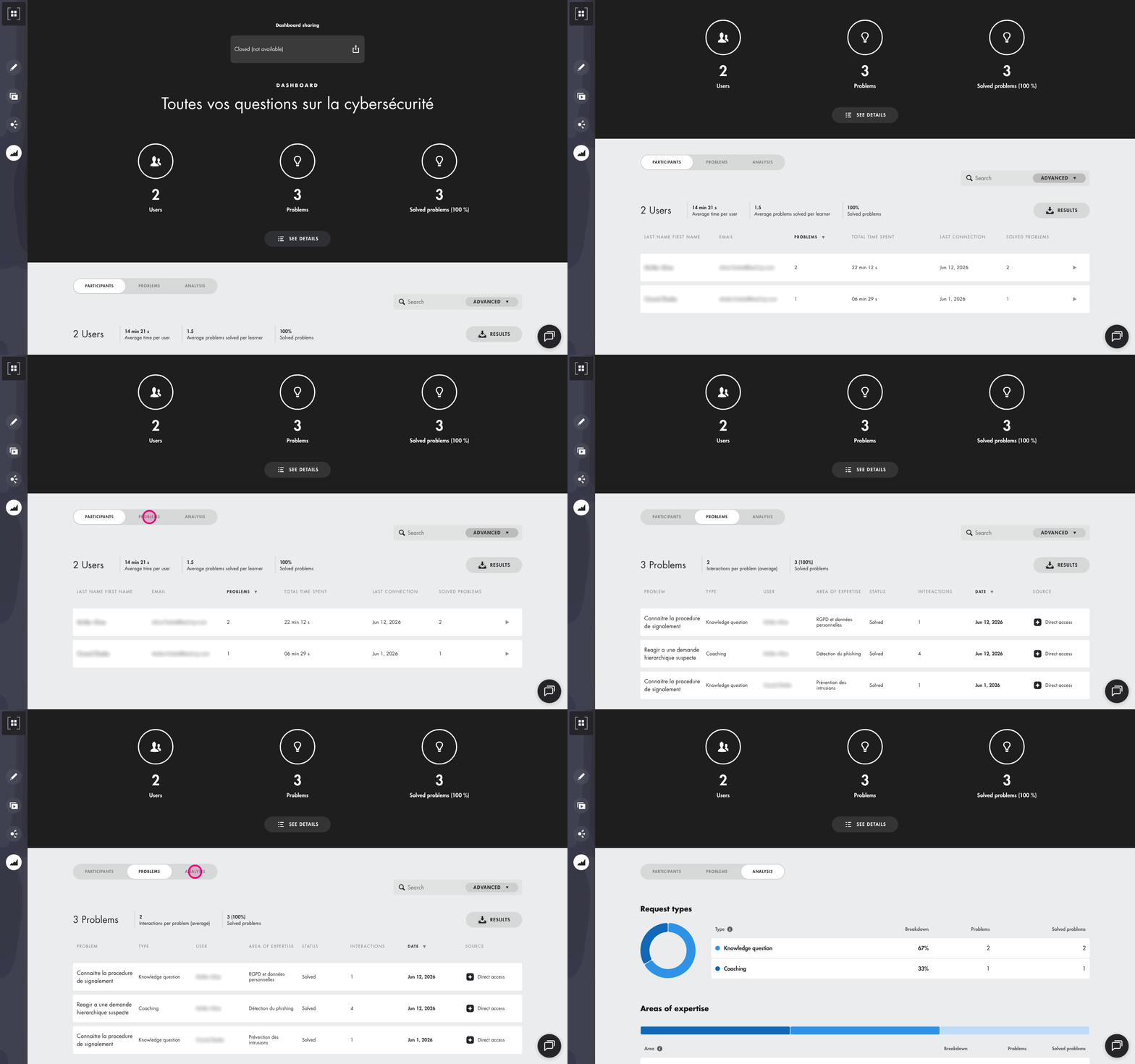
The "Analyze" tab lists all learners who have used the Coach Expert.
It shows the following indicators:
- the total number of learners who have started the Coach Expert;
- the total number of problems addressed;
- the total number of problems resolved by the Coach Expert (with the percentage).
Three sub-tabs are also available:
- Participants
- Problems
- Analysis
Click on the image to open it in a new tab
View learner data
A detailed table below these indicators also shows:
- the learner's first and last name;
- the email address (if available);
- the number of problems addressed;
- the total time spent in the Coach Expert;
- the date of last connection;
- the number of problems resolved.
View a learner's details
Click a learner to see the details of their activity.
For each problem addressed, the following information is available:
- the problem title: a title generated by Teach Up;
- the request type: coaching or knowledge question;
- the associated area of expertise;
- the problem status: in progress, solved or abandoned;
- the number of interactions: the number of messages exchanged with the Coach Expert;
- the creation date.
This view helps you better understand the topics the learner has worked on and their level of engagement with the Coach Expert.
Two request types can be identified:
- Coaching: the learner asks the Coach Expert for support on a real situation, to analyze a problem or to identify possible actions.
- Knowledge question: the learner asks a one-off question and expects an answer based on the content of the knowledge base.
The request type is detected automatically by Teach Up.
The problem status is also determined automatically to show whether the request has been resolved. If the learner feels their problem is not resolved on the first attempt, they continue the coaching until it is resolved.
Delete a learner's data
The "Delete all" button, at the bottom of the page, deletes all the data associated with a learner in the Coach Expert statistics.
View problem data
The "Problems" tab gives you an overview of all the requests sent to the Coach Expert.
Summary indicators are displayed at the top of the page:
- the total number of problems;
- the average number of interactions per request;
- the number of problems resolved;
- the percentage of problems resolved.
The table then details each request with the following information:
- the problem title;
- the request type;
- the learner concerned;
- the associated area of expertise;
- the problem status;
- the number of interactions;
- the creation date;
- the source of the request: the distribution method used by the learner.
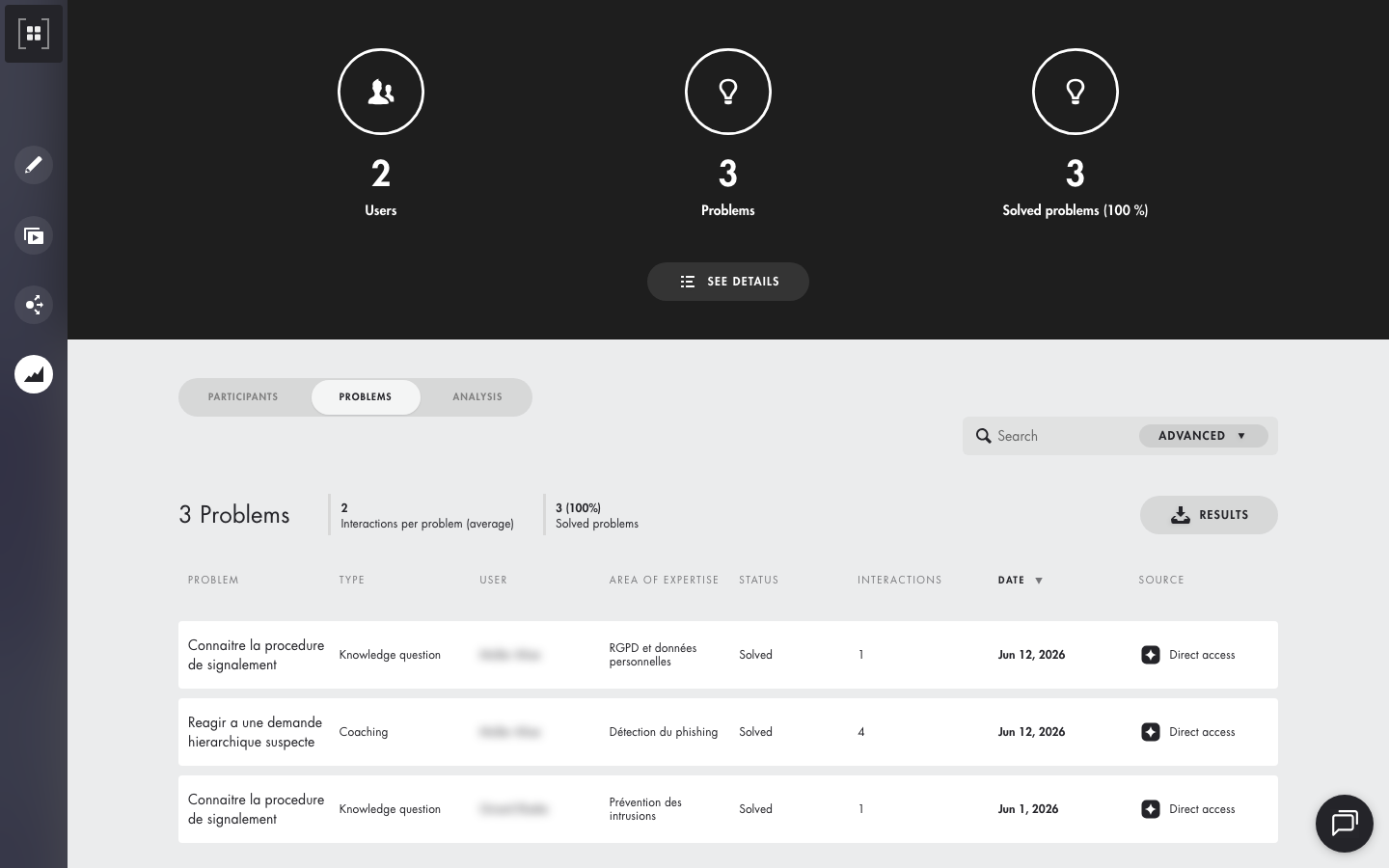
This view helps you identify the most frequent issues and track how well they are resolved.
View the analyses
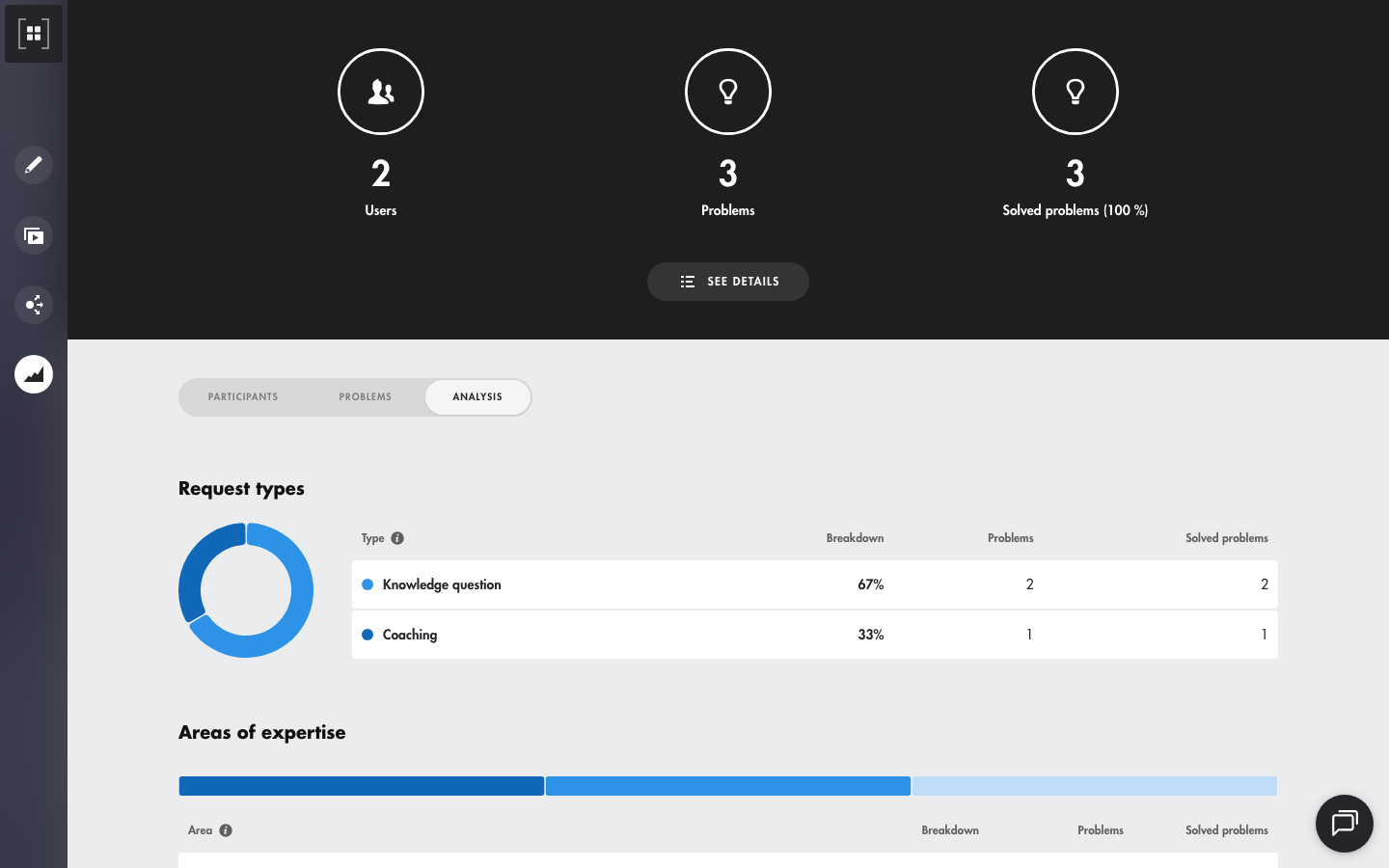
The "Analysis" tab gives a summary view of the Coach Expert's activity.
Analyze request types
The "Request types" section shows how requests are split by type:
- coaching;
- knowledge question.
For each request type, the following indicators are available:
- the percentage split;
- the number of problems;
- the number of problems resolved.
This data helps you identify the main uses of the Coach Expert.
Analyze areas of expertise
The "Areas of expertise" section highlights the topics learners ask about most.
For each area of expertise, you will find:
- the split of requests;
- the number of problems;
- the number of problems resolved.
These indicators help you identify the topics worked on most, measure how well they are resolved and adapt your content or your support strategy accordingly.
Identify the most frequent problems
The "Most frequent problems" section helps you spot the topics that come up most often among the problems raised by your learners. Click "Run analysis": the analysis is generated automatically by AI from the interactions with the Coach Expert.
The analysis is generated on the fly: if you leave the page, it is not saved.
Export the results
In the "Participants" and "Problems" tabs, click the "Results" button to download the Coach Expert results in Excel format.
The export from the "Participants" tab contains, for each learner:
- the first and last name;
- the email address;
- the time spent;
- the number of problems;
- the number of problems resolved;
- the date of the last problem.