
This article helps you create your Teach Up account and log in for the first time. It only takes a few minutes.
 | You are a learner You have been given a course, an assessment or a training path. Create my account and log in → |
 | You are an author or administrator You create or manage your organization's activities. Finalize my author account → |
 | You distribute a course A one-page guide explains to your learners how to log in. Download the guide → |
Table of contents
- You are a learner
- Log in again later
- Trouble logging in?
- You are an author or administrator
- A guide to send to your learners
- Frequently asked questions
You are a learner
You received an assignment email
This is the most common case: your organization has assigned you an activity on Teach Up.
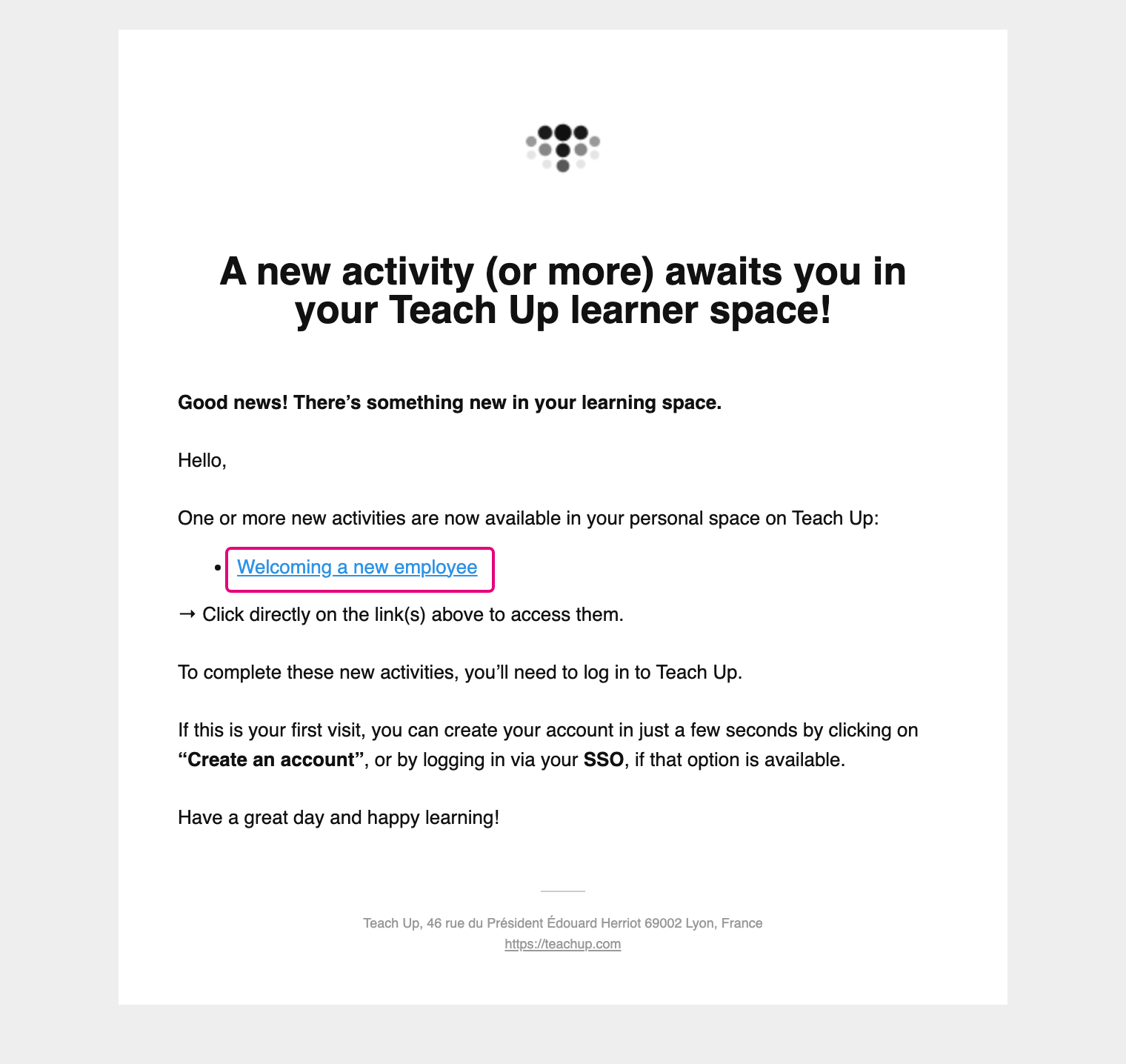
① Open the email from Teach Up. It is sent by noreply@teachup.com with the subject « A new activity (or more) awaits you in your Teach Up learner space! ». Click the name of the activity.
Click the image to open it in a new tab.
💡 Can't find the email? Check your junk mail folder. It is the only email you receive: there is no separate invitation.
② Create your account. Depending on your organization, there are two cases:
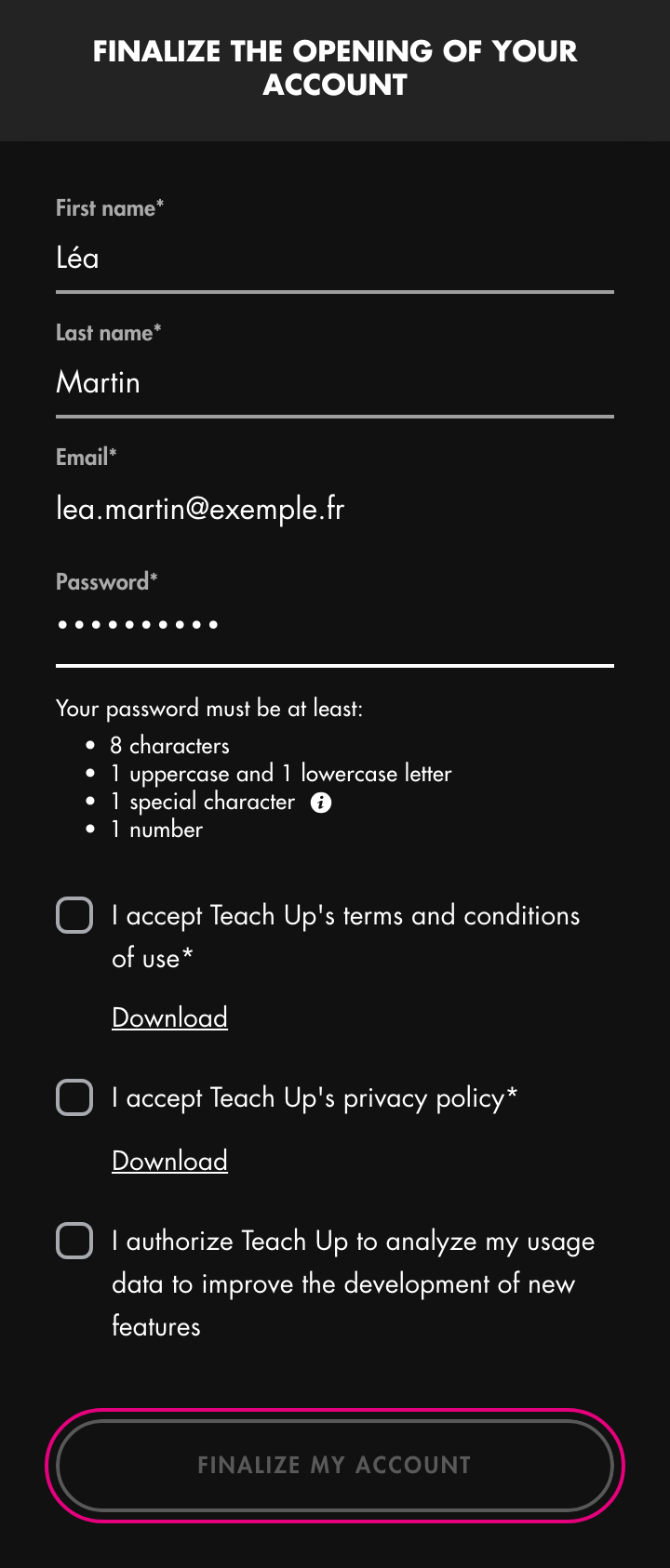
With a Teach Up password: the « Finalize the opening of your account » page opens, with your email address already filled in.
- Enter your « First name » and « Last name ».
- Choose a « Password » that meets the rules shown below the field (they depend on your organization).
- Tick the terms and conditions of use and the privacy policy.
- Click « Finalize my account ».
Click the image to open it in a new tab.
With SSO (Single Sign-On): click the « SSO » button followed by your organization's name, then log in with your organization's credentials and accept the terms and conditions of use. You don't need to create a Teach Up password: your account is created automatically with your first name, last name and email address.
The login method (Teach Up password, SSO or both) is set by Teach Up for each organization. If you don't know which one to use, ask the person who gave you the activity.
③ Access your activity. The activity opens. If the login page opens, log in with your email address and the password you have just chosen, or with SSO (see Log in again later).
⚠️ With a Teach Up password, create your account through the link in the email. Until your account is created, no password works on the login page.
You were given a direct access link
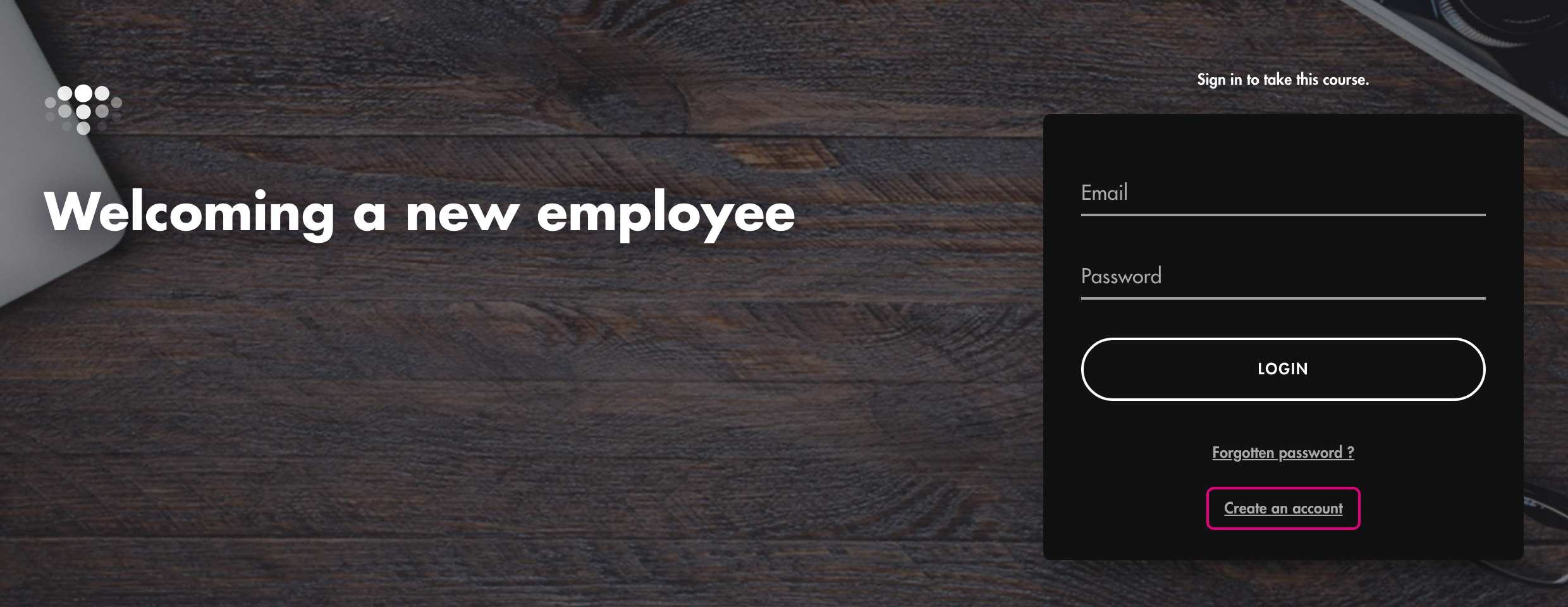
Your organization can also share the activity through a direct access link (on its intranet, for example). The activity login page opens: if you already have a Teach Up account, enter your « Email » and « Password », then click « Login ». For a first visit:
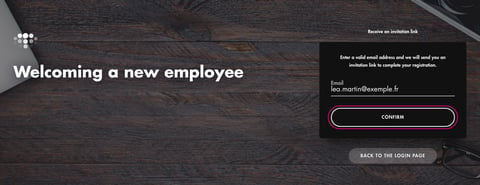
- Click « Create an account ».

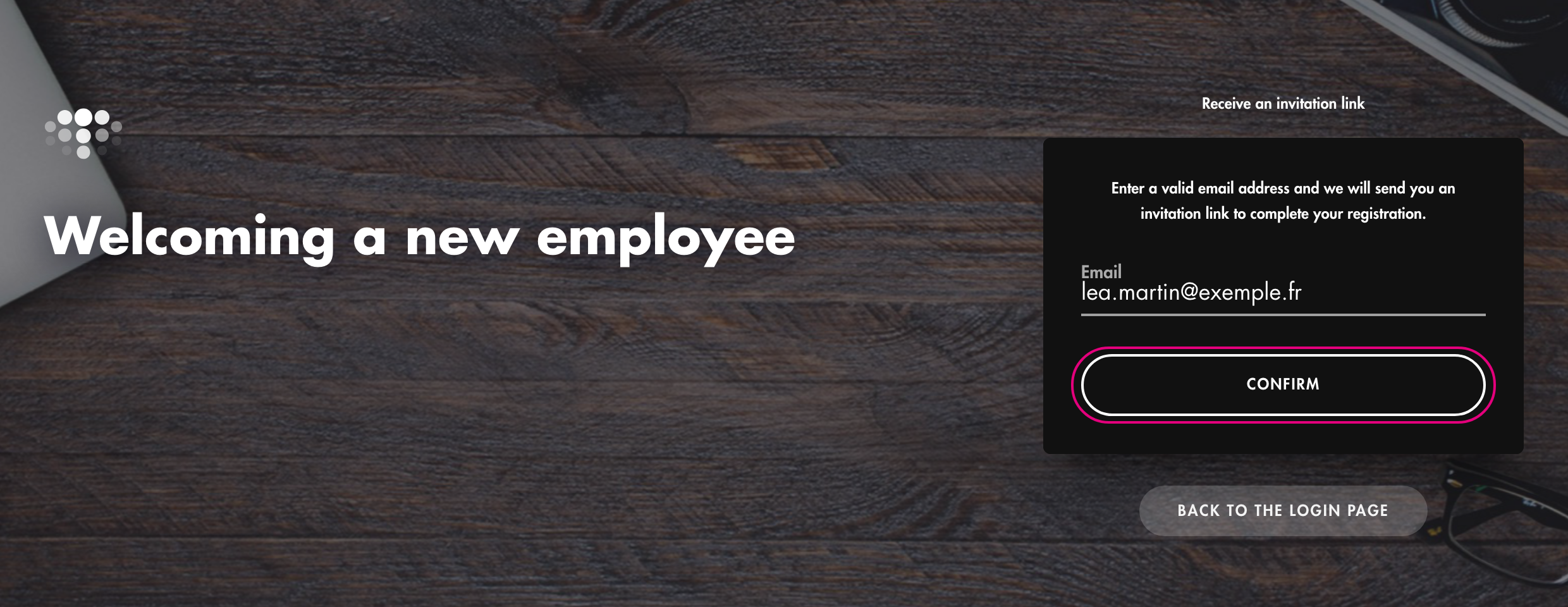
Click the image to open it in a new tab. - On the « Receive an invitation link » page, enter your « Email » and click « Confirm ». The message « Thanks! You will soon receive a link by email to finalize your account. » appears.
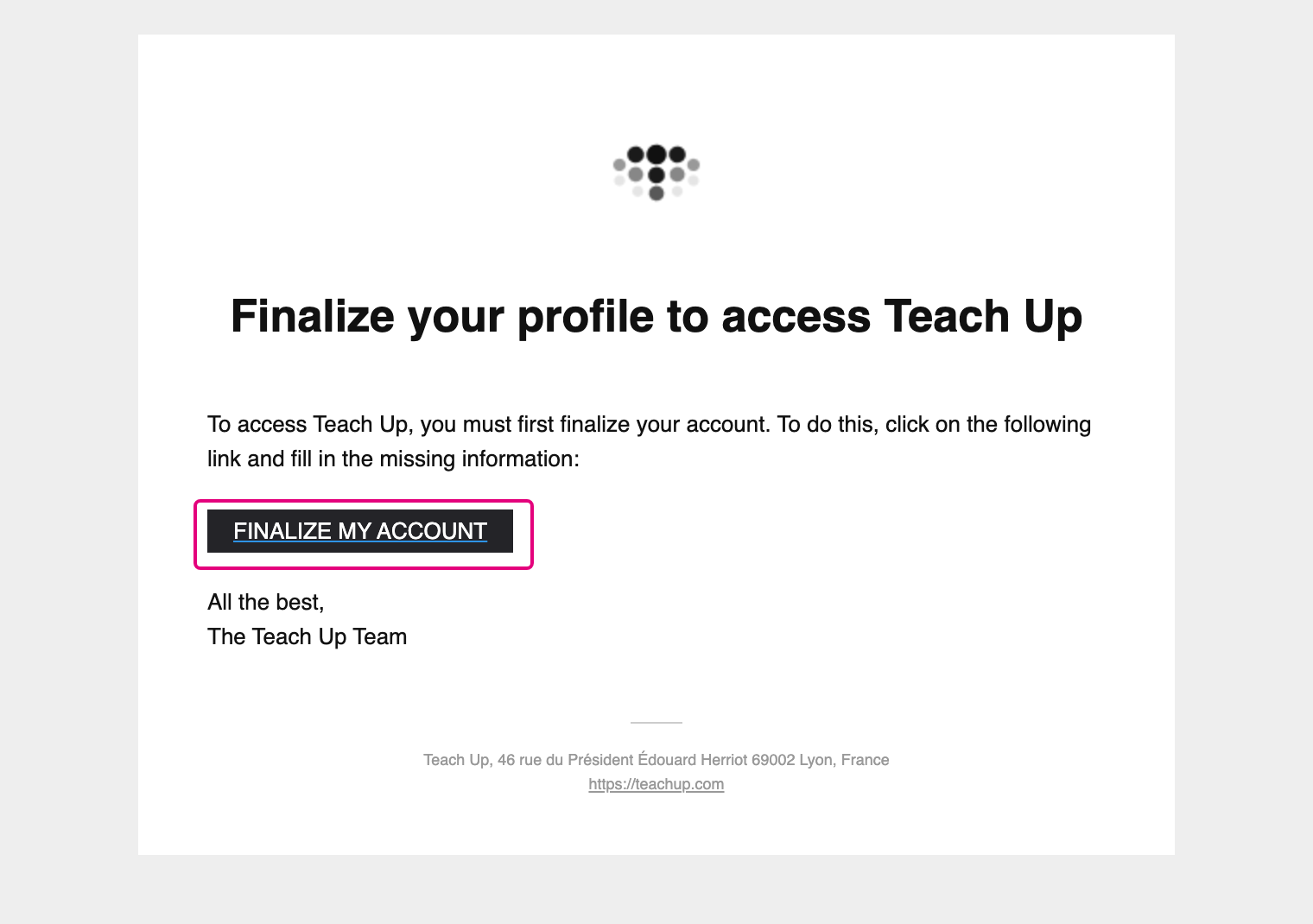
Click the image to open it in a new tab. - Open the « Finalize your profile to access Teach Up » email, sent by
noreply@teachup.com, and click « Finalize my account ».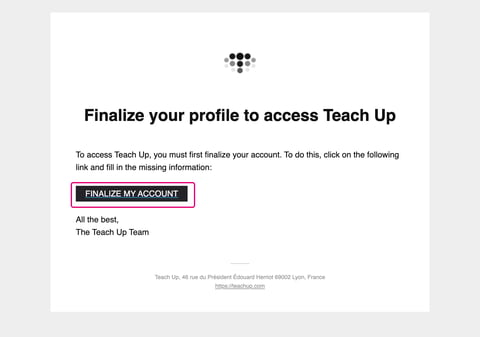
Click the image to open it in a new tab. - The « Finalize the opening of your account » page opens: fill it in as for an assignment (see above) and click « Finalize my account ».
- Next time, open the activity link again and log in.
💡 Didn't receive the email? Check your junk mail folder and the address you entered, then make a new request with « Create an account ».
Log in again later
Once your account is created, log in:
- learners: from the link in the assignment email, the direct access link, or at app.teachup.com/learner to find all your activities (if the learner space is enabled by your organization);
- authors and administrators: at app.teachup.com/author.
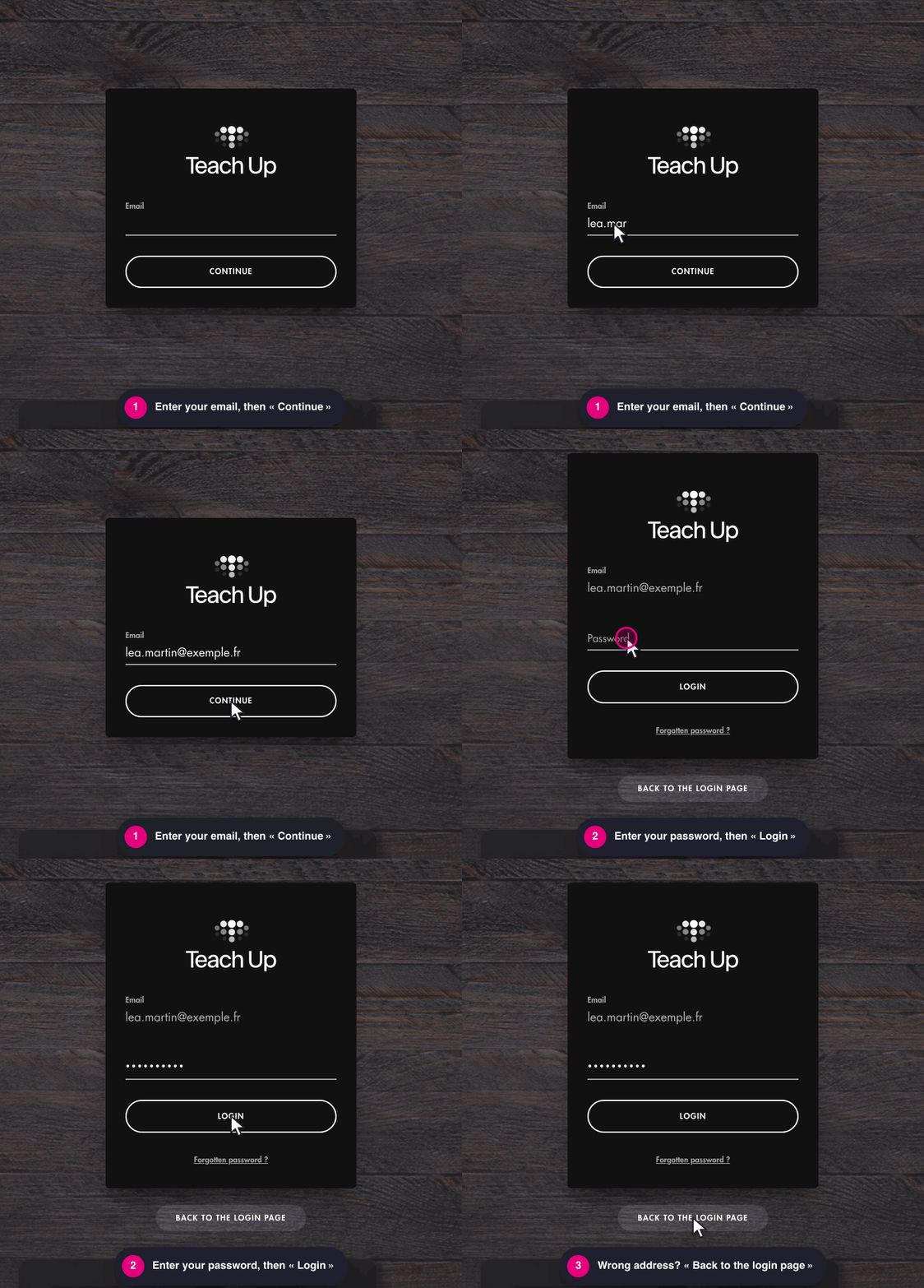
Logging in takes two steps:
- Enter your « Email » and click « Continue ».
- Enter your « Password » and click « Login ». To correct the address you entered, click « Back to the login page ».
Click the image to open it in a new tab.
With SSO: after you enter your email, an « SSO » button followed by your organization's name appears above « Or login by email: ». Click it and log in with your organization's credentials, without a Teach Up password.
Always use the email address you created your account with.
Trouble logging in?
- You forgot your password: on the second login step, click « Forgotten password ? », enter your email address and click « Confirm & Submit ». The link you receive by email is valid for one hour: after that, make a new request. With SSO, your password is managed by your organization: contact your IT department.
- You didn't receive any email: check your junk mail folder, then ask the person who gave you the activity to check your email address.
- A message says the username or password is invalid: if you have never created your account, go back to the link in the assignment email; otherwise, use « Forgotten password ? ».
👉 For other situations (activity that won't open, page stuck on « Loading »…), see How to troubleshoot learner access issues for a course, assessment, or training path.
You are an author or administrator
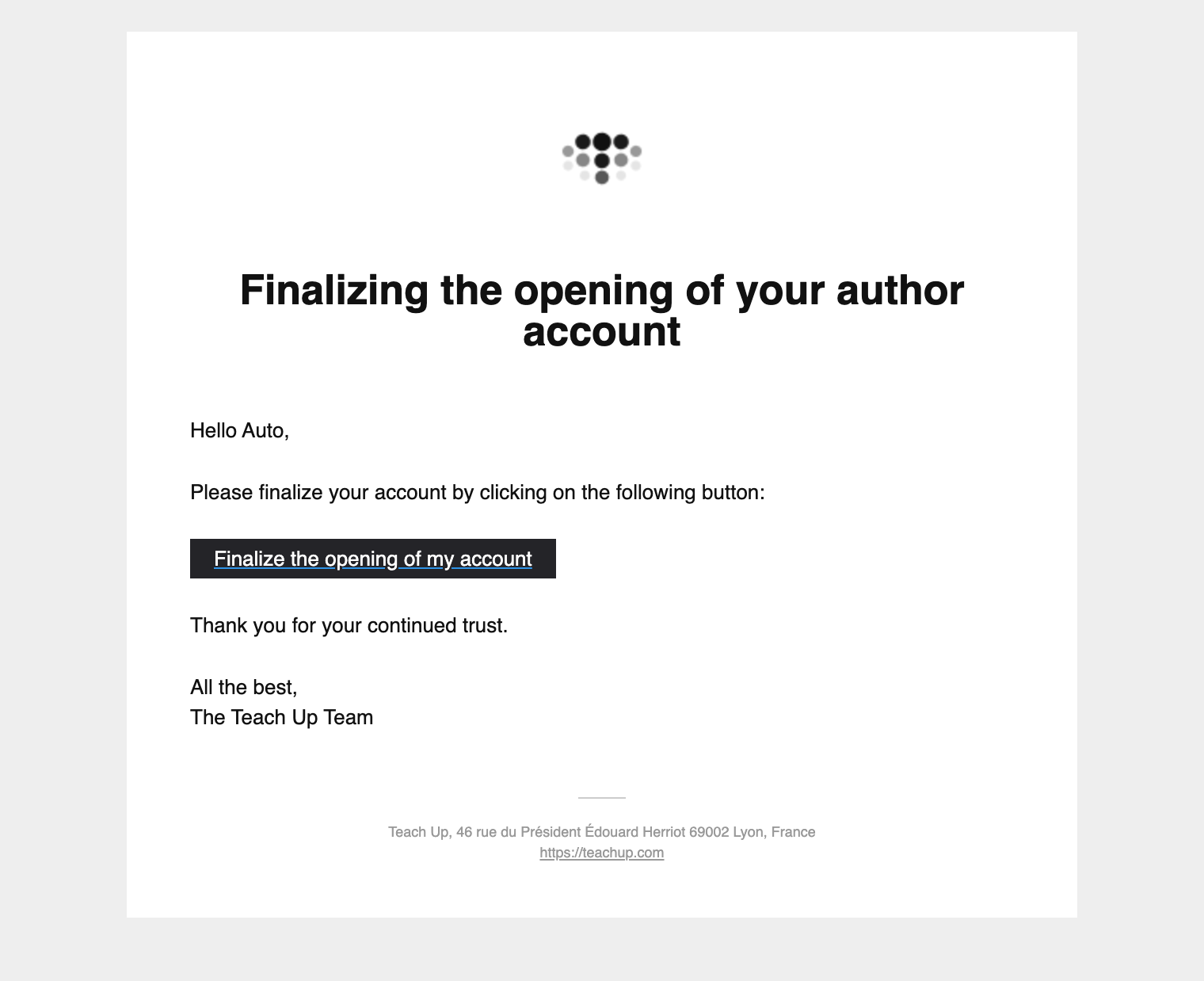
When you are added as an author, you receive the « Finalizing the opening of your author account » email, sent by noreply@teachup.com.
Click the image to open it in a new tab.
- In the email, click « Finalize the opening of my account ».
- On the « Finalize the opening of your account » page, enter your first name, last name and a password that meets the rules shown (the page is the same as for learners, see above).
- Tick the terms and conditions of use and the privacy policy.
- Click « Finalize my account ».
The studio opens. If the login page opens, log in (see Log in again later).
With SSO: after clicking « Finalize the opening of my account » in the email, click the « SSO » button followed by your organization's name, log in with your organization's credentials and accept the terms and conditions of use. Your account is created automatically.
✨ In the studio? Get started with our step-by-step guide: Create my first AI course in less than 15 minutes.
A guide to send to your learners
Distributing a course? Send your learners a one-page guide that explains, step by step, how to create their account and log in. Fill in the person to contact in the « Your contact for this training » area, then attach the guide to your email or post it on your intranet.
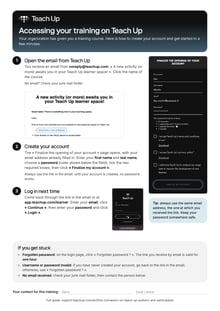 After an assignment Download the guide (PDF) · French version | 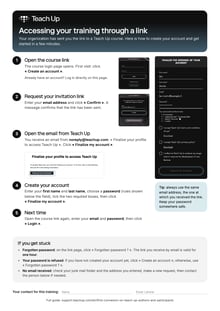 Through a direct access link Download the guide (PDF) · French version |
These guides cover login with a Teach Up password.
Frequently asked questions
Do I have to create an account to access activities?
Generally, yes. There are two exceptions:
- if your organization uses SSO, the account is created automatically at the first login;
- if the open link option is enabled for your organization, an activity shared by link can be taken without an account. This option is only enabled for some customers: contact your Teach Up representative to find out more.
Can assignment emails be customized?
No, the assignment emails sent by Teach Up cannot be customized. Other emails can be, such as automatic reminders. Each email is described in Emails sent by Teach Up.
In which language is account creation displayed?
- From the link in an assignment email or a direct access link: in the language of the activity.
- Otherwise: in the browser language. If it is not available, Teach Up uses the language of the author who made the assignment (French or English).