.png?width=46&height=30&name=Logo-symbol%20(1).png)
Lists are an efficient way to organize and structure content in your course or assessment. They allow you to present information clearly and orderly, enhancing comprehension and engagement for learners. In Teach Up, you can insert ordered or unordered lists, enrich them with images and colors, and add intro games to them.
Summary
- Insert a list in a course with the AI Assistant
- Insert a list manually in a course or assessment
- Add a step
- Activate intro games on a list
- Frequently Asked Questions
Lists can be inserted in a course or an assessment.
Insert a list in a course with the AI Assistant
To add a list with the AI Assistant, follow these steps:
- Make sure you have completed the AI Assistant configuration.
- Click “+” to open the content addition bar.
- Select “List”
 .
. - Click “Create with AI”.
- You have two options:
- Type a topic freely: enter the theme you want;
- Or click “Use the training plan”: choose a theme automatically generated from the instructional design.
- Click the “Generate” button.
The list title, the steps and their texts are generated automatically.
Insert a list manually in a course or assessment
To add a list, follow these steps:
- Click “+” to open the content addition bar.
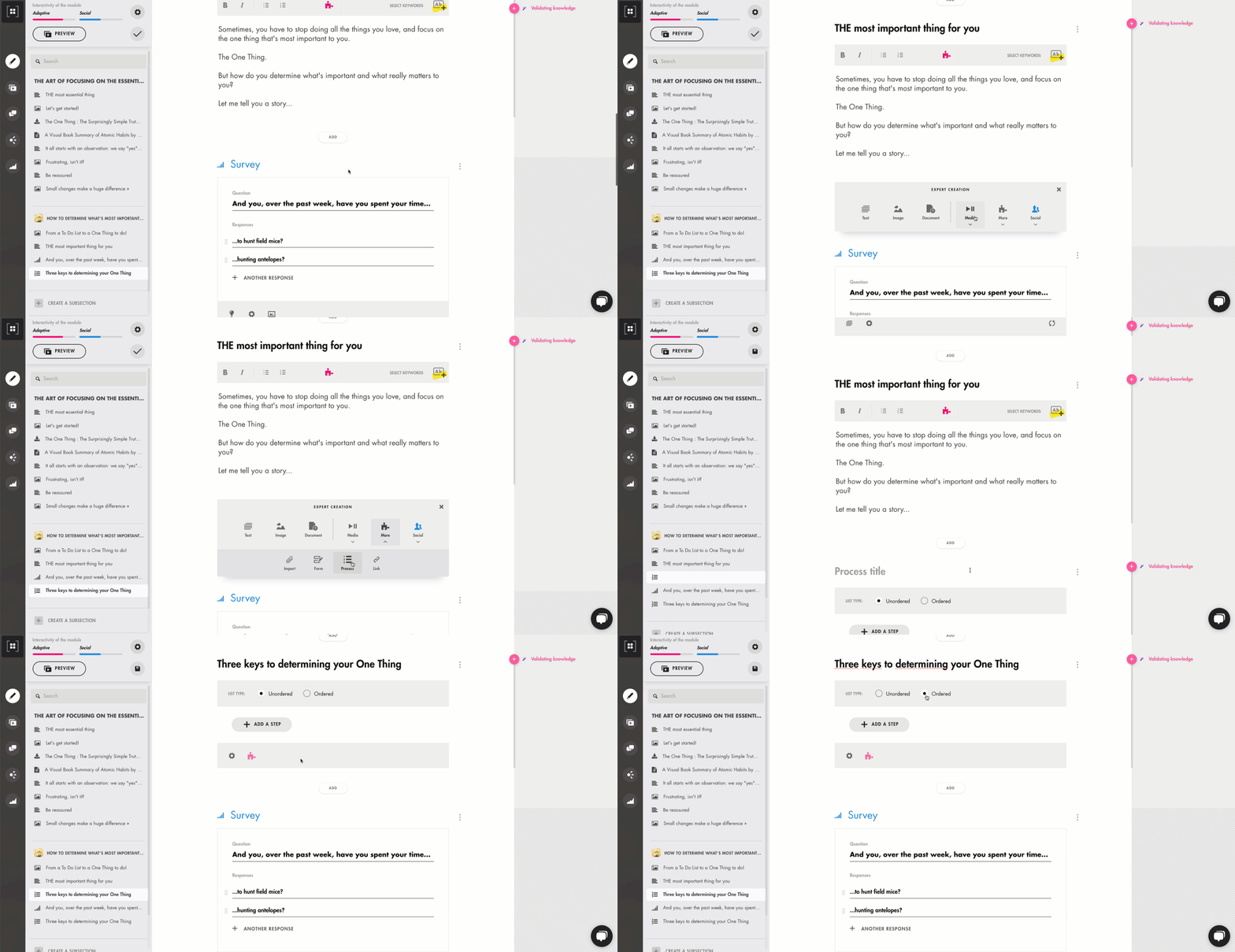
- Select “List ”.
- Insert the title of your list.
Click on the image to open it in a new tab

Choose the type of list
After entering the title, you can choose between two types of lists:
-
Unordered list: The steps do not follow a specific order. Learners can explore the steps in any order they prefer. This is the default list type in Teach Up.
-
Ordered list: Learners must follow the steps in the order you designed. Step 1 must be completed before Step 2 is unlocked, and so on.
Configure the list
Click the gear icon  to open the list configuration panel. You can enable or disable the “Make discovering all the steps mandatory” option.
If this option is enabled, learners must view all the steps in the list before proceeding with the course or assessment.
Add a step
To add a step, follow these instructions:
- Click on the “Add a step” button.
- Add the title and the text content for your step by either typing or copying and pasting the desired text into the designated fields.
- You can format your text with bold and italic options available in the toolbar.
Configure a step
Once your step is created, you can configure it according to your specific needs.
-
Add color to your step (optional): Teach Up automatically generates a color for each step, but you can change it by clicking on “Bullet point color”. Select the color of your choice from the palette, or enter an HTML color code in the “Custom color” field.
-
Add an image (optional): You can associate a visual or illustration with your step by clicking on the image icon
 . Upload the desired image from your computer. You can also remove the image anytime by clicking the cross icon
  at the top-right corner of the image.
Click the “Confirm” button to save and validate your step.
Reorder the steps
To reorder the steps, click on the icon located at the top left above the title of your step, then drag it before or after another step.

Click on the image to open it in a new tab
Modify or delete a step
You can modify or delete a step at any time by clicking on the pencil icon  to edit or the cross icon to delete, both located at the top-right of the step.
Activate intro games on a list (courses only)
To activate an intro game on a list, follow these steps:
- Click on the pink puzzle piece
 below your list.
 - Select “Automatically generate interactive games”.
This intro game related to the list will appear before learners can view the list, serving as an introduction to the topic.
There are two intro games for lists:
- matching each title with its description: learners match each step title with its description;
- putting the steps back in order: learners rebuild the correct order of the steps.
Learn more about how intro games work on a list in this article.
Frequently asked questions
Can I use a list in an assessment?
Yes, the list is available in both courses and assessments. Note, however, that intro games on lists are only available in courses.
What is the difference between an ordered list and an unordered list?
In an unordered list (the default type), learners can view the steps in any order they like. In an ordered list, the steps are unlocked one after the other: step 2 only becomes available after step 1.
How do I make viewing all the steps mandatory?
Enable the “Make discovering all the steps mandatory” option from the gear icon, in the list configuration panel.