.png?width=46&height=30&name=Logo-symbol%20(1).png)
Games make your courses interactive. There are two families of games: they look alike to the learner, but they don't work the same way.
| Intro games | Question games | |
| On what? | A text, an image or a list | A knowledge question (course) or an assessment question |
| When? | Before the learner discovers the content | After the content, then during reinforcement (course) |
| Where? | Courses only | Courses (7 games) and assessments (6 games) |
| Counts towards mastery? | No | Yes |
To understand when each game appears during the course, see Knowledge questions and games: what the learner experiences.
Table of contents
Intro games
An intro game is displayed before the content, to spark the learner's curiosity and introduce what's coming. The learner then sees the full content. On a text, they therefore see the same text twice: this is normal.
| Game | The learner… | Content |
| Scratch | reveals a hidden word | Text |
| Fill in the blanks | types the missing words | Text |
| Labels to place | drags labels to the right spots in the text | Text |
| Choice in a list | picks the right word from a drop-down list | Text |
| Find the errors | clicks on the incorrect words to cross them out | Text |
| Find areas | clicks on the right area of the image | Image |
| Name an area | types the name of the area pointed out | Image |
| Match the right title | matches each description with its title | Unordered list |
| Put the steps in order | puts the steps back in the right order | Ordered list |
On a text
Intro games only use the words you highlighted in the text. Enable them with the « Puzzle » icon in the text toolbar: the steps are described in Insert text in a course or an assessment. The learner only sees one of these games, chosen according to their path.
Scratch
A word is replaced by a question mark: the learner clicks on it to reveal it.
💡 Useful to introduce key words or create a discovery effect.
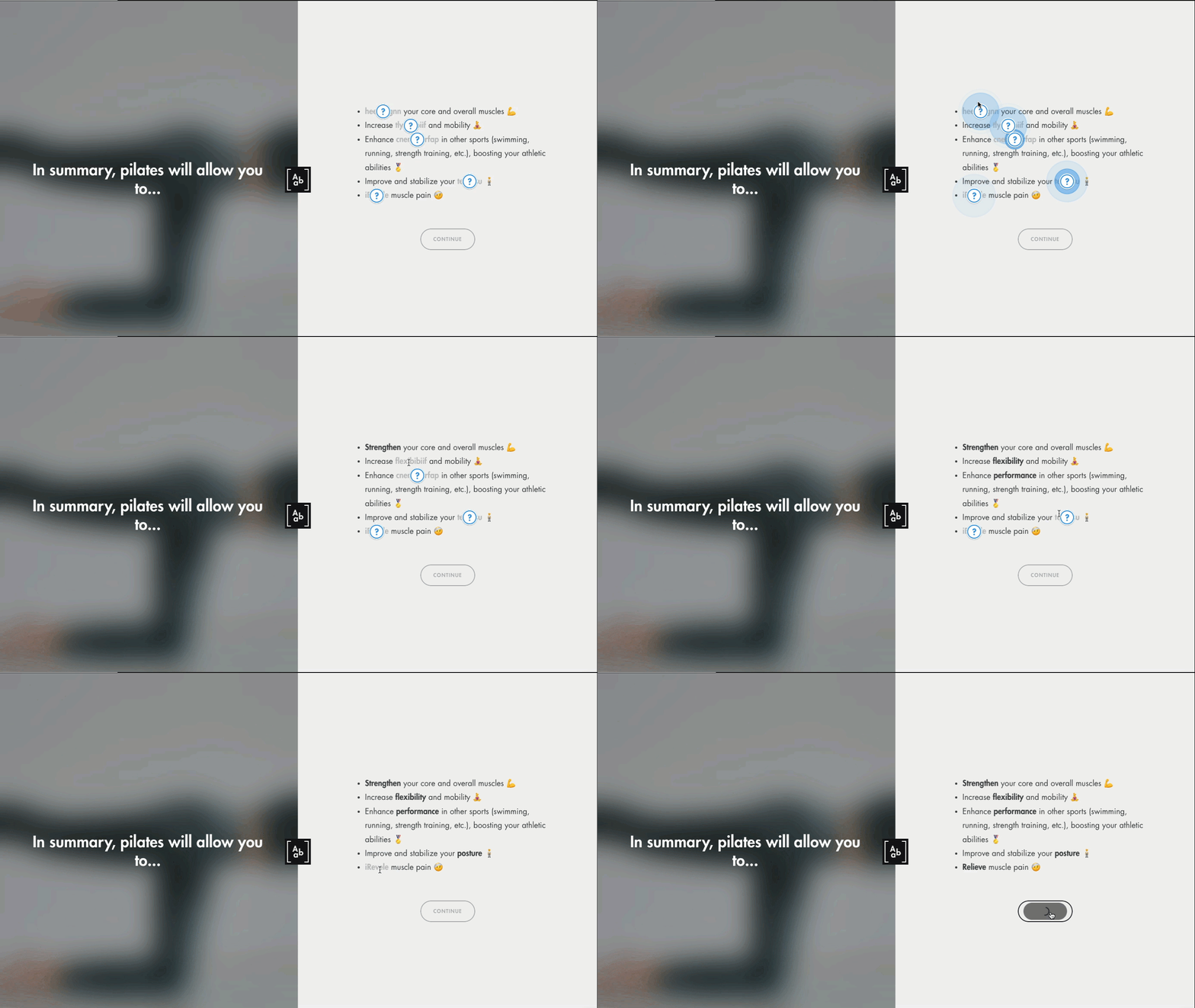
Click on the image to open it in a new tab
Fill in the blanks
The learner types the missing words.
💡 Useful to reactivate knowledge before the content.
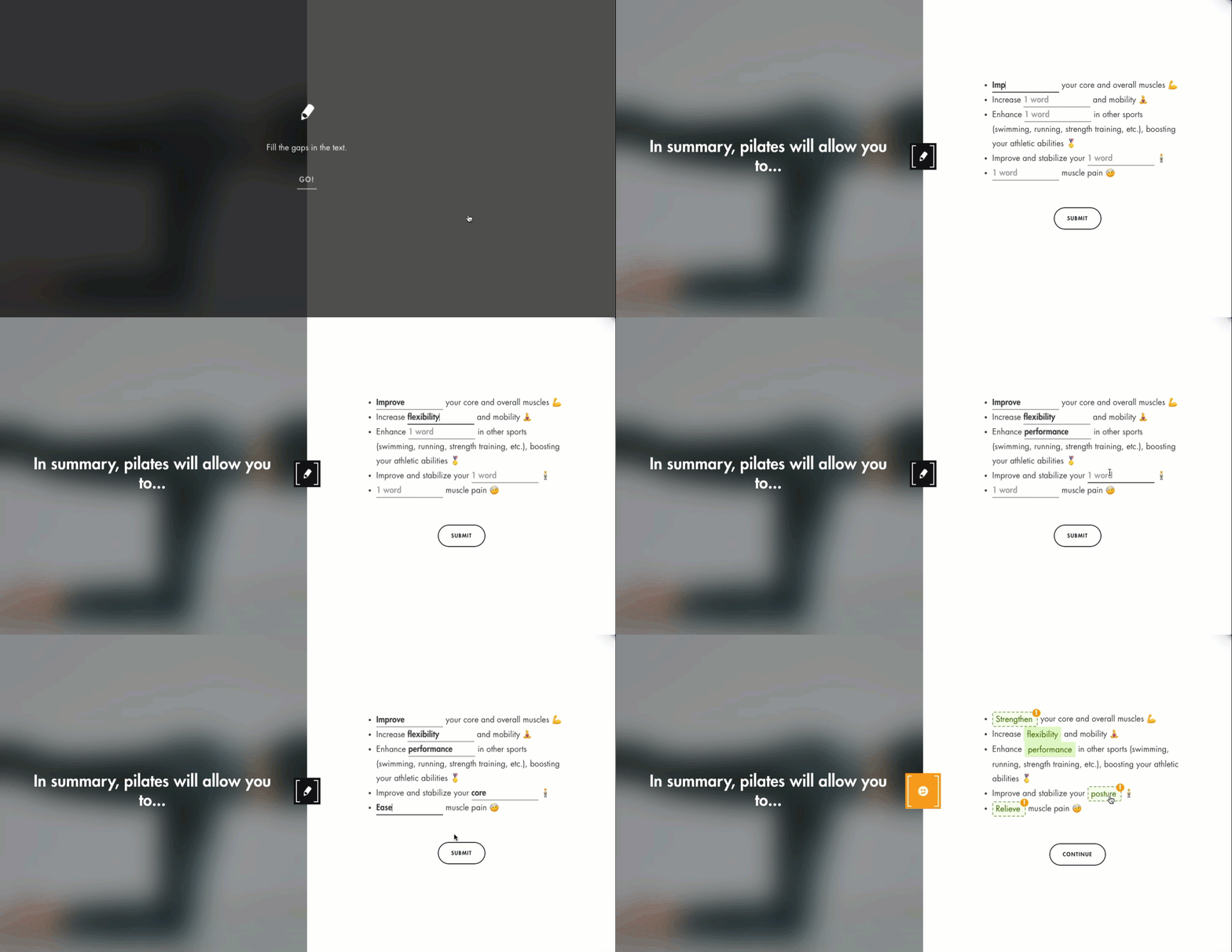
Click on the image to open it in a new tab
Labels to place
Labels appear below the text: the learner drags them to the right spots.
💡 Useful to link words to a context.
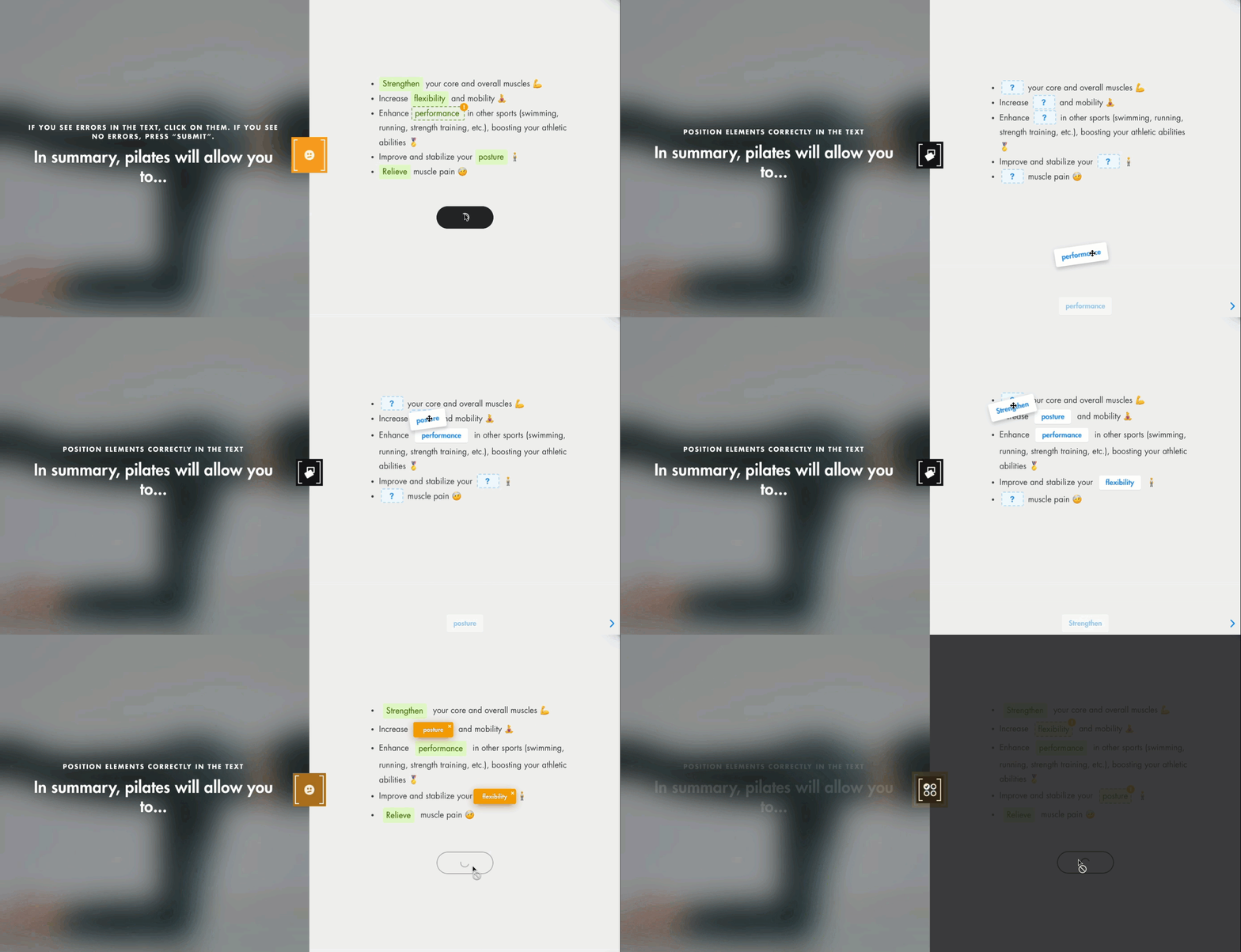
Click on the image to open it in a new tab
Choice in a list
Some words are missing: the learner clicks on them and picks the right option from a drop-down list.
💡 Useful to tell similar notions apart.
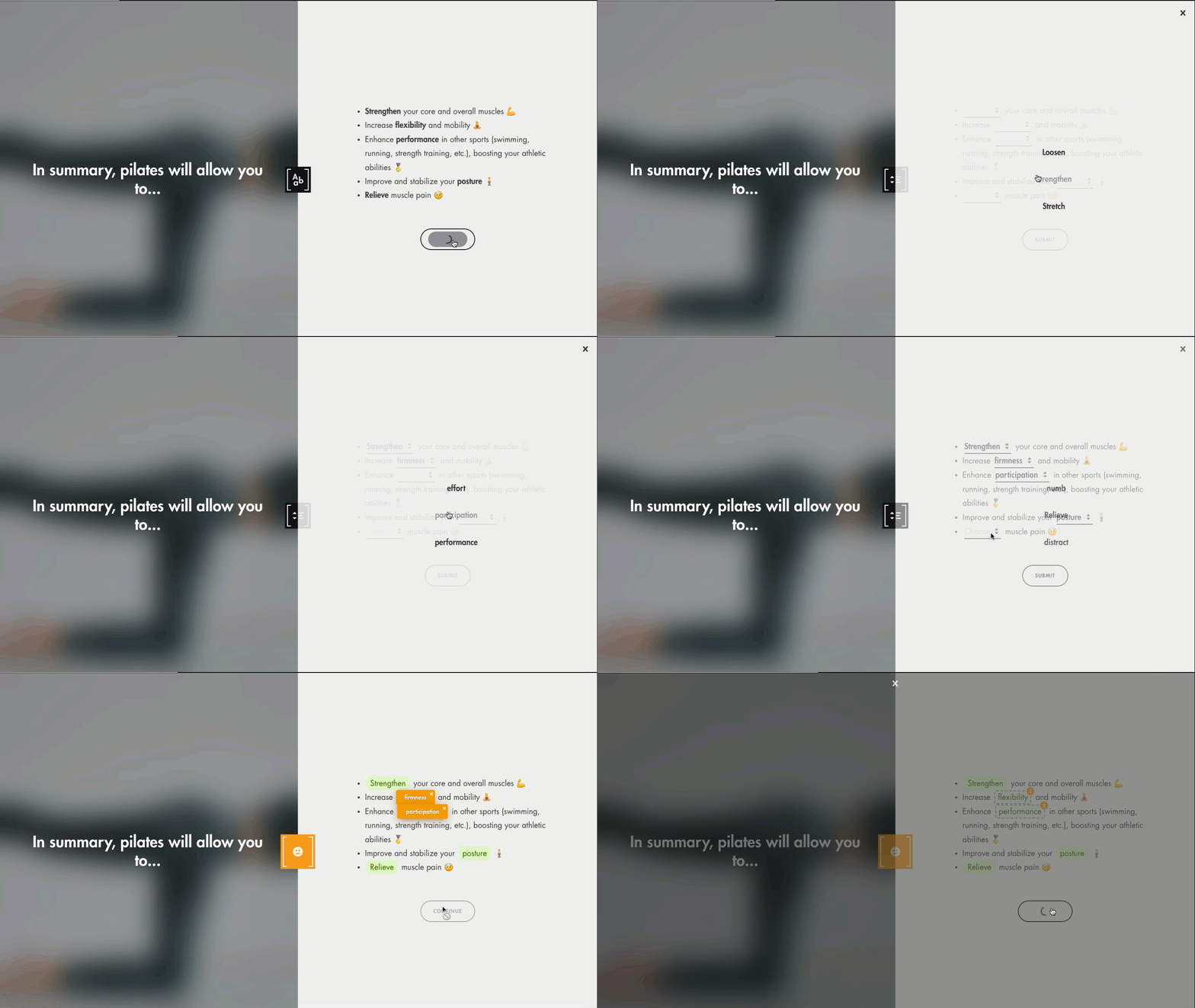
Click on the image to open it in a new tab
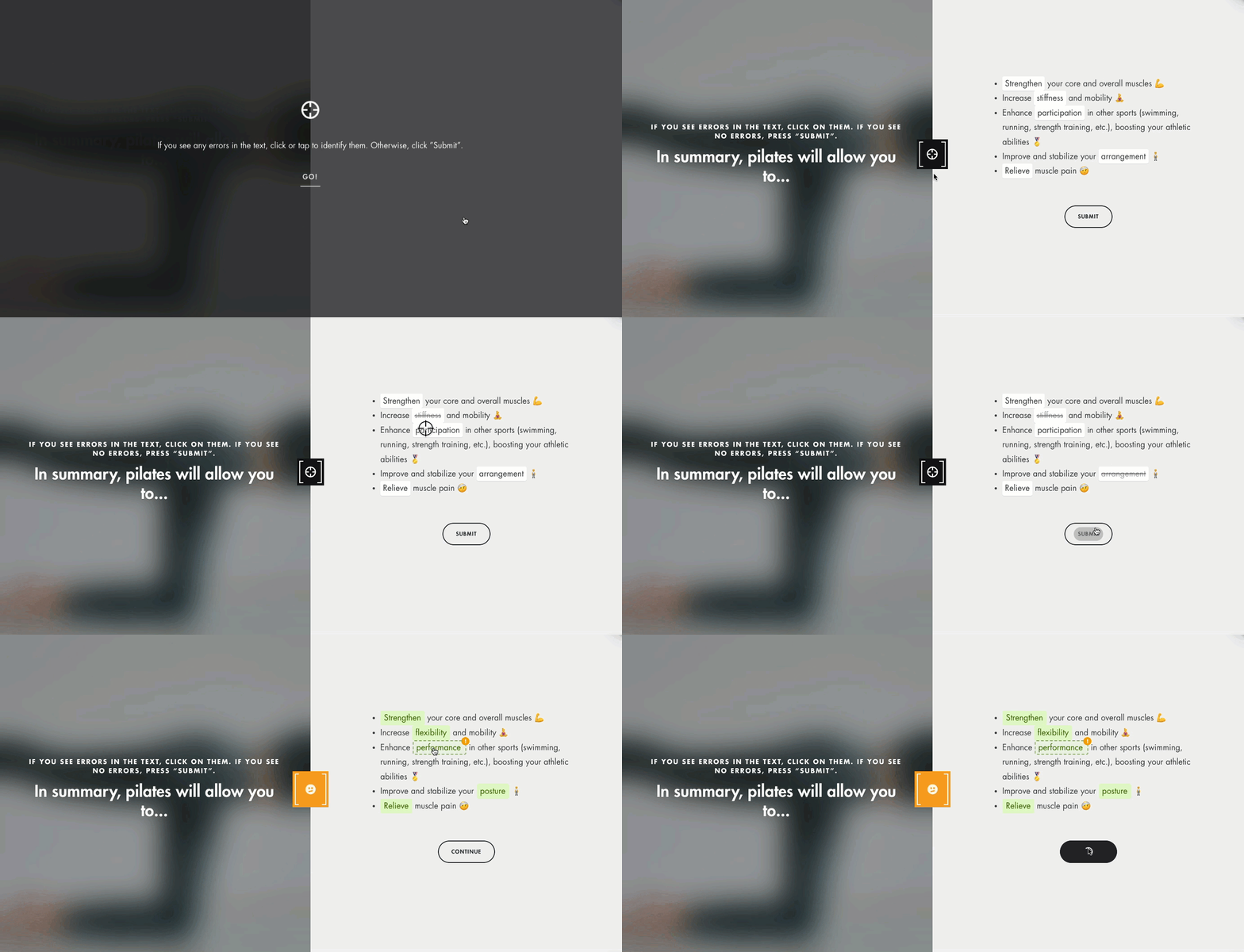
Find the errors
The text deliberately contains errors: the learner clicks on the incorrect words to cross them out.
💡 Useful to correct misconceptions.
Click on the image to open it in a new tab
On an image
Enable the games with the « Puzzle » icon below the image. See Insert an image in a course or an assessment.
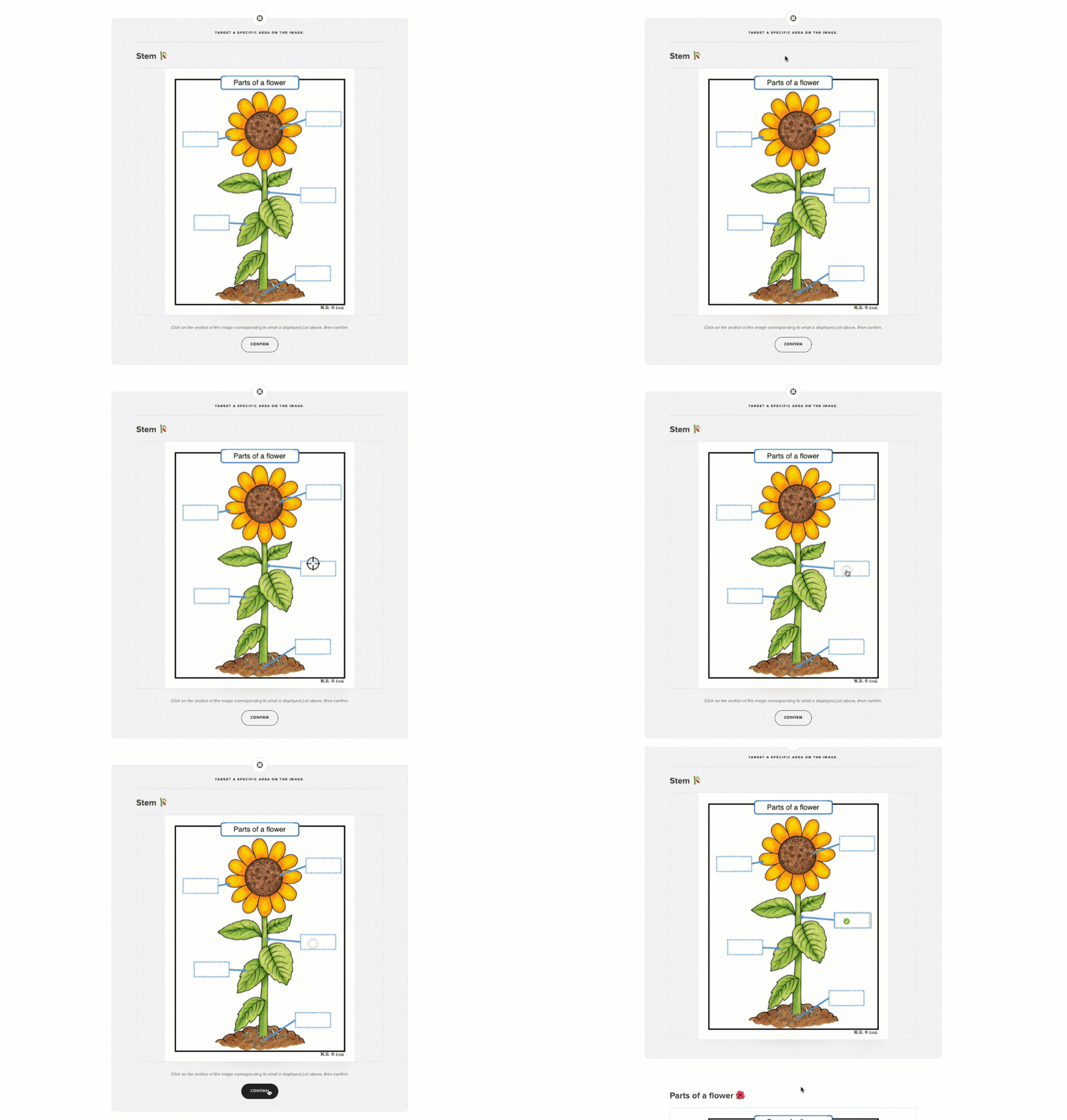
Find areas
The learner clicks on the right area of the image in response to an instruction.
💡 Useful to locate a feature, a component, a geographical area…
Click on the image to open it in a new tab
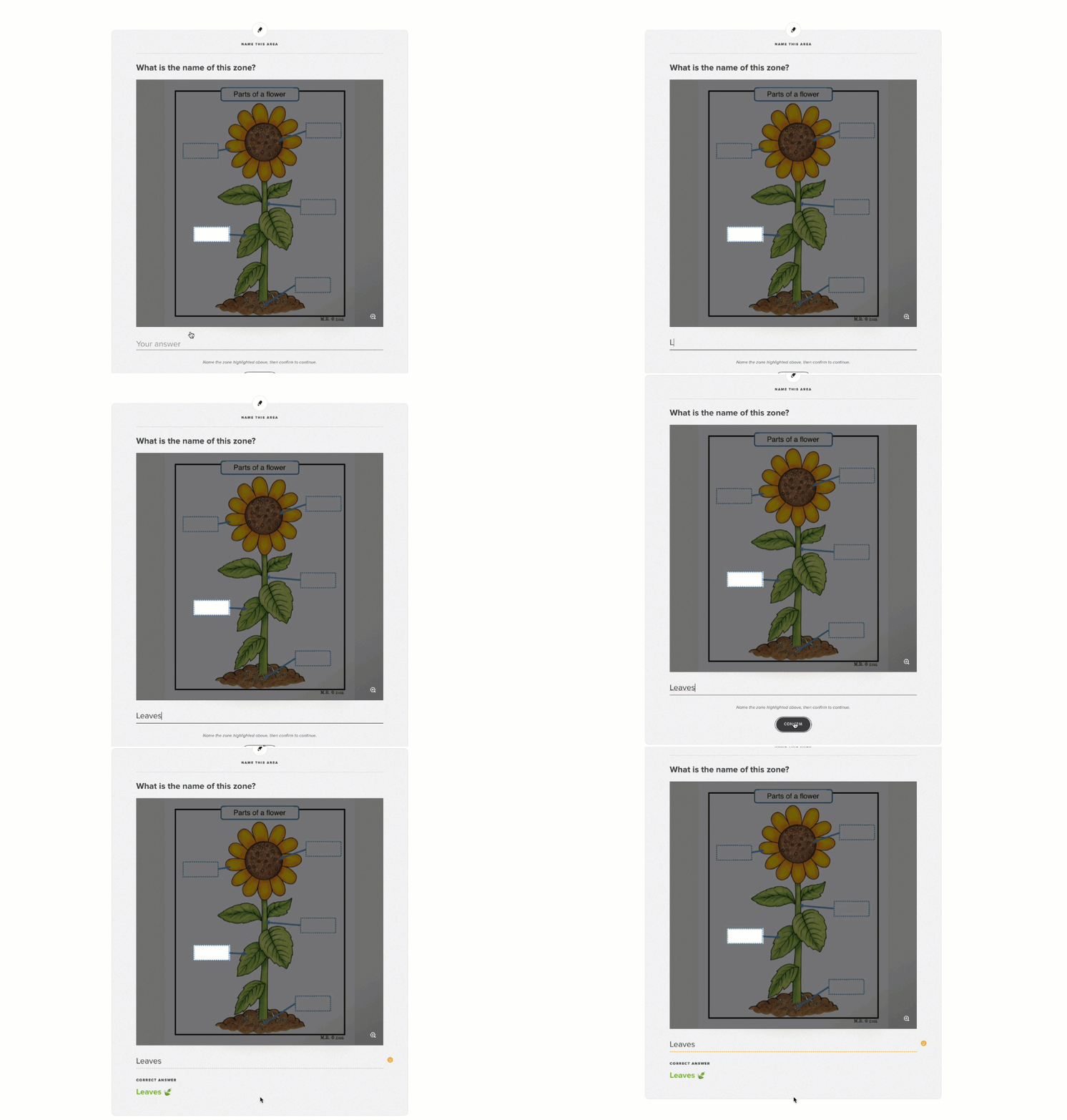
Name an area
An area of the image is pointed out: the learner types its name. The synonym dictionary is enabled by default, to accept close answers.
💡 Useful to check the vocabulary related to an image.
Click on the image to open it in a new tab
On a list
Enable the games with the pink puzzle piece below the list. The game depends on the type of list. See Insert a list in a course or an assessment.
Match the right title to each description
On an unordered list, the learner matches each description with its title.
💡 Useful to classify types or tell similar notions apart.
Put the steps in order
On an ordered list, the learner puts the steps back in the right sequence.
💡 Useful for a procedure, a process or a timeline.
Question games
Knowledge questions in a course and questions in an assessment are asked as games. There are seven of them in a course; six are available in assessments, where Hidden answer doesn't exist. In a course, you choose the games in the question's « More options », under « Question types generated ». In an assessment, first enable « Customize the question types ».
The conditions of each game
A game is only generated if the question meets its conditions. Otherwise, « insufficient data to be generated » is displayed next to it: hover over the i icon to see what's missing. You can still select it: it will be used as soon as the conditions are met.
| Game | The learner… | Conditions for the game to be generated |
| Open-ended question | types the answer | A single-choice question (one correct answer) |
| Multiple choice | picks the correct answer(s) among the options | At least one wrong answer |
| Swipe Cards | swipes each statement to « True » or « False » | A correct answer is enough (wrong answers add statements) |
| Mystery Card | picks among three cards, one of them hidden | One correct answer and at least two wrong answers, under 100 characters |
| Words Master | finds the correct answer in 3 attempts | One correct answer of 7 words maximum |
| Word Search Puzzle | finds the correct answer in a grid of letters | One correct answer and at least one wrong answer, each a single word of 3 to 10 letters |
| Hidden answer | spots the correct answer in the text of the content | One correct answer, a single word, which appears in the text of the content the question is attached to. Courses only. |
Words Master and Word Search Puzzle are not available in all languages. Words Master, Word Search Puzzle and Hidden answer are flagged as not suitable for learners with accessibility constraints.
To get all the games, write one short correct answer (a single word if possible) and at least two wrong answers.
Swipe Cards are not displayed if the answers are pairs of opposites such as Yes / No, True / False, Agree / Disagree or Totally / Not at all, to avoid confusion with the « True » and « False » buttons. Rephrase the answers (for example « Yes, I agree ») to use this game.
The seven games in detail
Open-ended question
The learner types the full answer. In the question's « More options », choose the correction method: Broad (the meaning of the answer), Approaching (keywords, typos tolerated) or Strict (exact terms). This game isn't recommended for long or complex answers.
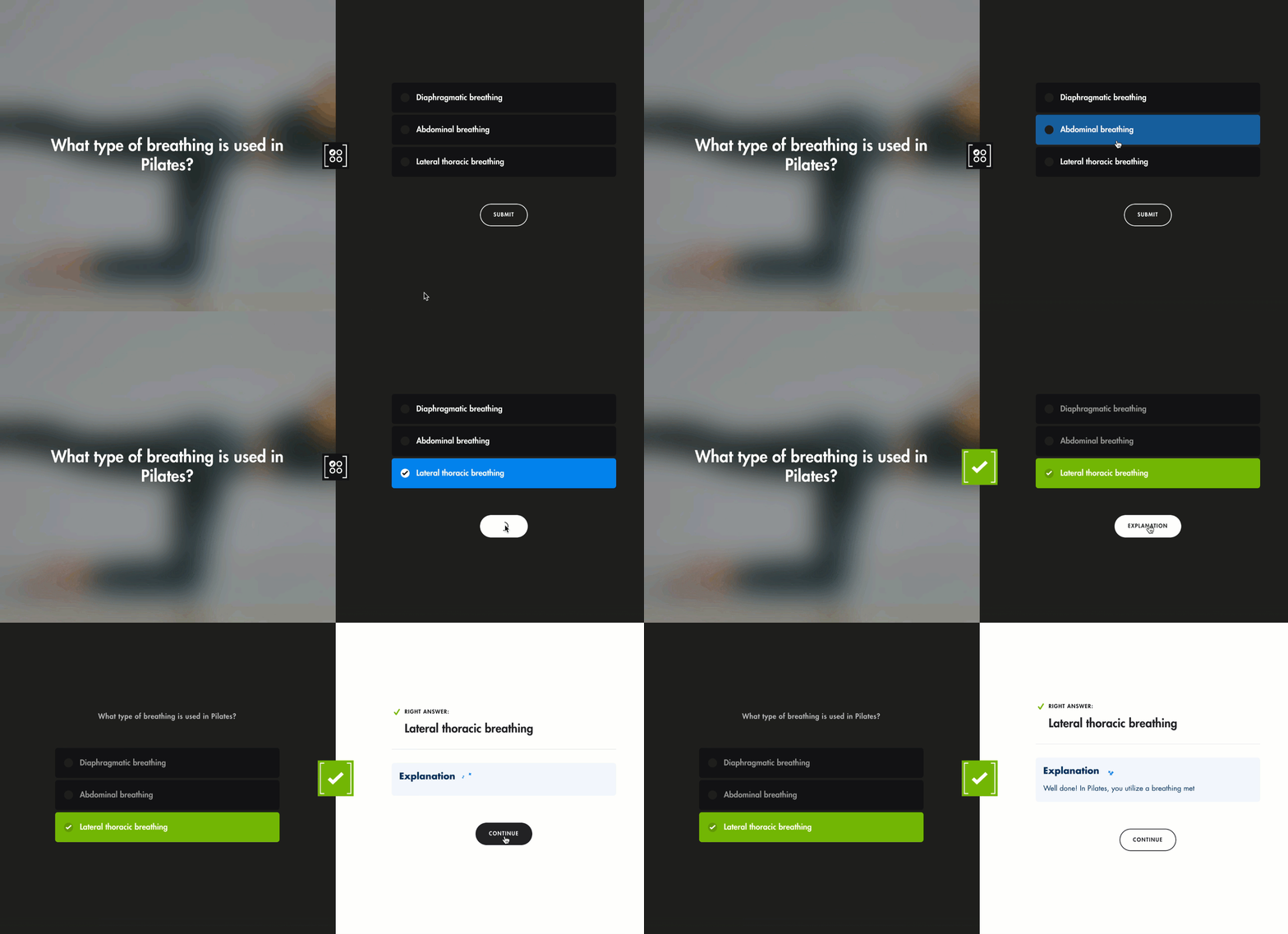
Multiple choice
The learner picks the correct answer(s) among several options. This format is ideal when all the answers need to be seen before deciding.
Click on the image to open it in a new tab
Swipe Cards
The learner swipes each statement to « True » or « False ». Useful to correct misconceptions or sort practices.
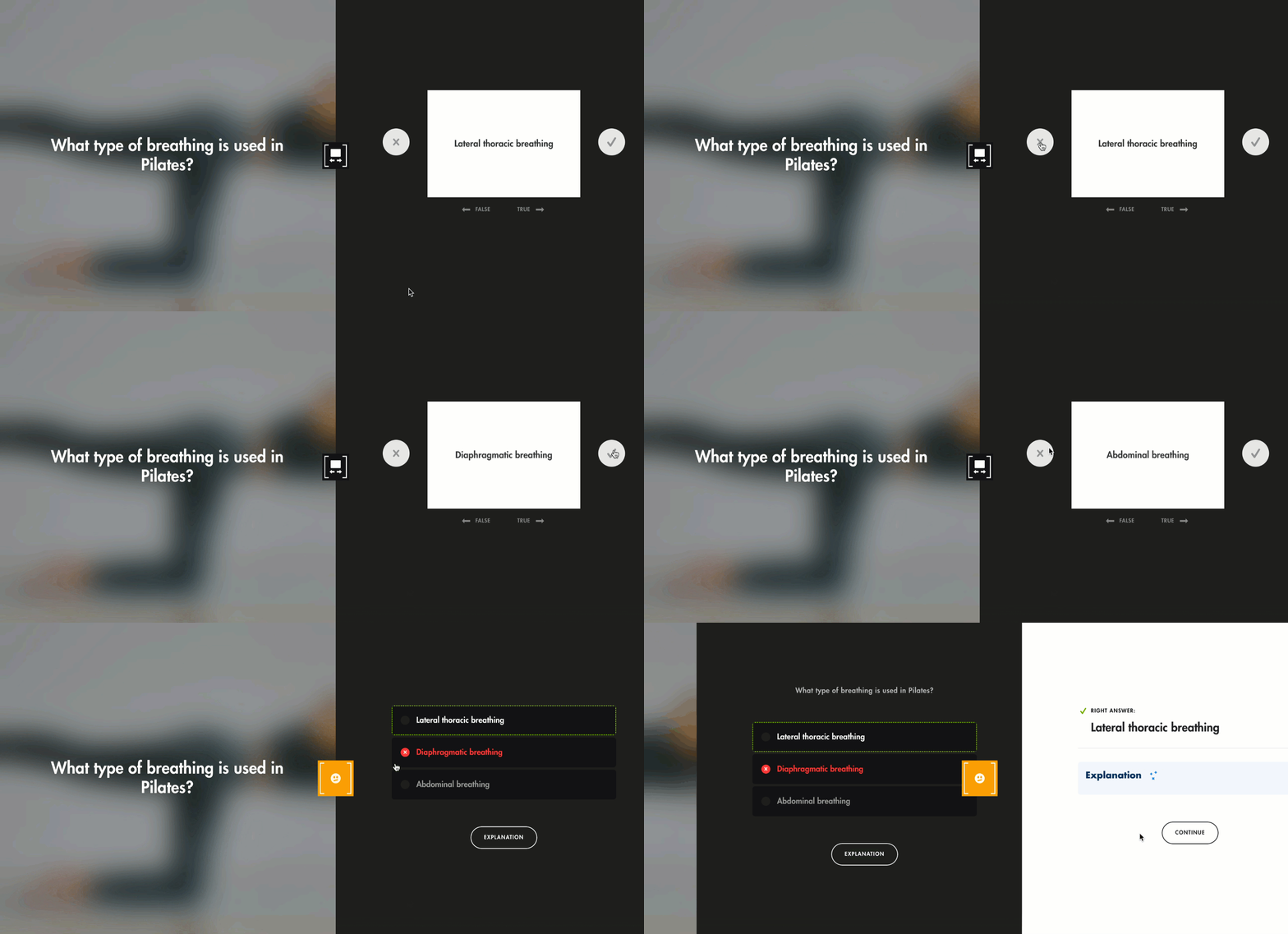
Click on the image to open it in a new tab
Mystery Card
The learner picks among three cards, one of them hidden. If none of the visible options seems right, they can pick the hidden card. This format adds a strategic element.
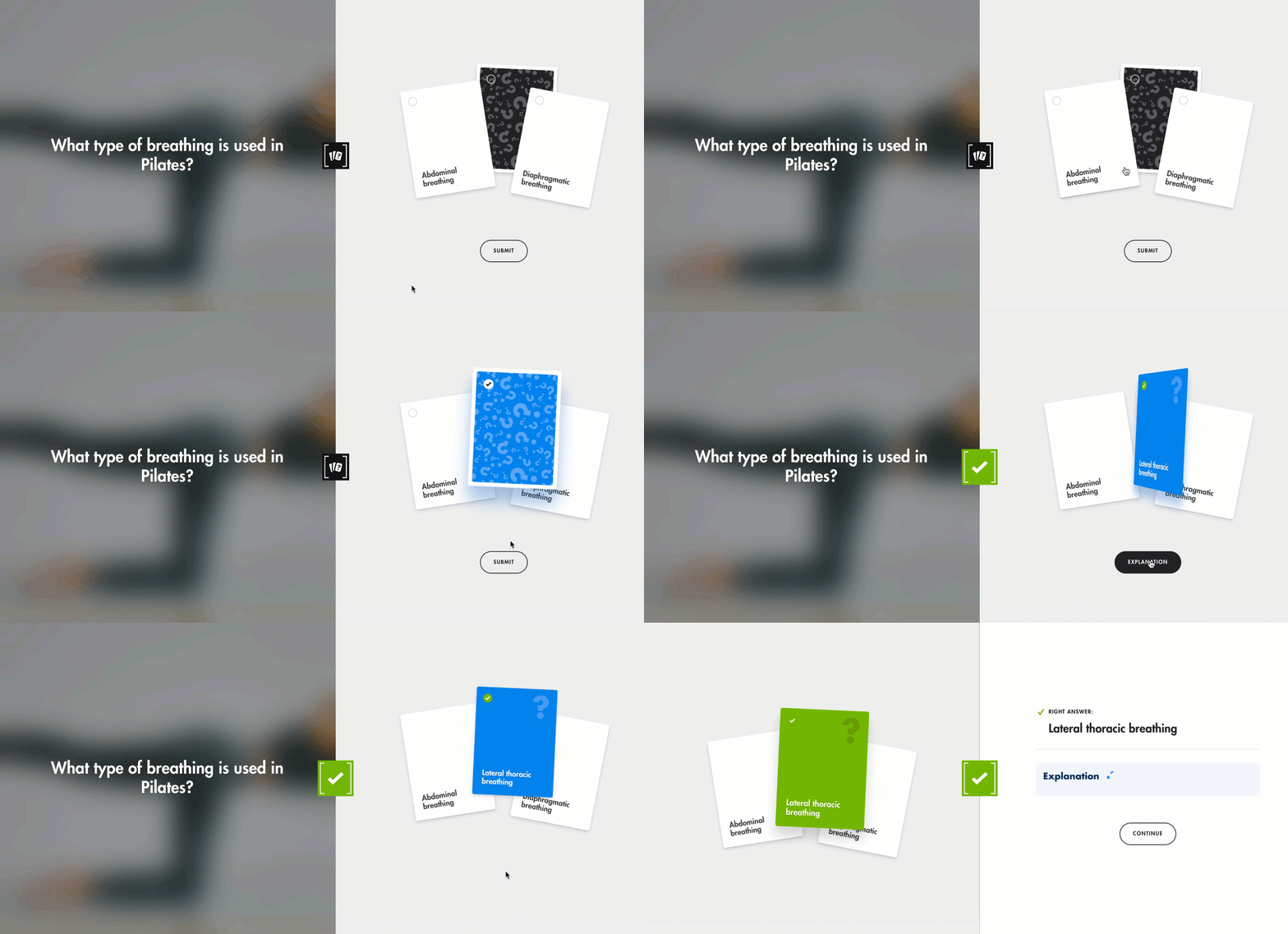
Click on the image to open it in a new tab
Words Master
The learner has 3 attempts to find the correct answer. With each attempt, Teach Up keeps the correct letters.
Word Search Puzzle
The learner looks for the correct answer in a grid: they select the first and then the last letter of the word.
Hidden answer
The learner spots the correct answer in the whole text displayed.
Frequently asked questions
Is there a categorization or sorting activity in Teach Up?
There is no game called « categorization », but three games let learners classify, sort or match items:
- Match the right title (intro game on an unordered list): the learner matches each description with its title. It's the closest to a categorization activity, to classify types or tell similar notions apart.
- Swipe Cards (question game): the learner swipes each statement to « True » or « False », to sort practices into two categories.
- Labels to place (intro game on a text): the learner drags words to the right spots in the text, to match terms with their context.
Do intro games count towards mastery?
No. Only knowledge questions count towards a course's mastery.
Can intro games be used in an assessment?
No. Intro games are only available in courses. Assessment questions, however, are asked as games: six of the seven games are available, without Hidden answer.
I selected all the games for a question: why does the learner only see one?
Each time a question is asked, the learner sees a single game. With Adaptive Learning, this game is chosen according to their level, and a failed question often comes back as another game during reinforcement.
A game I selected never appears. Why?
The question probably doesn't meet this game's conditions: check for « insufficient data to be generated » in « More options ».
Which games work best for accessibility?
Words Master, Word Search Puzzle and Hidden answer are flagged as not suitable for learners with accessibility constraints. Prefer games that can be used with a keyboard, such as Multiple choice or Open-ended question.