.png?width=46&height=30&name=Logo-symbol%20(1).png)
The “Video” step adds a video to your training path, from its address (YouTube, Vimeo…) or from an .MP4 file uploaded to Teach Up.
Table of contents
- Add a video
- Set up the step
- Set up the advanced options
- What the learner sees
- Frequently asked questions
Add a video
- Open the training path, then the section where you want to add the step.
- Click “Add a step”.
- Choose “Video”.
- Paste the address in “Media URL”, or click “IMPORT A FILE HERE” to upload an .MP4 file (200 MB maximum). Accepted addresses are the same as for a video in a course: see Insert a video.
Set up the step
Once the video is recognised, it appears in “RELATED CONTENT” and the “Duration” is filled in automatically from its length. Fill in:
- the “Title” (required);
- the “Modality”: “Video” by default;
- if needed, the “Miniature”.
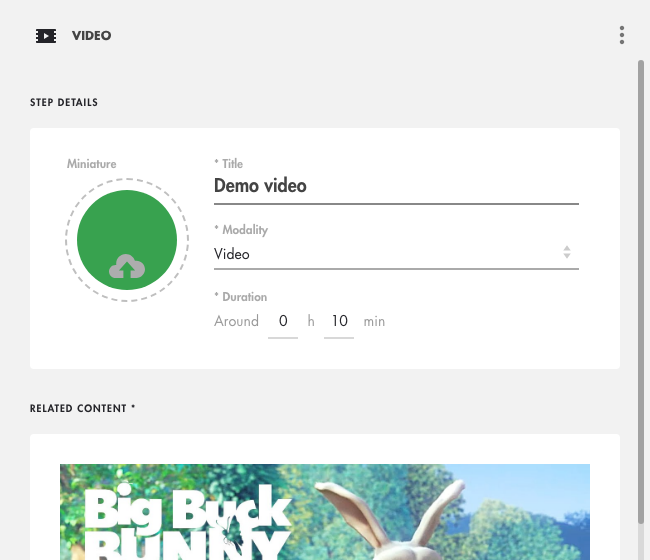
Click on the image to open it in a new tab.
Set up the advanced options
In “ADVANCED OPTIONS”, at the bottom of the panel:
- “Conditions of access”: “Always accessible” (default), “Validate first...” (then “…the previous step” or “…all previous steps”), “From…” or “Until…”;
- “Include the step in the calculation of the total mastery”: leave it off; this type of step does not provide mastery (only Teach Up modules, assessments and SCORM packages do);
- “Validation condition”: “The learner has clicked on the video”.
These options are explained in Create a training path.
What the learner sees
By clicking the tile, the learner opens the video in the training path. The step shows “Completed” as soon as they have opened it, even if they do not watch it to the end.
⚠️ Opening the step is enough to complete it. If you want to check that the video has been understood, insert it in a course with questions instead.
Frequently asked questions
Can I require learners to watch the whole video?
Not in a training path “Video” step. In a course, the video can be made mandatory before continuing: see Insert a video.
What is the maximum size for an .MP4 file?
200 MB.