
Adding videos is an effective way to convey content in an original and engaging manner. Here is a complete guide to inserting and configuring videos in Teach Up.
Summary
Insert a MP4 video 
Importing an MP4 file allows you to embed a video directly into your course or assessment, without going through an external host.
Add an MP4 video
To add an MP4 video in your course or assessment:
-
Click the « Add » or « + » button, then select « Media »
 .
. -
Select the « Video » type

-
Click the dotted area to open your file explorer, or drag and drop your MP4 file
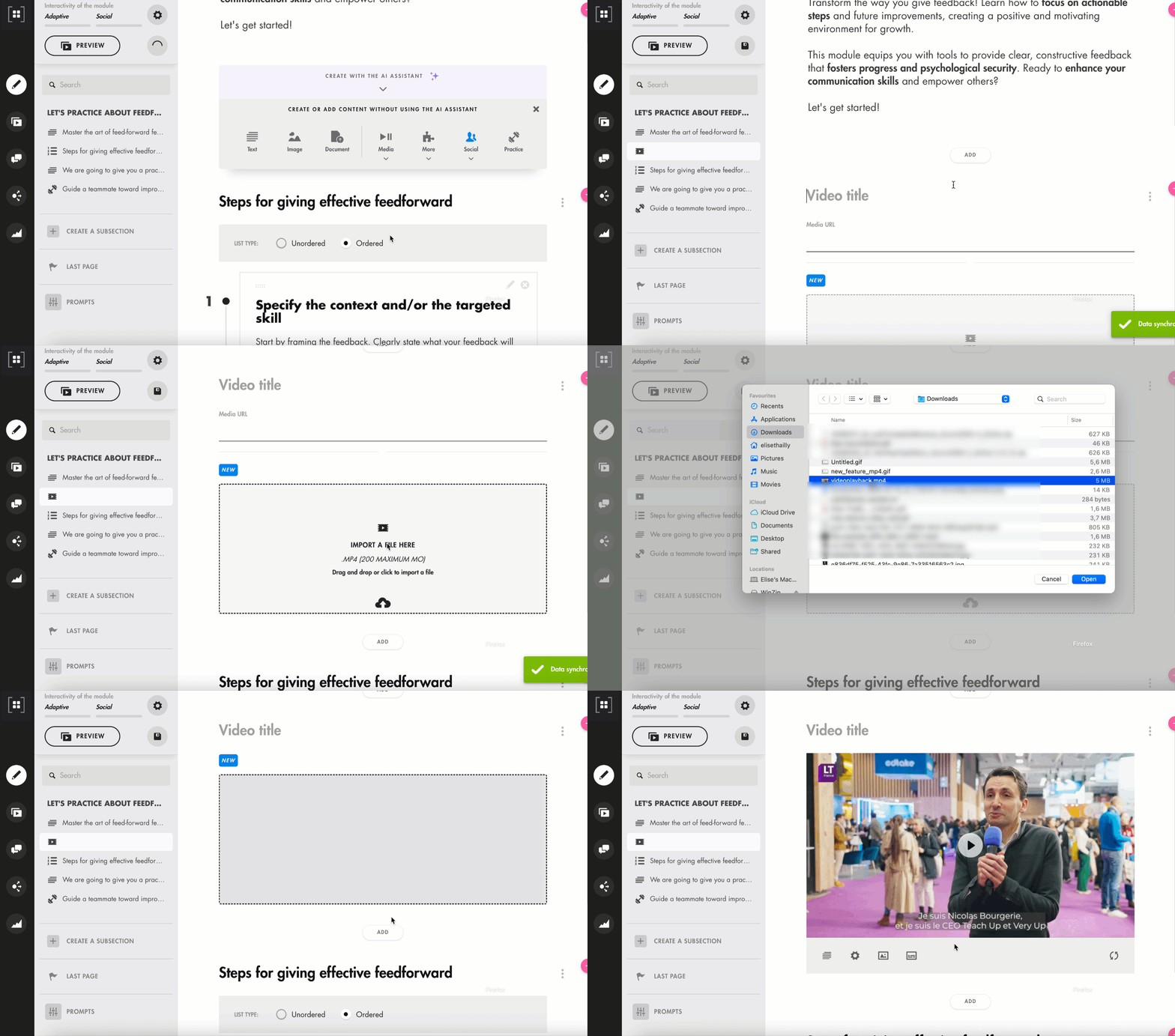
Click on the image to open it in a new tab
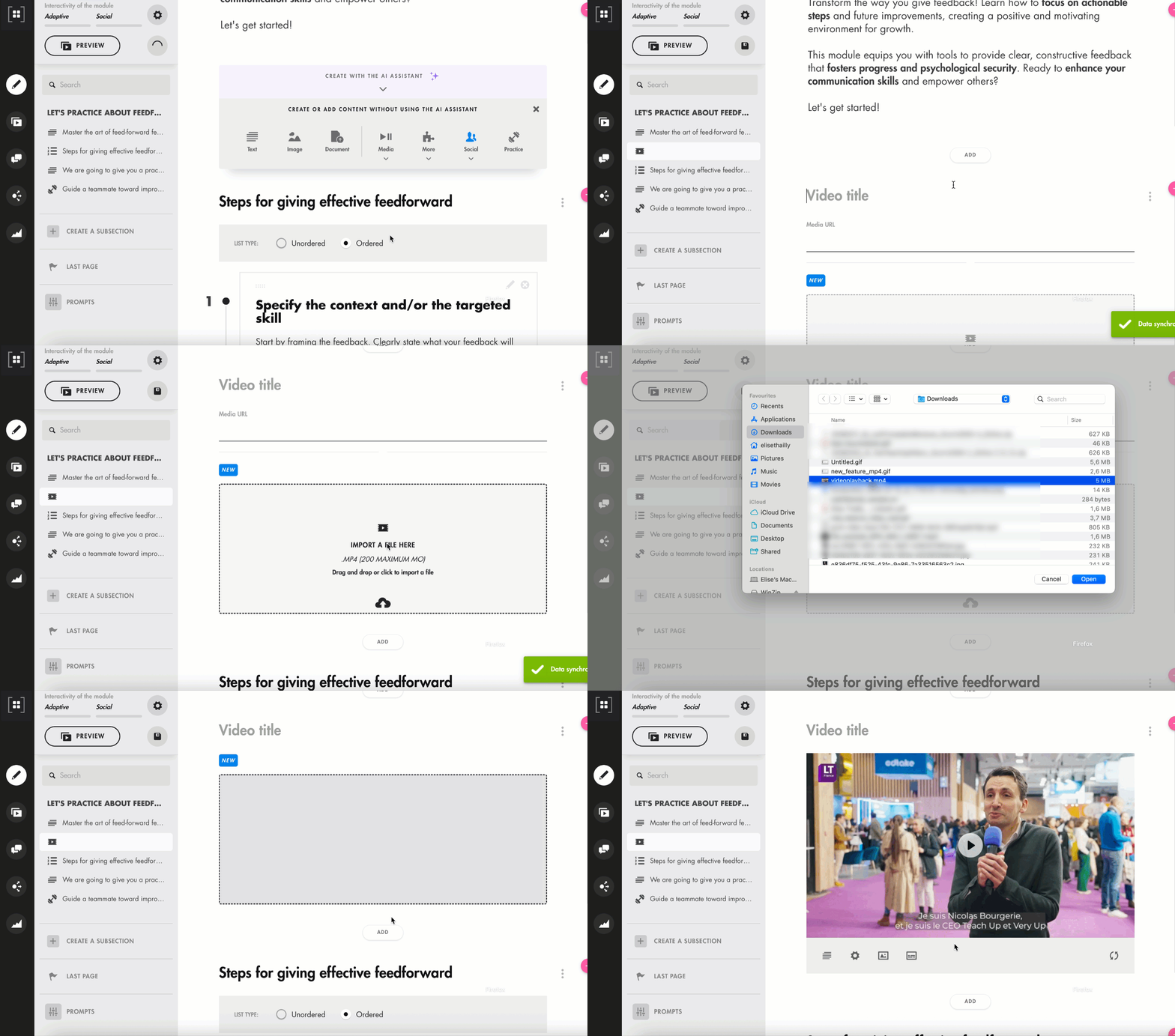
The maximum upload size for MP4 files in a "Video" content block is 200MB.
Add subtitles
To add subtitles to your MP4 video, follow these steps:
-
Click the « Subtitles » button

-
Upload your subtitle file in one of the following formats:
.srt,.vtt,.xml,.ttml,.itt, or.dfxp -
Select the subtitle language from the associated dropdown menu
-
Add one or more files per language version
-
Enable the « Turn on automatic subtitles » option if desired
-
Click « Save »
Learners can enable or disable subtitles at any time using the « CC » icon, and choose the language by clicking the gear icon  , if multiple subtitle files were added.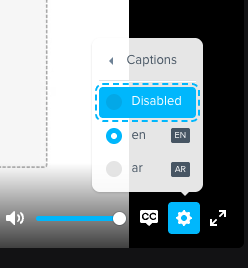
Insert a video via a supported host
To embed a video in your course or assessment, follow the steps below:
- Click the "Add" button, then select "Media ".
- Next, choose the "Video " option.
Depending on your video hosting platform, find below how to retrieve the URL to insert into Teach Up.
Insert a Stream video
To retrieve the link to your Stream video, follow these steps:
-
On your video page in Microsoft Stream, select "Share", then "Embed code".
-
Copy the link found between the quotation marks after
src=. This link should start with "https" and end with "Create". -
Paste this link into the URL field for the video in Teach Up.
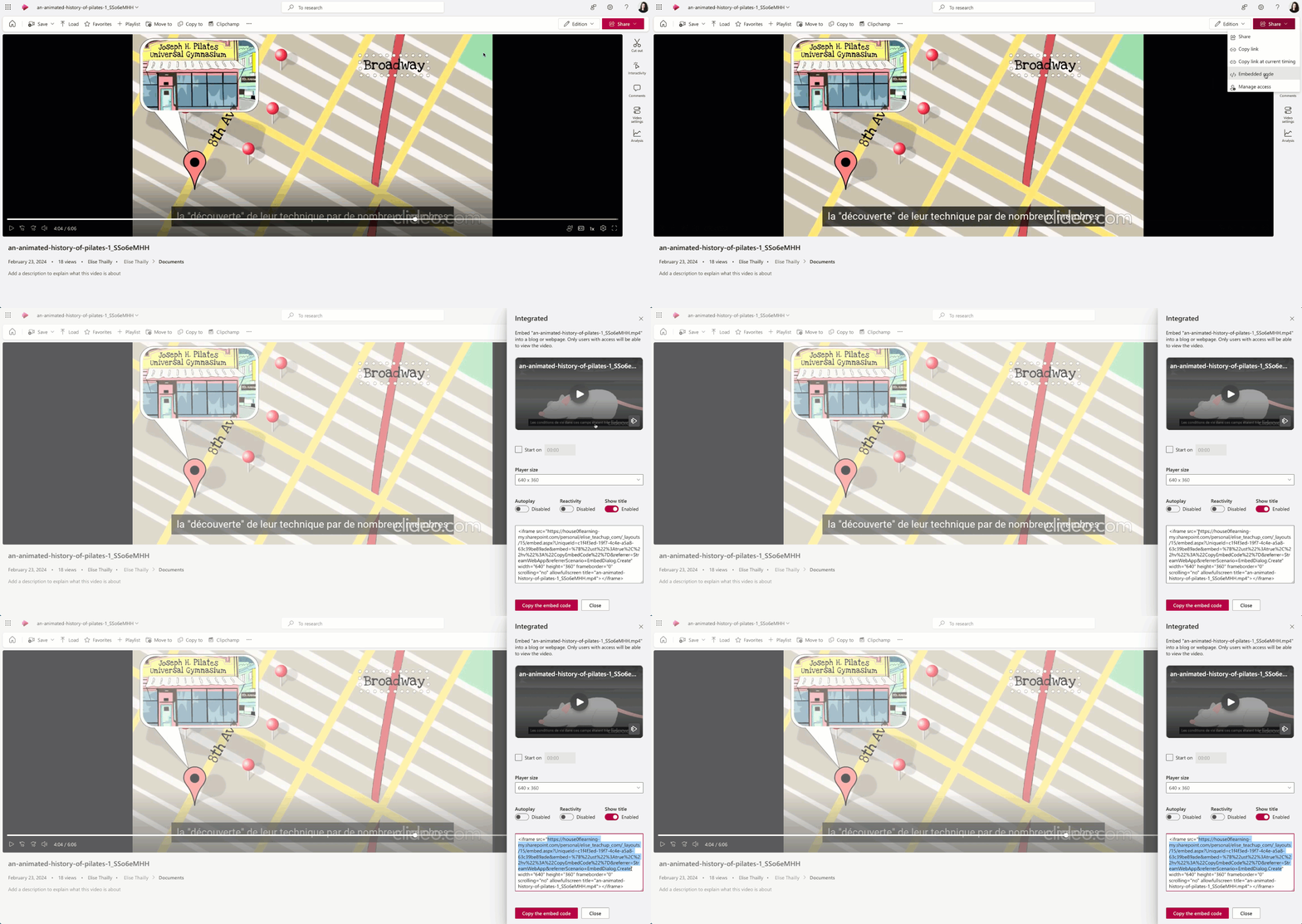 Click on the image to open it in a new tab

Make sure the video is stored in an organization, as videos hosted in a personal space will not work.
Insert a YouTube video
To retrieve the link for your YouTube video, follow one of these three methods:
Method 1: Using the Embed Code (Recommended)
- Click the "Share" button located below the video.
- Select the "Embed" option.
- Copy the link found between the quotation marks after
src=in the embed code. - Paste this link into the URL field for the video in Teach Up.

Click on the image to open it in a new tab
Method 2: Using YouTube Studio
- Open YouTube Studio and navigate to the video you want to embed.
- In the "Visibility" tab, set your video to either "Unlisted" or "Public".
- Click the "Options" button and select "Create a share link". The link will be automatically copied to your clipboard.
- Paste this link into the URL field for the video in Teach Up.
Method 3: Using the Public Link
- If your video is already public, simply copy the video’s URL from the browser’s address bar.
- Paste this URL directly into the URL field for the video in Teach Up.
Insert a Vimeo video
To retrieve the link to your Vimeo video, follow these steps:
-
Select "Share" from the edit page of your video.
-
A tab will open where you'll see a section called "Link Privacy".
-
In this section, select either "Hide from Vimeo" or "Public".
-
Click "Copy link".
-
Paste this link into the URL field for the video in Teach Up.

Click on the image to open it in a new tab
Note: to embed a Vimeo video directly in Teach Up using the « Video » content, you need a paid Vimeo account. If you have a free account, use the « link » content instead: the video will then open in a new tab for the learner.
Differences between the hosts
|
Host |
Cost 💶 |
Video quality ✨ |
Teach Up video options can be configured ⚙️ |
|---|---|---|---|
|
YouTube |
Free |
Variable (sometimes reduced) |
Yes |
|
Vimeo |
Paid, unless the videos are set to "Public" visibility |
High |
Yes |
|
Stream |
Paid |
High |
No |
|
Brightcove |
Paid |
High |
No |
Configure a video
To configure the video, click the gear icon at the bottom left and select or deselect the desired options:
- "Allow full screen display": When enabled, learners can view the video in full screen.
- "Start playing automatically": When enabled, the video will start automatically, and learners will not need to press play.
- "Make it mandatory to play the video to continue the module": When enabled, learners must watch the video up to a certain threshold before moving to the next screen.
Some hosts like Stream do not allow specific settings to be applied within Teach Up, so certain options may appear grayed out.
Add a thumbnail image
To add a thumbnail image, click the image icon  and enable the "Add an image" option. Then, import the image from your computer or drag and drop it into the designated area.
Replace a video
Click the circular arrow  at the bottom right, then paste the new URL of the video or add a new MP4 file.
Frequently Asked Questions
Why are some video configuration options grayed out?
Some hosts do not allow specific video settings within Teach Up. These settings are thus grayed out and cannot be modified.
Can I add videos from a host other than Stream, Vimeo, YouTube, or Brightcove?
Yes, you can add videos from other hosts (such as Freecaster, Dailymotion or Loom). To do so, embed the video using a "Link" content type (inserting the video embed link) instead of a "Video" content type. However, note that the video won't be playable directly in the course or assessment on Teach Up. The learner will have to click an intermediary link to watch the video on the external platform.
Note: when you use another host, Teach Up does not impose any file size limit. Any limits depend solely on the host you choose.
What does the 200 MB limit for an MP4 video correspond to?
The 200 MB limit generally corresponds to a video of about 5 to 7 minutes, depending on the export quality (resolution, compression, frame rate…).
If your video exceeds this limit, you can:
-
reduce its resolution (e.g. from 4K to Full HD or HD)
-
compress the file with dedicated tools (such as HandBrake or an optimized export from your editing software)
-
split the video into several shorter sequences
How can I disable YouTube video suggestions for learners after watching a video?
It is currently not possible to disable YouTube video suggestions directly within Teach Up.
How can I add subtitles to a Vimeo video?
You can add subtitles to a video hosted on Vimeo:
-
With a paid account (Pro or higher), Vimeo can automatically generate subtitles in multiple languages (English, French, Spanish, German or Portuguese) when you upload your video.
-
With a free account, you need to manually upload a subtitle file in .srt or WebVTT format for each language you want.
Once the subtitles are added, the learner can turn them on or off anytime and select the available language.