.png?width=46&height=30&name=Logo-symbol%20(1).png)
The “External link” step sends the learner to a web page or an online tool: an article, an intranet page, a survey, a business tool… The page is displayed in the training path, or in a new tab if the site requires it.
Table of contents
- Add an external link
- Set up the step
- Set up the advanced options
- What the learner sees
- Frequently asked questions
Add an external link
- Open the training path, then the section where you want to add the step.
- Click “Add a step”.
- Choose “External link”.
- Paste the address in “Page URL”, then click “OK”.
Set up the step
Teach Up automatically retrieves the page's title and image, which you can change. Then fill in:
- the “Modality”: “Website to visit” by default;
- the “Duration” (required): the estimated time to read the page.
In “RELATED CONTENT”, the eye icon opens the page so you can check the link.
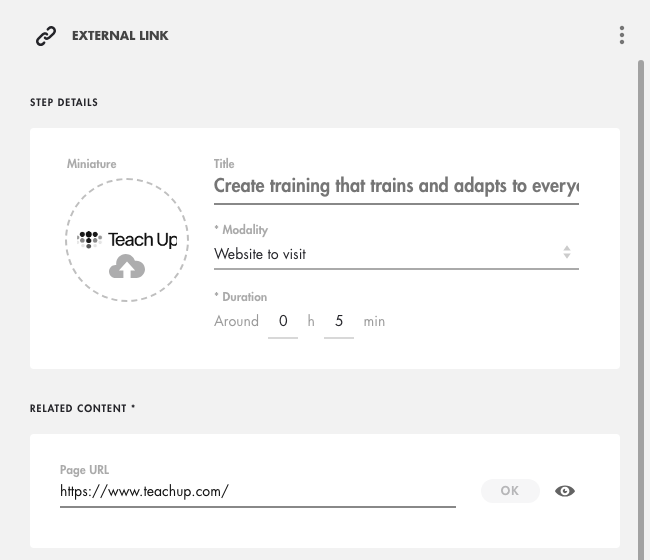
Click on the image to open it in a new tab.
Set up the advanced options
In “ADVANCED OPTIONS”, at the bottom of the panel:
- “Conditions of access”: “Always accessible” (default), “Validate first...” (then “…the previous step” or “…all previous steps”), “From…” or “Until…”;
- “Include the step in the calculation of the total mastery”: leave it off; this type of step does not provide mastery (only Teach Up modules, assessments and SCORM packages do);
- “Force opening in a new tab”: turn it on if the site is not displayed in the training path (some sites refuse to be embedded in another page);
- “Validation condition”: “The learner has opened the link”.
These options are explained in Create a training path.
What the learner sees
By clicking the tile, the learner sees the page directly in the training path, with the “BACK TO TRAINING PATH” button at the top. If “Force opening in a new tab” is on, they see a window with an “Open” button and a message inviting them to come back to Teach Up after viewing the page.
⚠️ The step shows “Completed” as soon as the learner opens the step, even before clicking “Open” or viewing the page.
Frequently asked questions
The page stays blank in the training path. What should I do?
Some sites do not allow being displayed inside another page. Turn on “Force opening in a new tab” in the step's advanced options.
Can I link to a file?
Yes, if the file is online. For a file stored on your computer, use a Document step instead.