
The model of a training path defines how it looks on the learner side and some of its features. Teach Up offers four models: Odyssey, Dark, Light and Carrousel. Odyssey is selected by default and is the most complete.
Table of contents
- Choose the model
- Compare the models without changing the model
- The four models
- What changes depending on the model
- Frequently asked questions
Choose the model
- Open the training path (step “1. CREATE”).
- At the top of the page, click the pencil of the “Model” field.
- Scroll through the models with the arrows, then click “SELECT” under the one you want.
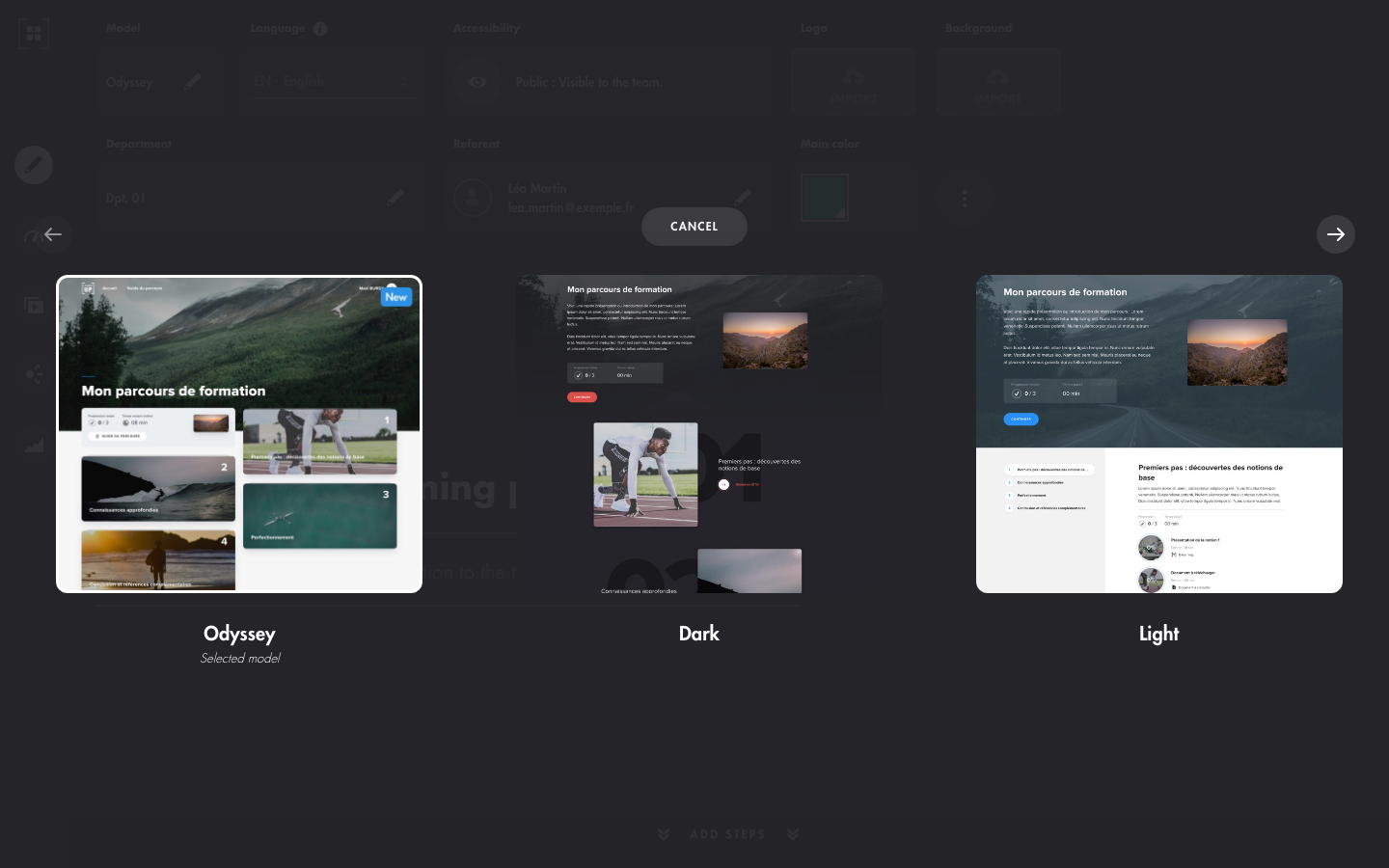
Click on the image to open it in a new tab.
You can change the model at any time. In our tests, the progress of learners already enrolled stayed intact after a change of model.
Compare the models without changing the model
Click “PREVIEW”: in “Preview mode”, the “Model” field shows the “Current model” and the “Other models (overview)”. Choose one to see the training path with this model, without changing anything. See Test content on Teach Up.
The four models
Odyssey
“Make your learning experience a more personalized one.” The default model, and the only one that offers:
- the “Main color” applied to the training path;
- the choice of “Display for the learner” for each section: “Free mode (tiles)” or “Linear mode (step by step)”;
- the “Home page” / “Course overview” menu on the learner side;
- Macro Adaptive (if the option is enabled on your account);
- an experience presented as accessible.
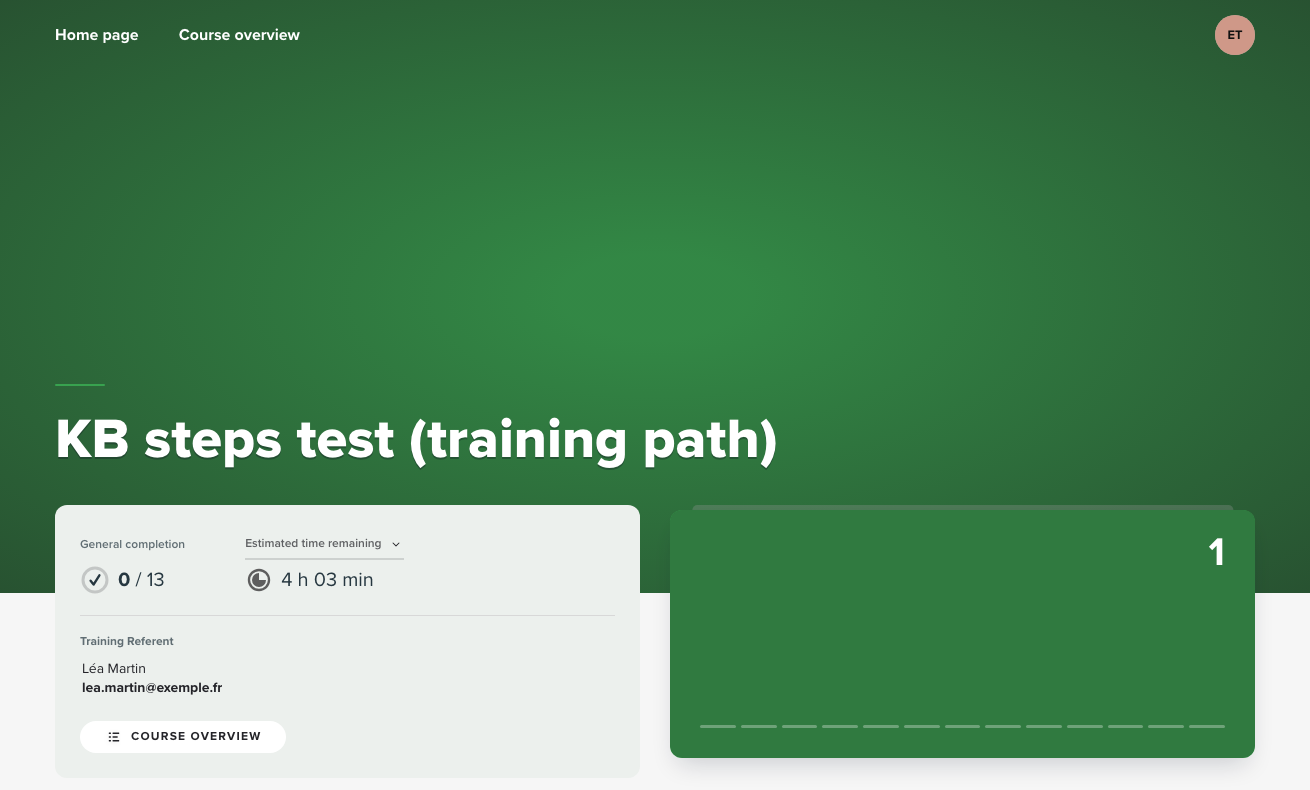
Click on the image to open it in a new tab.
Dark
“Highlight your graphic content with a dark and minimalist template.” A dark interface with red accents.
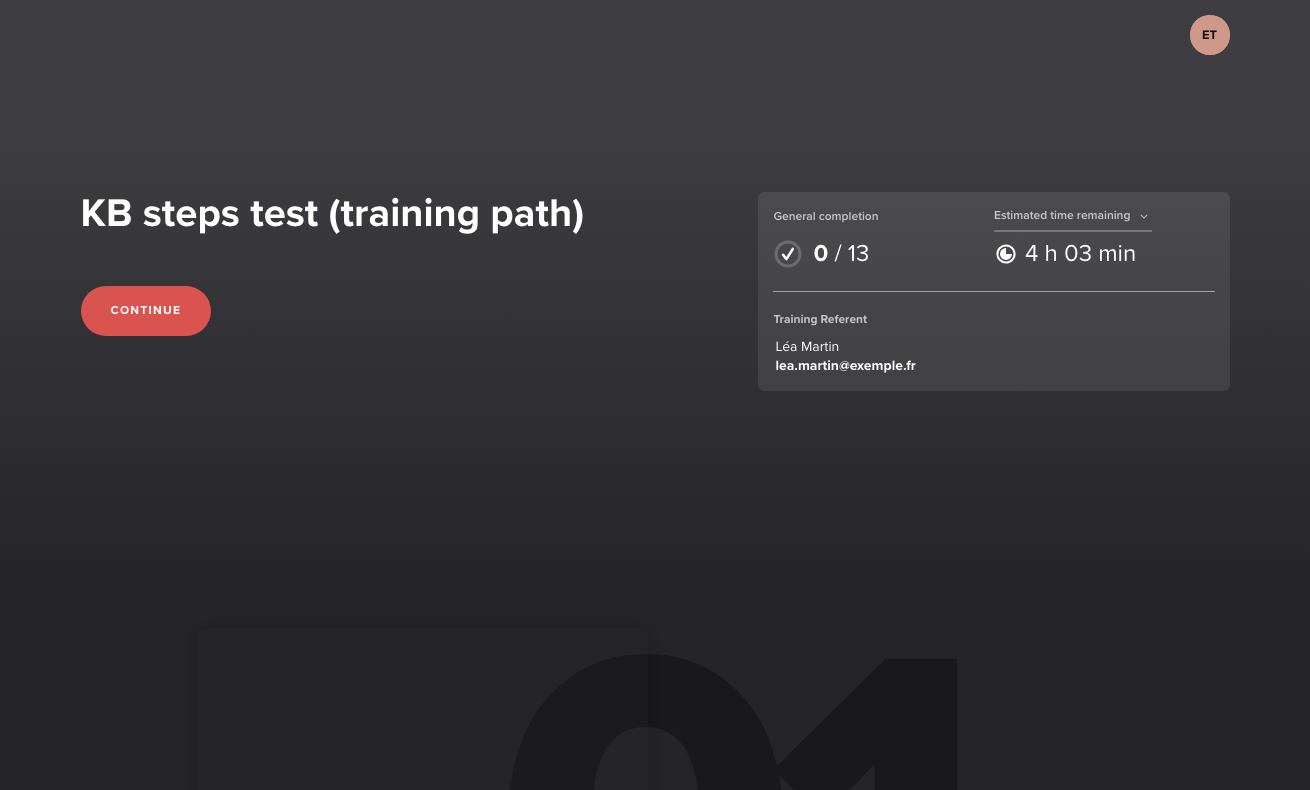
Click on the image to open it in a new tab.
Light
“Put the learner directly into the heart of your course with a linear navigation.” A grey-blue banner, then the plan of the sections on the left and the steps on the right.
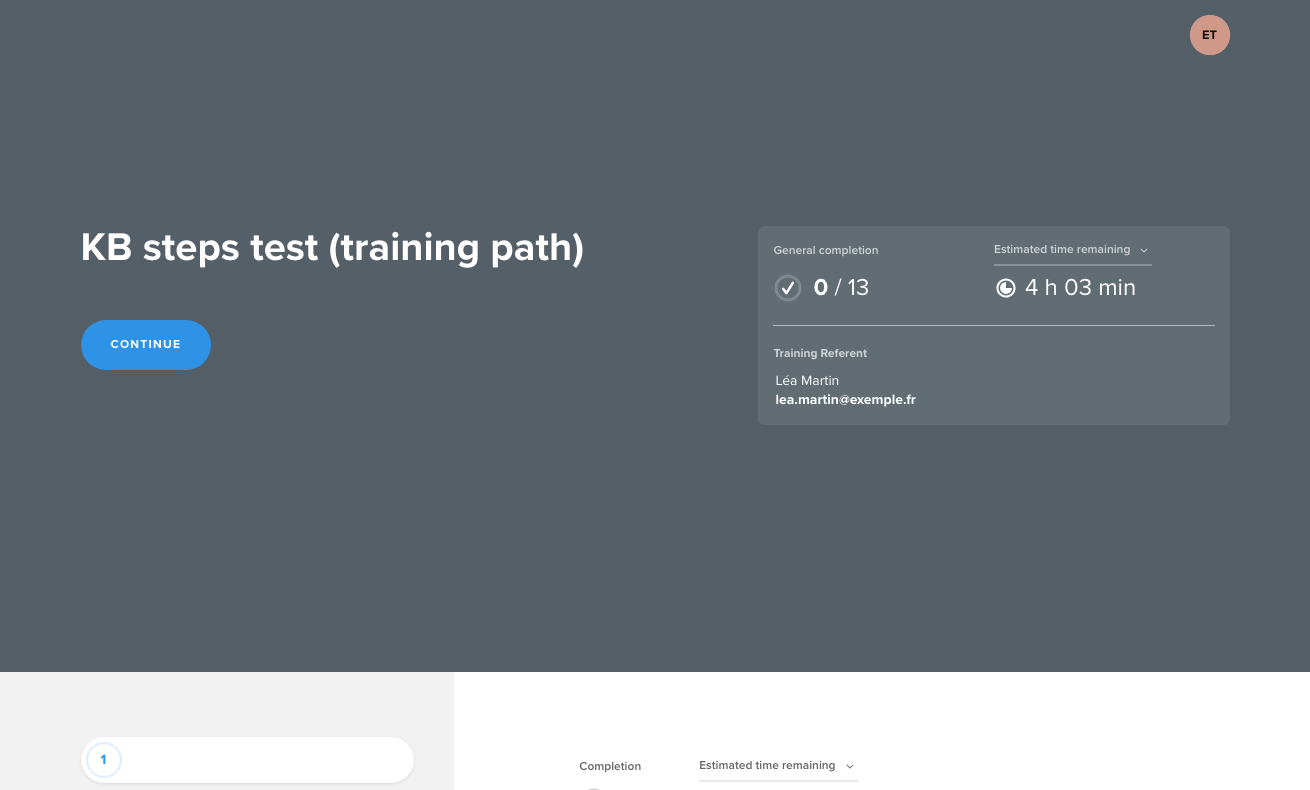
Click on the image to open it in a new tab.
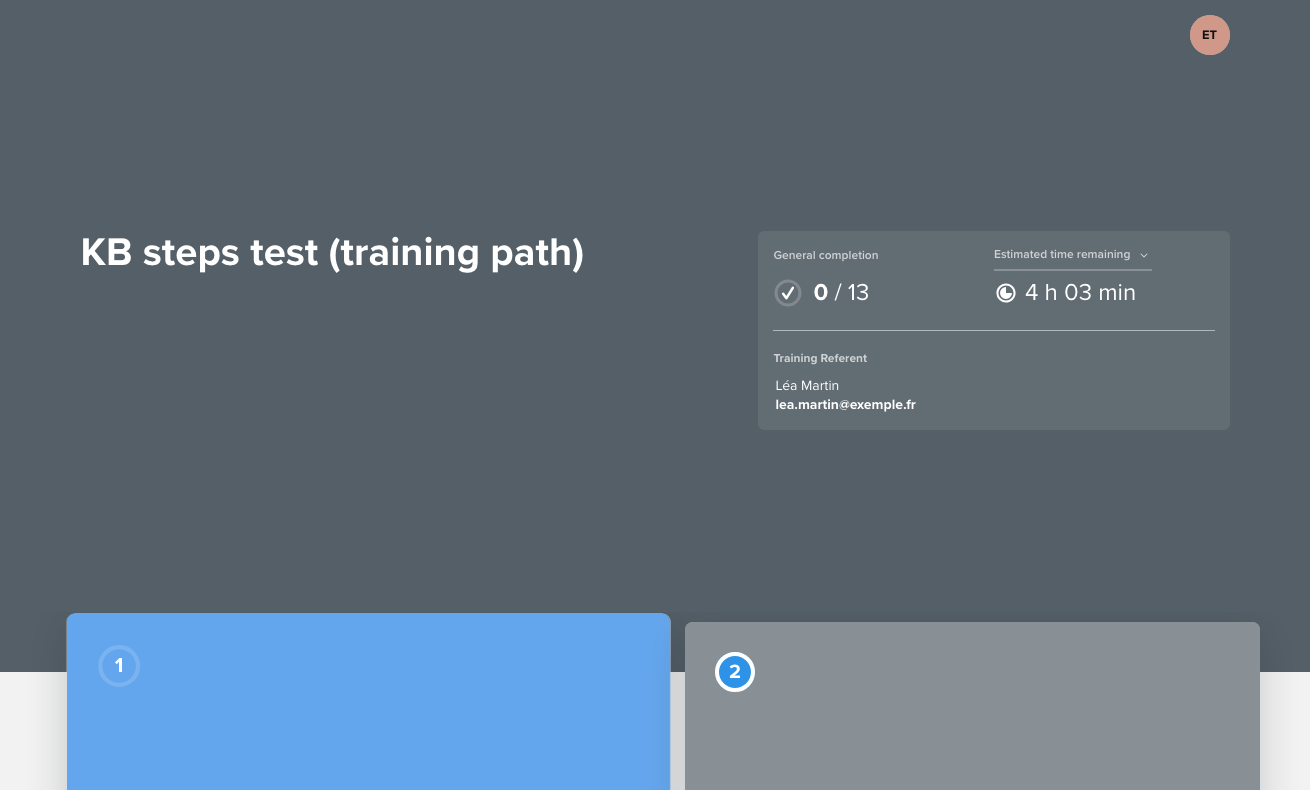
Carrousel
“Thanks to a horizontal navigation, highlight the main themes of your course.” Sections are displayed as large cards that the learner scrolls horizontally.
Click on the image to open it in a new tab.
What changes depending on the model
| Odyssey | Dark | Light | Carrousel | |
| Main color applied | Yes | No (red) | No (blue) | No (blue) |
| Training referent displayed | Yes | Yes | Yes | Yes |
| “Display for the learner” of sections (tiles or list) | Yes | No | No | No |
| “Course overview” | Yes | No | No | No |
| Macro Adaptive | Yes | No | No | No |
⚠️ The “Main color” field remains displayed in the editor with the Dark, Light and Carrousel models, but the chosen color is not applied on the learner side.
Frequently asked questions
When can I change a training path's model?
At any time, from the training path's home page (“Model” field).
Can Macro Adaptive be enabled with all models?
No, only with Odyssey.
Does changing the model change the training path's content?
No. The model changes the display and some features; sections, steps and learners' progress are kept.