
The catalog allows learners to access a collection of freely accessible courses, training paths or assessments, even if they are not assigned to these activities. Learners can browse the catalog from their learner portal and enroll in the activities that interest them.
Summary
- The learner's view of the catalog
- Add a course, an assessment, a Coach Expert or a training path to the catalog
- Remove a course, an assessment, a Coach Expert or a training path from the catalog
- Retrieve catalog content
- Frequently asked questions
The catalog is a feature distinct from the learner space: learners browse it in the "Catalog" tab of their learner space. Your account therefore needs both the learner space and the catalog: if the "Publish in the catalog" menu does not appear, contact your Teach Up representative.
The learner's view of the catalog
Find out how learners can access the catalog in this article.
Add a course, an assessment, or a training path to the catalog
To add a course, an assessment, or a training path to the catalog, follow these steps:
- Next to the course, assessment, training path or Coach Expert you want to add to the catalog, click on the three small dots (…).
- Select “Publish in the catalog
 ".
".
The catalog library icon  will appear on your activity, indicating that it is now freely accessible to learners.
Remove a course, an assessment, or a training path from the catalog
To remove a course, an assessment, a Coach Expert or a training path from the catalog, follow these steps:
- Next to the course, assessment, training path or Coach Expert you want to remove from the catalog, click on the three small dots (…).
- Select “Remove from catalog
 ".
".
Only administrators and department managers can add or remove activities from the catalog.
The catalog icon will disappear, indicating that the activity is no longer freely accessible.
Retrieve catalog content
To retrieve the content published in the catalog, follow these steps:
- In the top right of the studio, in the search bar, click on “Advanced”.
- Select the "Published in the catalog" option.
- Check “Yes”.
- Click on “Apply”.
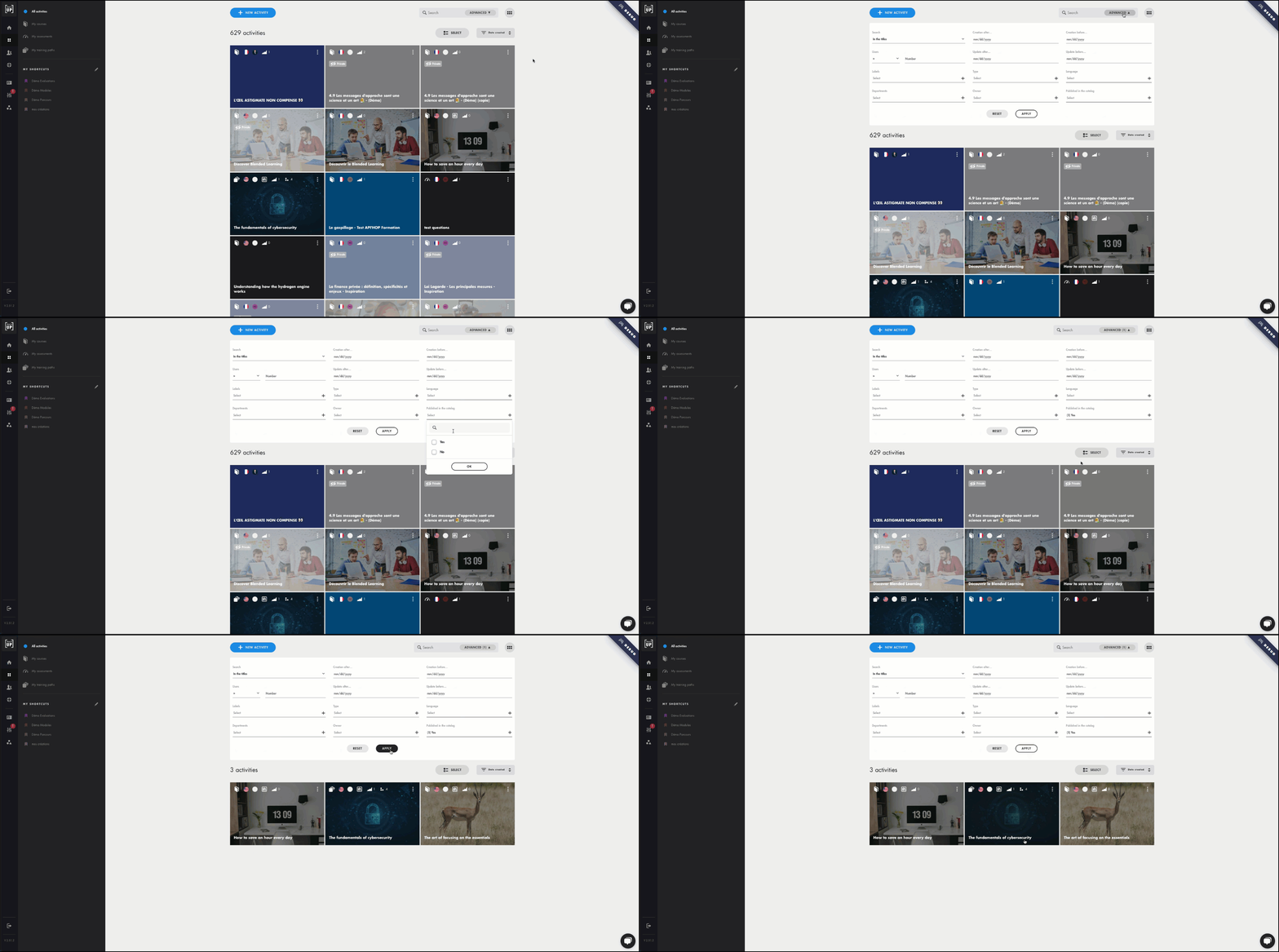
Click on the image to open it in a new tab

Frequently asked questions
Is it possible to have multiple catalogs?
Currently, it is not possible to create multiple distinct catalogs. All published content is grouped into a single catalog.
Why doesn’t a learner see all the content in the catalog?
If your learners are separated by departments, they will only see the courses, assessments, and training paths that are linked to the departments they belong to.
Can the catalog be organized into folders or sections?
It is not possible to organize the catalog into folders or sections. All published content is grouped into a single folder.
What happens if an activity is removed from the catalog for learners already enrolled?
When you remove an activity from the catalog, learners who are enrolled will no longer have access to that activity. It will disappear from their catalog and from their current activities. If a learner is accessing the activity at the time of its removal, an error message will appear, stating that they no longer have access to this content.
Who can add or remove activities from the catalog?
Currently, only administrators and department managers have access to the catalog management features.