.png?width=46&height=30&name=Logo-symbol%20(1).png)
The learner space is your learners' home page on Teach Up. They find their Coach Experts, the activities assigned to them or that they have started, and the catalog of freely accessible activities. This article walks through each tab of the space, how to access it and how to customize it.
The learner space is available with the Platform subscription and the "Learner space" option. If the option is not active on your account, your learners access their activities directly through the links they receive (assignment email or direct access link).
Table of contents
- Access the learner space
- Explore the learner space
- Customize the learner space
- Frequently asked questions
Access the learner space
Learners access their space:
- at https://app.teachup.com/learner;
- from a course, an assessment or a training path, with the button that takes them back to their space.
For the first login, see First-time login on Teach Up.
If a learner has an account in several organizations, the current organization is shown at the top of the space ("Organization: …"). The "Change" button lets them switch to another organization's space.
Explore the learner space
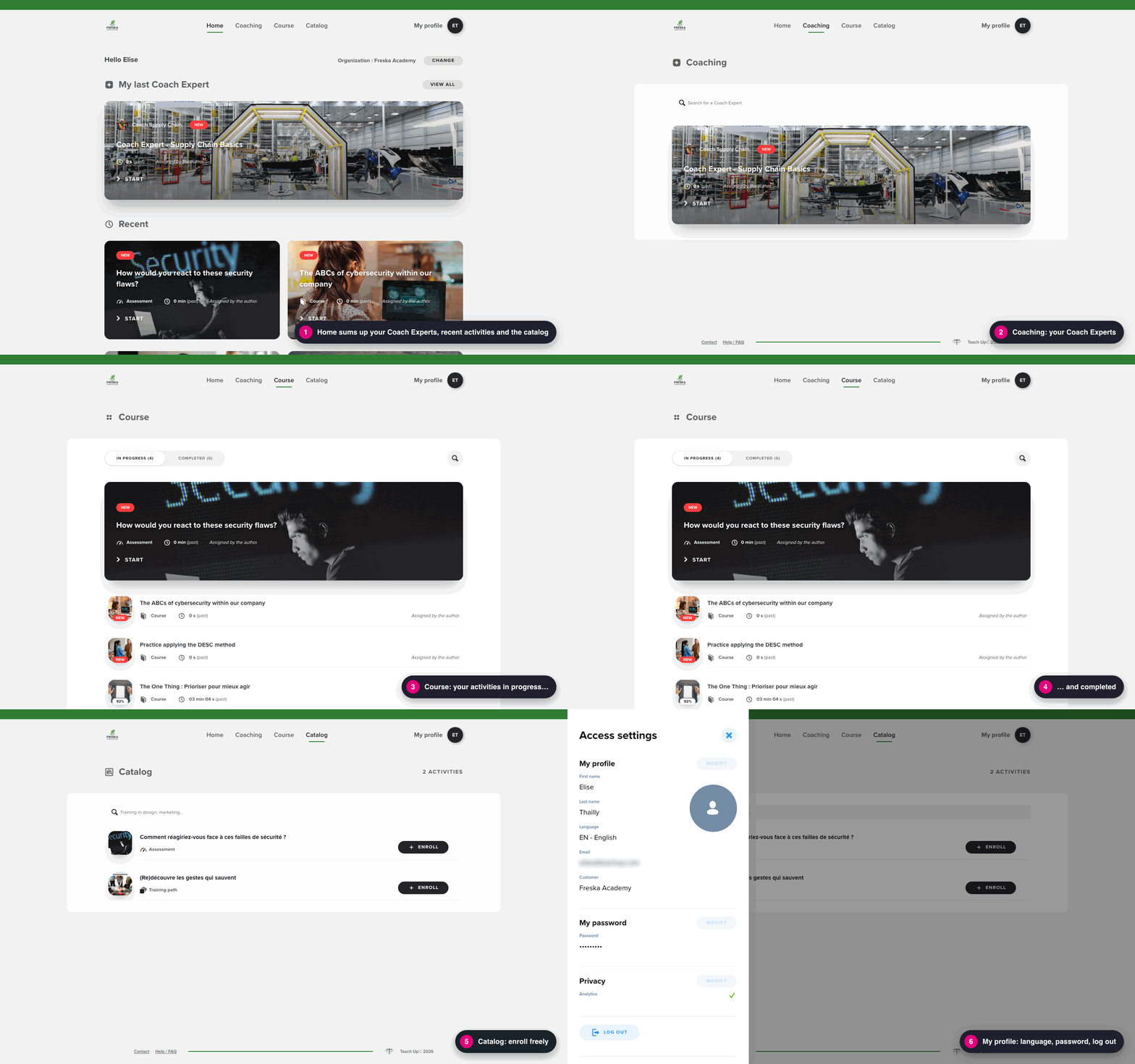
The space is organized into four tabs, Home, Coaching, Course and Catalog, plus My profile at the top right.
Click the image to open it in a new tab
Home
Home gives an overview:
- "My last Coach Expert": the latest Coach Expert made available, with the "View all" button to see all Coach Experts;
- "Recent": the latest activities, with the "Start" or "Continue" button to pick up where the learner left off;
- "Catalog": the number of freely accessible activities and the "Browse the catalog" button.
Coaching
The Coaching tab lists the Coach Experts available to the learner. For each one, they see the time already spent and, where relevant, the mention "Assigned by the author".
The Search for a Coach Expert field helps find a Coach Expert, and the "Start" button opens the conversation.
Course
The Course tab gathers the learner's courses, assessments and training paths, in two filters:
- "In progress": assigned activities not yet started and activities in progress;
- "Completed": finished activities.
Each card shows the progress (in %), the type of activity (course, assessment or training path) and the time spent. The magnifying glass icon lets the learner search for an activity.
By clicking "Start", "Continue" or the card, the learner opens the activity and resumes their progress. Once an activity is completed, they can review it (some parts and the end screen), or restart it if the author has enabled this option.
Catalog
The Catalog tab is available with the "Catalog" option.
The catalog shows freely accessible activities. To enroll, the learner:
- opens the Catalog tab (or clicks "Browse the catalog" on Home);
- browses the activities or uses the search field;
- clicks "Enroll" next to the activity they are interested in.
The activity then appears in the Course tab, under "In progress".
👉 To add an activity to the catalog, see Add a course, an assessment, a training path or a Coach Expert to the catalog.
My profile
By clicking "My profile" at the top right, the learner opens the "Access settings" panel, where they can:
- edit their first name, last name and interface language ("Modify" button in the "My profile" section);
- change their password;
- manage their privacy preferences;
- log out;
- download the general conditions of use and the privacy policy.
At the bottom of each page, the "Contact" link lets learners write to the Teach Up support team, and the "Help / FAQ" link opens this help center.
Customize the learner space
An administrator can customize the learner space with your organization's branding: logo and main color. This is done in the "User space" tab of the "Subscription & configuration" page. See Understand and track my subscription for details.
If the "Learner departments" feature is enabled on your account, you can also adapt the look of the space to the learner's department:
- Go to the "Departments" tab.
- Select the department in the list on the left.
- Click the paintbrush icon.
- Choose to use the account's general style or to define a specific customization.
- If needed, add a logo and a main color specific to this department.
If a learner belongs to several departments, the account's general customization applies.
Frequently asked questions
How can I access the learner space as an author?
You need a learner account with the same email address as your author account. Then, from your studio:
- Click your account thumbnail at the top of the menu.
- In the "Switch environment" section, click "Learning space".
You then see the content exactly as your learners do.
How do I change the language of the learner space?
Click "My profile", then "Modify" in the "My profile" section, choose the language and save.
An activity doesn't appear in my learner space: what should I do?
Check both filters of the Course tab ("In progress" and "Completed"). If you have an account in several organizations, also check the organization shown at the top of Home and change it if needed. If you still can't find the activity, contact the person who assigned it to you.
What happens when a learner's assignment to an activity is removed?
It depends on their progress:
- if they hadn't started the activity, it disappears from their learner space;
- if they had already started it, it stays in their learner space as history, but they can no longer access it: if they try to open it, the error message "Your administrator has not granted you access to this page." is displayed.
Who should I contact if I have a problem as a learner?
Use the "Contact" link at the bottom of the learner space to write to the Teach Up support team. For a question about a course's content or an assignment, contact your organization's training manager instead.