.png?width=46&height=30&name=Logo-symbol%20(1).png)
The “SCORM file” step adds to a training path content created with another authoring tool, as a .zip file in SCORM format. The learner takes it without leaving the training path, and their progress and score appear in the dashboard.
Table of contents
- Add a SCORM package
- Set up the step
- What the learner sees
- When is the step completed?
- Follow the results
- Formats and limits
- Frequently asked questions
Add a SCORM package
- Open the training path, then the section where you want to add the step.
- Click “Add a step”, then choose “SCORM file”.
- In “IMPORT A SCORM PACKAGE”, click “IMPORT A FILE (.ZIP)” or drag your .zip file into the area.
- Check the “Title”: it is pre-filled with the package's title, and you can change it.
- Enter the “Duration” (required). The modality is “E-learning” by default.
- Click “OK”.
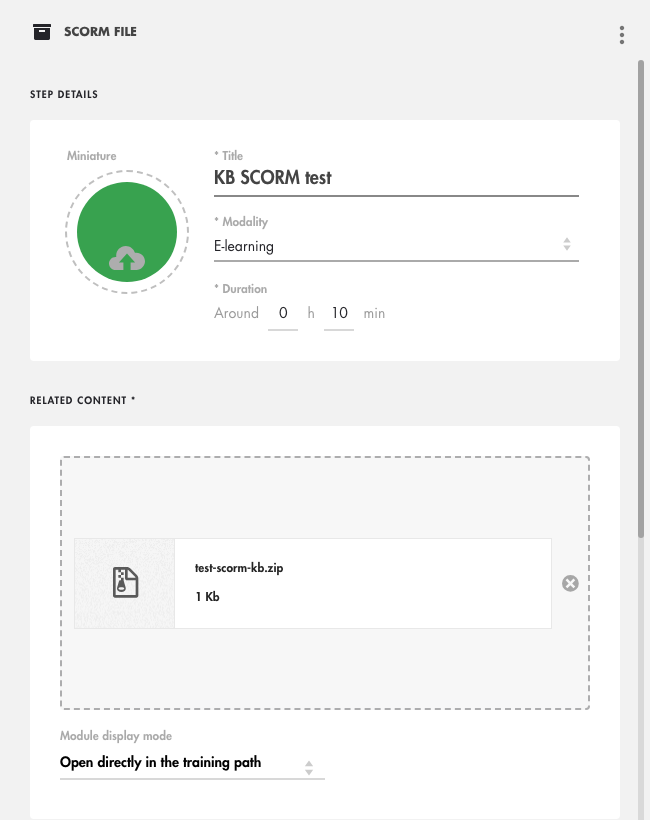
Click on the image to open it in a new tab.
⚠️ If you distribute your training in SCORM, adding a SCORM package to a training path is not possible: a SCORM package cannot contain another one.
Set up the step
Choose the display mode
The “Module display mode” field offers two choices:
- “Open directly in the training path” (default): the package is displayed in the training path, with the “BACK TO TRAINING PATH” and “SEE MORE” buttons at the top;
- “Open in a new tab”: the package opens on its own in a new browser tab, without these buttons. The training path stays open in the original tab.
Set the advanced options
- “Conditions of access”: “Always accessible” by default, or a progress or date condition;
- “Include the step in the calculation of the total mastery”: on by default. The score sent by the package then counts in the training path's mastery. Only Teach Up modules and SCORM packages provide mastery;
- “Validation condition”: fixed, “The learner has finished the activity”.
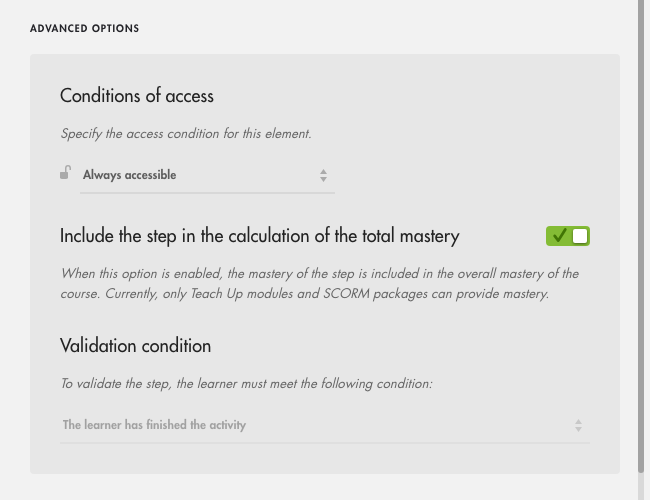
Click on the image to open it in a new tab.
What the learner sees
By clicking the tile, the learner opens the package. When it is displayed in the training path, they go back to the list of steps with “BACK TO TRAINING PATH” or move on to the next step with “SEE MORE”.
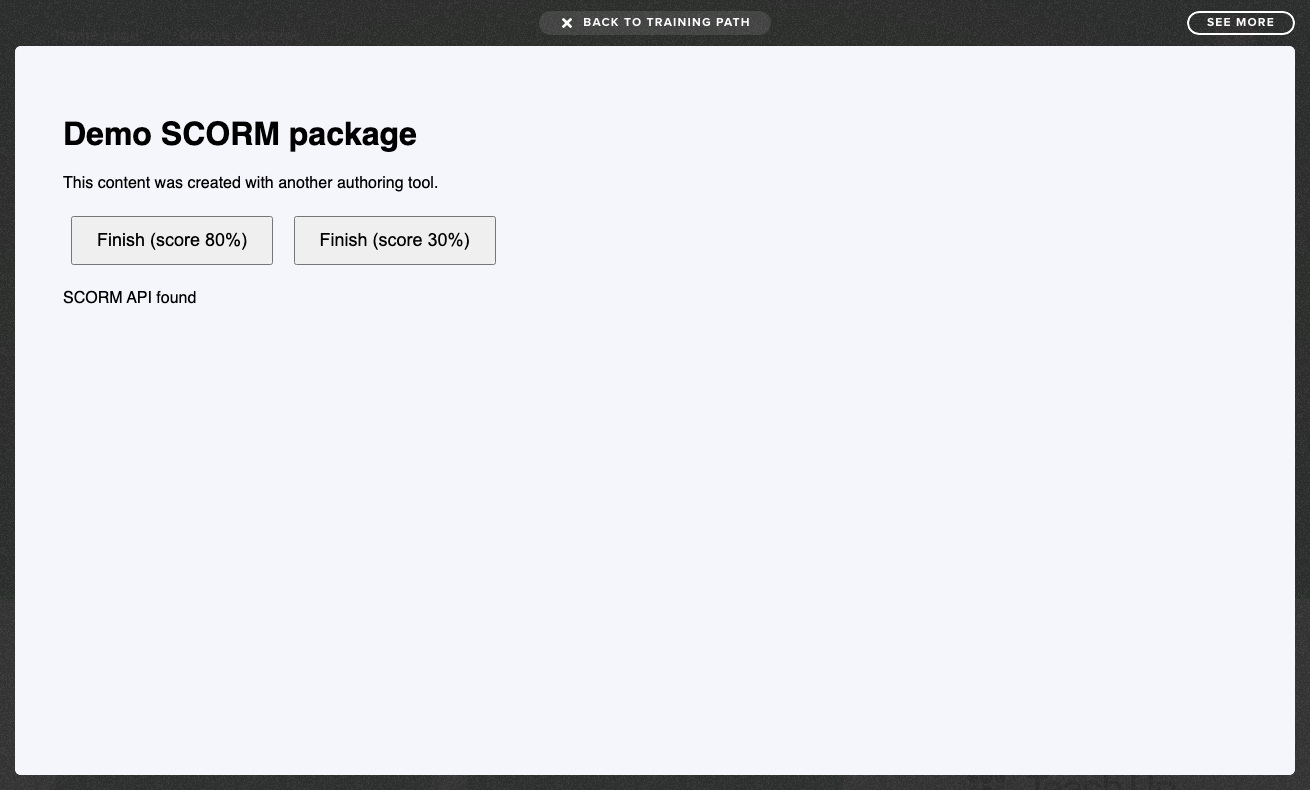
Click on the image to open it in a new tab.
As long as the package is not finished, the step's tile shows a progress bar. Once the package is finished, it shows “Completed”.
When is the step completed?
The step is completed when the package tells Teach Up that it is finished. Passing is not required: in our tests, a package finished with a fail (score of 30%) was completed.
💡 To require a pass before the rest of the training path, add a Teach Up assessment with the validation condition “The learner has reached the minimum success threshold”.
Follow the results
In the training path dashboard, open a learner's row, then click “See details”. For the SCORM step, you see:
- the completion (100% when the package is finished);
- the time spent in the package;
- the mastery: the score sent by the package. If the learner takes the package again, the score is updated (in our tests: 30%, then 80% after a new attempt, with the “Last attempt” display).
Formats and limits
- Only .zip files that comply with the SCORM standard are accepted.
- Size: packages over 100 MB are rejected; this limit may be lower depending on your subscription. See File size limits for uploading to Teach Up.
- Some types of files inside the package may be rejected. Teach Up then displays an error message. In that case, contact our support team.
Frequently asked questions
I can't see “SCORM file” in the step types. Why?
On some accounts, especially those that distribute in SCORM, this type of step is not enabled: a training path distributed in SCORM cannot itself contain a SCORM package. You can distribute your Teach Up courses in SCORM in your LMS, or use another distribution method (assignment, direct access link). If in doubt, contact our support team.
Does the learner have to pass the package to complete the step?
No. The step is completed as soon as the package is finished, even if it is failed. The score is visible in the dashboard's “Mastery” column.
Does the package's score count in the training path's mastery?
Yes, if “Include the step in the calculation of the total mastery” is on. It is on by default for a SCORM package.