.png?width=46&height=30&name=Logo-symbol%20(1).png)
The dashboard of a course, an assessment or a training path gathers the results of every learner who started it: who started, who completed, who has mastered it, and which questions cause trouble. This article explains how to read it, filter participants, remind those who haven't finished, share the dashboard and export the results.
This feature is available to Platform subscribers with the "Dashboards" option.
Table of contents
- What is the dashboard for?
- Access the dashboard
- Top of the dashboard: display option and counters
- "Participants" tab: details for each learner
- "Questions" tab: spot difficult questions
- "Practices" tab: measure progress on a work skill
- The dashboard of a training path
- Remind learners
- Share the dashboard
- Export the results
- Frequently asked questions
What is the dashboard for?
Start from your question to know where to look:
| I want to know… | Where to look |
| How many learners started, completed and mastered the activity | The three counters at the top of the dashboard |
| Who hasn't finished, or who is struggling | "Participants" tab, with the "Advanced" filters (progression, mastery, time spent…) |
| Which questions cause trouble | "Questions" tab |
| Whether a practice helped learners improve | "Practices" tab (courses that contain a practice) |
| How to remind those who haven't finished | "Active reminders", above the participant list |
| How to show the results to someone without a Teach Up account | "Dashboard sharing", at the top |
| How to get the results in Excel | "Results" button, above the participant list |
Access the dashboard
- Open the course, assessment or training path.
- In the left menu, click "5. ANALYZE the impact on learners"
 .
.
Top of the dashboard: display option and counters
This part covers courses and assessments. For a training path, see The dashboard of a training path.
Choose which attempt is counted
When the end screen offers to start the activity again (see Configure the last page of a course), a learner can take it several times. The "Display option" then appears at the top of the dashboard, to the left of "Dashboard sharing". It lets you choose which attempt is counted for each learner:
- "Best attempt" (default): the attempt with the best mastery if the learner completed the activity at least once, otherwise the one with the most progress.
- "Last attempt": the last time the learner took the activity.
This choice applies to the counters, the averages, the participant list and the "Results" export. Without a restart button on the end screen, the option doesn't appear: each learner only has one attempt.
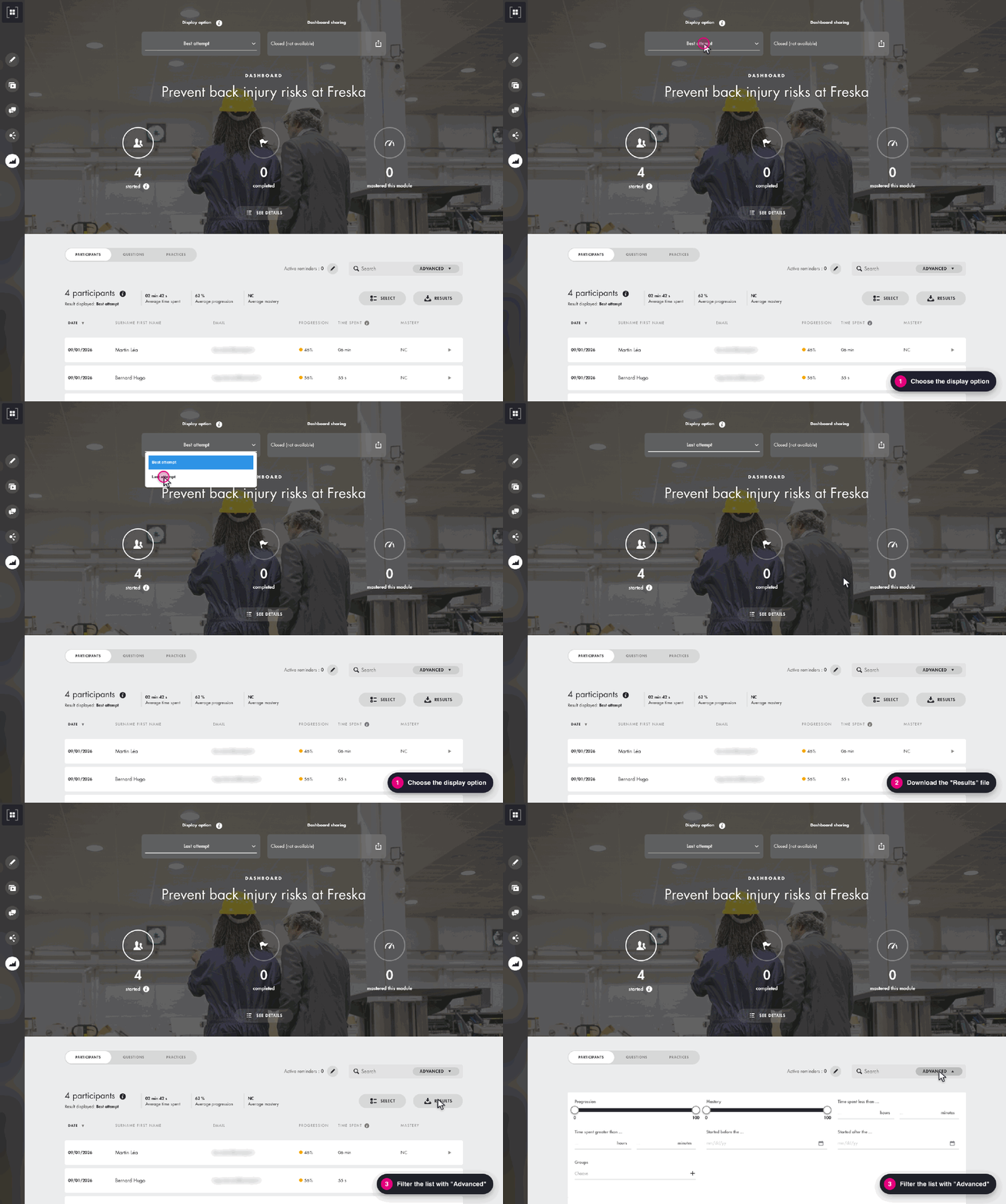
Click the image to open it in a new tab.
Read the three counters
- "started": all learners who started the activity, whatever the distribution channel (link, assignment, SCORM), current or past.
- "completed": learners who completed the activity.
- "mastered this module": learners whose mastery reaches the set threshold. By default, the threshold is 70% for a course; for an assessment, it is the passing score set in the global assessment settings.
"Participants" tab: details for each learner
The "Participants" tab lists the learners who started the activity. Above the list, three averages summarize the activity:
- Average time spent
- Average progression
- Average mastery
For each learner, the list shows:
- Date: the start date of the attempt that is counted (best or last).
- Surname First name and Email: the identity entered by the learner (link or assignment) or sent by your LMS (SCORM).
- Progression: how much of the activity the learner went through, as a percentage.
- Time spent: the time spent on the activity (see Time accounting in Teach Up).
- Mastery: based on knowledge questions for a course, on question scores for an assessment. "NC" is shown when it can't be calculated yet.
- KQ (key questions), if the course has any: shows whether the learner answered all key questions correctly.
Filter the participant list
Click "Advanced", next to the "Search" field, to filter the list by:
- "Progression" and "Mastery" (sliders from 0 to 100);
- time spent ("Time spent less than ..." / "Time spent greater than ...");
- start date ("Started before the ..." / "Started after the ...");
- learner "Groups" (see Manage learners and groups);
- "Key questions", if the course has any.
Click "Apply": the averages and the "Results" export then only cover the participants displayed. "Reset" clears all filters.
Act on one or more participants
Click a participant's row to expand it. You will find:
- Document: the documents produced by the learner, such as their forms as PDF, and "Download all (.zip)" to get them all at once;
- History: the number of attempts and the time spent across all attempts;
- "Delete": deletes the learner's results for this activity (see Deleting a learner's results).
The "Select" button lets you tick several participants, then download their documents ("Download documents") or delete their results.
"Questions" tab: spot difficult questions
The "Questions" tab shows answers question by question, in the order of the course or assessment sections. It lets you:
- see how answers are distributed for each question;
- spot the questions where learners make the most mistakes;
- check the results of polls, knowledge questions and contribution walls.
Mastery is shown for each section. A section without knowledge questions shows a message saying so.
"Practices" tab: measure progress on a work skill
This tab appears on courses that contain a Practice. For each practice (with its "Trained gesture"), it shows:
- the number of trained learners, of those who went all the way and of those who have stopped;
- the average number of attempts per practice and the number of Champions (100% mastery);
- the average time spent and the overall progress;
- the "Starting level" (before coaching), the level reached through practice and the "Impact", i.e. the difference between the two as a percentage;
- "Progression by know-how": the same levels, skill by skill.
Levels are calculated by Teach Up's AI from the answers given during practices. "NC" is shown until a learner has practiced.
The dashboard of a training path
The dashboard of a training path works like a course dashboard, with a few differences. It always counts each learner's last attempt. Above the list, the averages are:
- Average time spent;
- Average completion: the average number of completed steps out of the total number of steps;
- Average mastery: the average mastery of the steps for which "Include the step in the calculation of the total mastery" is enabled.
For each learner, the list shows Date, Surname First name, Email, then:
- Completion: the number of completed steps out of the total (for example "1 / 4");
- Time spent: the time spent on the whole training path;
- Mastery: mastery for the whole training path.
The "Advanced" filters, the "Select" button and the "Results" export are also available. When you expand a participant's row, "See details" shows their results step by step, and "Download" (under History) exports the history of their training path.
A course or assessment inside a training path: where is the data?
When a learner takes a course or an assessment inside a training path, their results show up at two levels:
- in the training path dashboard: path completion, time spent and overall mastery, and, with "See details", the results of each step (date, completion, progression, time spent, mastery);
- in the course or assessment dashboard, like any other learner: progression, time spent, mastery, answers in the "Questions" tab, "Results" export.
The course or assessment dashboard gathers all attempts, whether they come from the training path, a direct assignment, a link or SCORM: nothing shows where each row comes from. To see only the training path's learners, start from the training path dashboard and its exports (see Export the results).
Remind learners
Above the participant list, "Active reminders" shows how many automatic reminders are set up for the activity. The pencil next to it opens "Set up automatic reminders" ("Distribute" tab › "Automatic reminders"): for example, you can email the learners who haven't finished. Everything is explained in Set up automatic reminders.
Share the dashboard
By default, only Teach Up authors can access the dashboard. To show it to a manager or a client who doesn't have an account:
- At the top of the dashboard, under "Dashboard sharing", click the share icon
 .
. - Select "Open (accessible to everyone)".
- Copy the link shown in "Dashboard link to share" and send it to the people concerned.
⚠️ Anyone with the link can see the learners' names, emails and results, read-only (they can't change or delete anything). To remove access, go back to sharing and select "Closed (not available)".
Export the results
Click "Results"  , above the participant list, to download an Excel file with one row per participant.
- For a course or an assessment, the file follows the display option (best or last attempt) and the "Advanced" filters applied. One column adds up the time spent across all attempts.
- For a training path, an "Export the data" window offers three exports: "Export general training path data" (one row per learner), "Export the latest results of the training path's activities (slower)" (one row per learner and per course) and "Export practice details" (on-demand option, useful if the training path contains practices). Choose one, then start the export.
Frequently asked questions
Access and sharing
Why can't I see the "ANALYZE" tab?
The dashboard is available with the Platform subscription and the "Dashboards" option. If you can't see it, contact your Teach Up representative.
Can I remove access after sharing the dashboard?
Yes, at any time: under "Dashboard sharing", select "Closed (not available)". The link stops working.
Can people with the shared link filter by learner group?
No. The "Groups" filter (under "Advanced") is only available to authors, in Teach Up. People who open the sharing link see all participants.
Can I protect the dashboard with a password?
No, not at the moment. If the data is sensitive, keep sharing closed and use the "Results" export.
Learner data
Why doesn't an assigned learner appear?
The dashboard only lists learners who have started the activity. An assigned learner who never opened it is not shown.
Can I edit a learner's results?
No. You can only delete them so that the learner starts again from scratch (see Deleting a learner's results).
How do I correct a learner's name?
If you distribute by link or assignment, the learner edits their own profile. If you distribute via SCORM, the name comes from your LMS: correct it there.
Why is the Email column empty?
With SCORM distribution, Teach Up receives the identifier sent by your LMS. If it isn't the email address (an employee ID, for example), the email can't be shown.
Do results from a SCORM distribution appear in the dashboard?
Yes, they are added to those of the other distribution channels (see Export and distribute via SCORM).
Results and mastery
Why are the figures different from the learner's profile?
The dashboard shows the best attempt by default, while the learner's profile (Track learner progress) shows the last attempt. Choose "Last attempt" in the display option to compare.
How do I change a course's mastery threshold (70% by default)?
The threshold is set in the course's SCORM settings, even if you don't distribute via SCORM:
- Open the course's "4. DISTRIBUTE" tab, then "SCORM export".
- Click "Modify".
- Under "Conditions for success", choose "Success is determined by the end result".
- Enter the percentage in "Define the target score for this module here", then click "Save".
The new threshold applies to learners who complete the course after the change. If SCORM export isn't enabled on your account, contact support and they will make the change.
Does a learner who already completed a course have to take it again if it is added to a training path?
Yes. In a training path, each course has its own progression: a course completed outside the path is not validated automatically.
Can I export the results of the "Questions" tab?
No, the "Questions" tab has no export. The "Results" export gives results per learner.