.png?width=46&height=30&name=Logo-symbol%20(1).png)
The "Learners" tab gathers all the learners in your Teach Up space, whatever activity they follow. It shows who registered and signed in, lets you open a learner's profile to track all their activities, and lets you export this data.
This feature is available with the Platform subscription. The "Learners" tab is reserved for administrators.
Table of contents
- "Learners" tab or activity dashboard?
- The learner list
- Export the learner list
- A learner's profile
- Export a learner's profile
- Frequently asked questions
"Learners" tab or activity dashboard?
| I want to… | Where to look |
| See all my learners, their registration and last sign-in | "Learners" tab |
| Track all the activities of one learner | Their profile (click their name in the "Learners" tab) |
| See the results of all learners on one activity | The activity dashboard ("ANALYZE" tab) |
The learner list
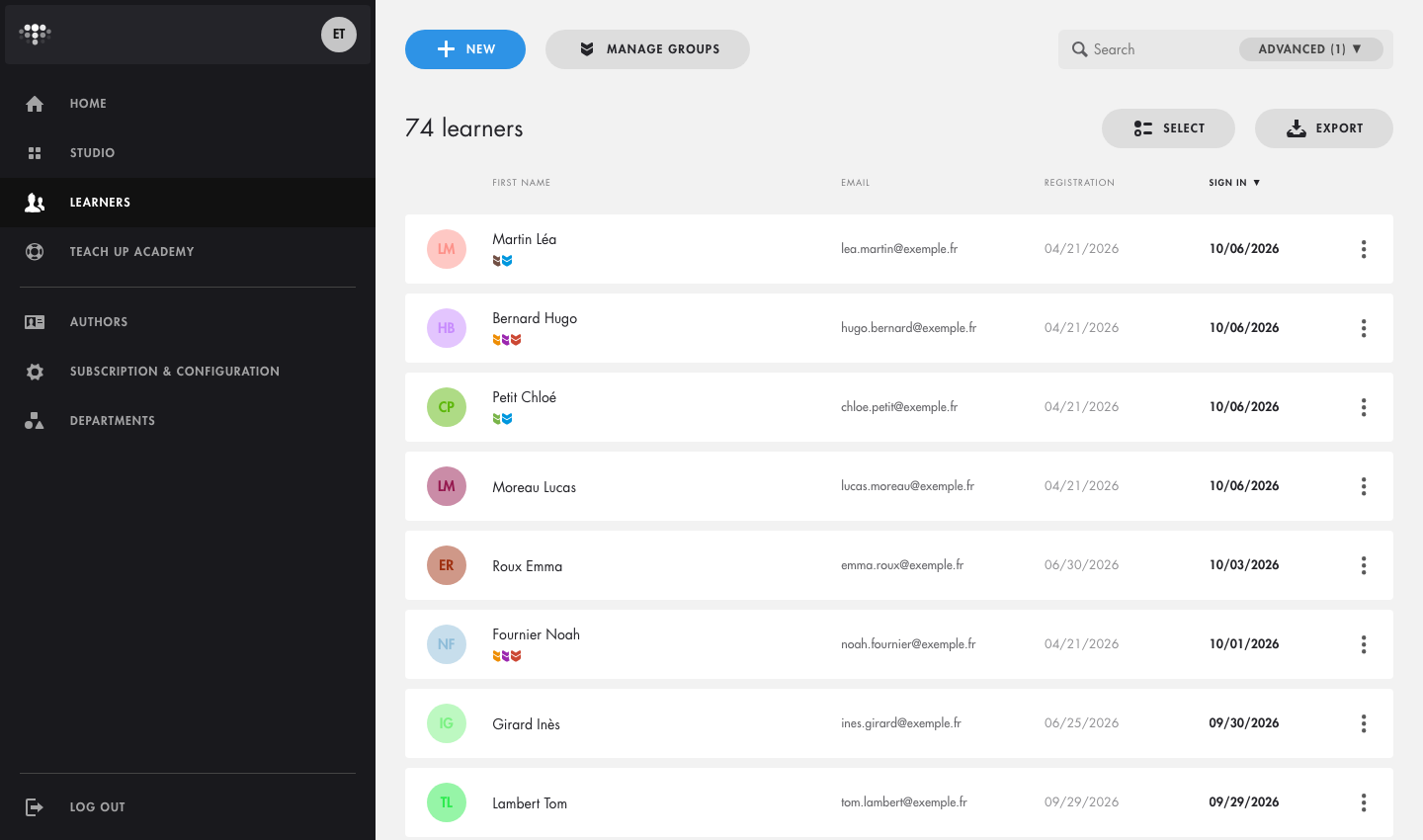
Click "Learners"  in the left menu.
Click the image to open it in a new tab.
For each learner, the list shows:
- their name, with their groups below it;
- their email;
- Registration: the date their account was created, after an assignment or opening a link;
- Sign in: the date of their last sign-in (the list is sorted on this column by default).
Filter the list
Click "Advanced", next to the "Search" field, to filter by sign-in date, registration date, "Groups" and learner status.
By default, the status filter shows active and pending learners: that's why "Advanced (1)" shows one active filter. Click "Apply" to filter, or "Reset" to clear everything.
Manage learners
- "New": create a learner;
- "Manage groups": create and organize groups;
- "Select": tick several learners, for example to assign them activities in one go.
- Everything is explained in Manage learners and groups.
Export the learner list
Click "Export", above the list, to download an Excel file with one row per learner. It includes, for each learner: identifier, name, email, working language, groups, status, account activation, creation date, total learning time, first and last sign-in, number of sign-ins, and number of sign-ins over the period.
A learner's profile
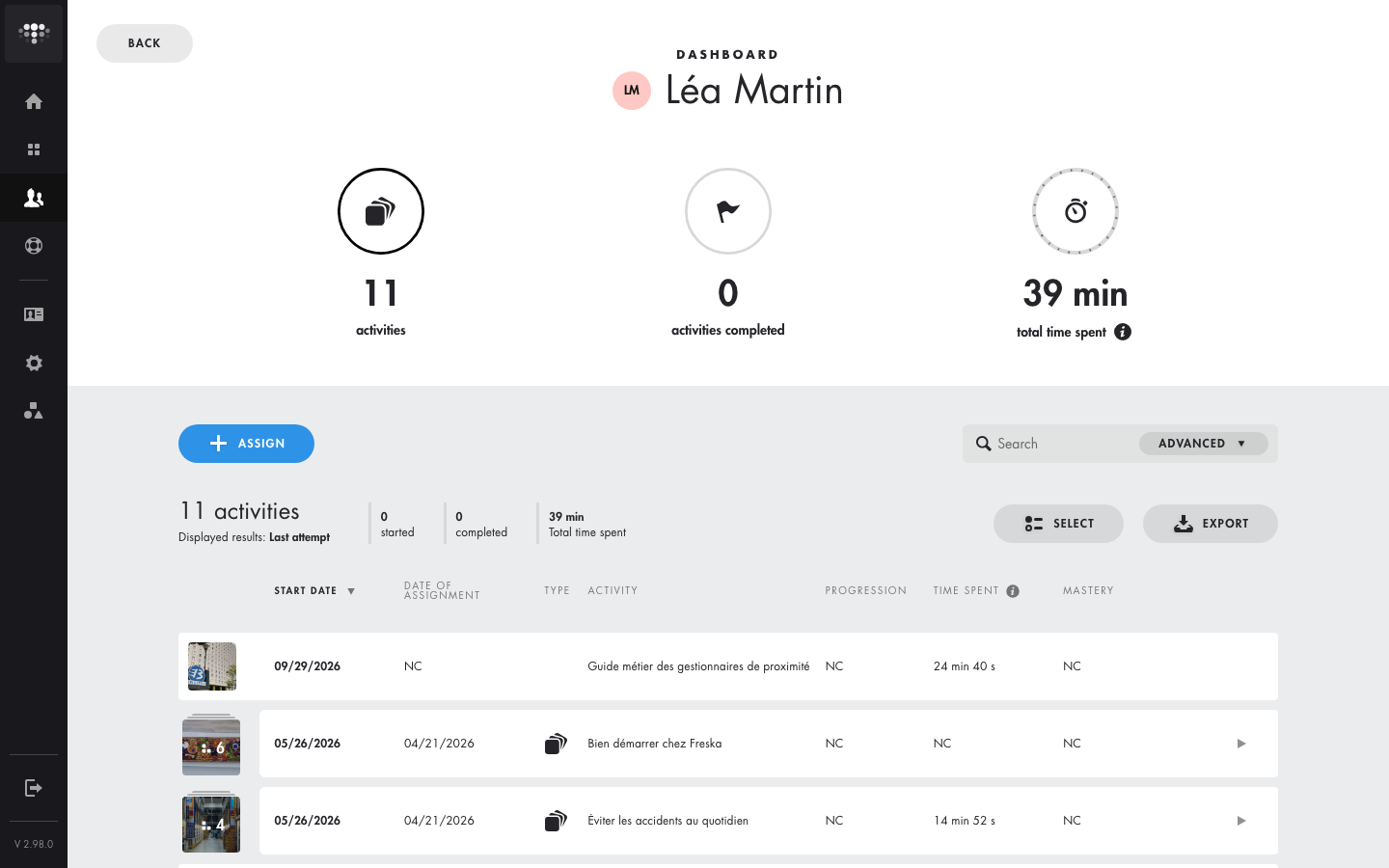
In the list, click a learner's name to open their profile. It shows all the activities assigned to them or that they opened through a link.
Click the image to open it in a new tab.
- At the top: the number of activities, activities completed and the total time spent.
- "Displayed results: Last attempt": the profile always shows the last attempt of each activity (an activity dashboard shows the best one by default).
- For each activity: Start date, Date of assignment, Type, Activity, Progression, Time spent and Mastery.
- "Assign": assign new activities to this learner.
Filter the learner's activities
"Advanced" lets you filter activities by:
- progression and mastery;
- "Personal labels" and "Shared labels";
- activity "Type";
- duration ("Duration of activity less than..." / "greater than...");
- start date ("Started before the ..." / "Started after the ...").
Act on an activity
Click an activity to expand it. Depending on the activity type, you will find:
- Document: the learner's documents (reports, form answers, certificates) and "Download all (zip)";
- "See details" (training path): progress step by step;
- "Remove assignment": remove the activity from their space.
To clear the learner's results on an activity, see Deleting a learner's results. The "Select" button lets you act on several activities at once.
Export a learner's profile
On the profile, click "Export" to download an Excel file with one row per activity, based on the last attempt. It includes: activity, activity type, start date and time, progression, time of the last attempt, time across all attempts, mastery, success and key questions.
💡 To understand the different times (last attempt, all attempts), see Time accounting in Teach Up.
Frequently asked questions
Who can see the "Learners" tab?
The space's administrators. It isn't available to authors and can't be shared.
Why don't the profile and the activity dashboard show the same results?
The profile shows the last attempt; the activity dashboard shows the best one by default. Choose "Last attempt" in the dashboard's display option to compare.
I can't find a learner in the list, why?
Check the "Advanced" filters: by default, only active and pending learners are shown. A learner also only appears once their account is created (after an assignment or opening a link).
How do I see the results of all learners on an activity?
Open the activity dashboard ("ANALYZE" tab).