.png?width=46&height=30&name=Logo-symbol%20(1).png)
Teach Up measures the time each learner spends training. This time appears in several places (dashboard, learner profile, learner space, exports) and doesn't always count the same thing: sometimes a single attempt, sometimes all of them. This article explains how time is measured, what each screen shows, and why two figures can differ.
Table of contents
- In short: which time, where?
- How time is measured
- In the dashboard of a course or assessment
- In a training path
- On a learner's profile
- In the learner space
- In exports
- With SCORM distribution
- Why don't two times match?
- Frequently asked questions
In short: which time, where?
The same learner can have several times depending on the screen. This table shows what each one counts:
| Where | What is counted |
| Course or assessment dashboard, "Time spent" column | The attempt that is counted: the best one (default) or the last one, depending on the display option |
| Same dashboard, expanded row › History › "Total time spent" | All attempts by the learner |
| Training path dashboard, "Time spent" column | The last attempt of each step, added up |
| Learner profile ("Learners" tab), "total time spent" | The last attempt of each activity, added up |
| Learner space | The last attempt of each course |
| Excel exports | Depending on the export: one attempt and/or all attempts (see In exports) |
| Certificate | The author's choice: the learner's actual time or a fixed average time (see certificates) |
💡 Before comparing two times, check that they count the same thing: one attempt or all of them, the best or the last.
How time is measured
The timer starts as soon as the learner opens a course or an assessment. It counts the time spent in the activity, attempt by attempt.
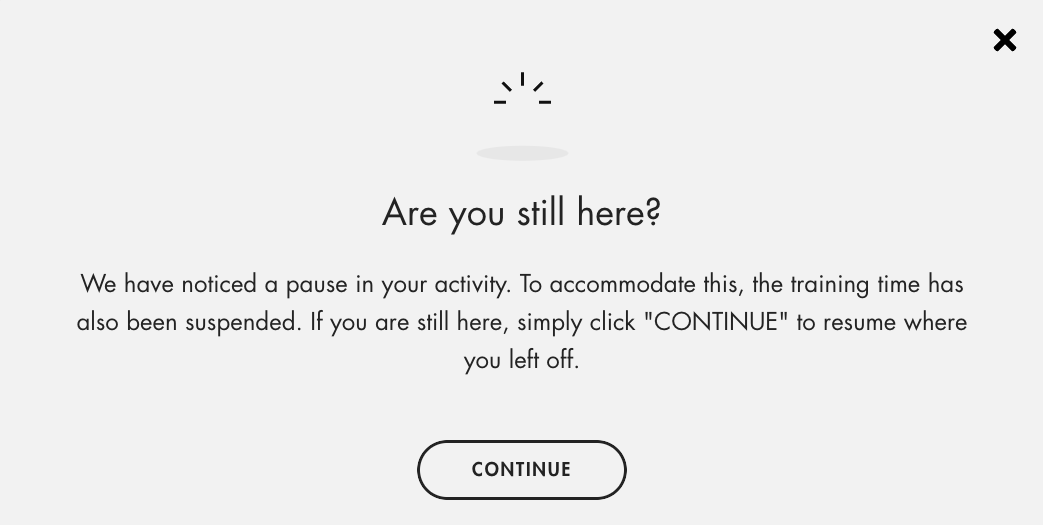
If the learner does nothing for 5 minutes (no mouse movement, for example), the timer pauses and the "Are you still here?" window appears. Time resumes when the learner clicks "CONTINUE". Inactive time is therefore not counted.
Click the image to open it in a new tab.
In the dashboard of a course or assessment
In the "Participants" tab of the dashboard:
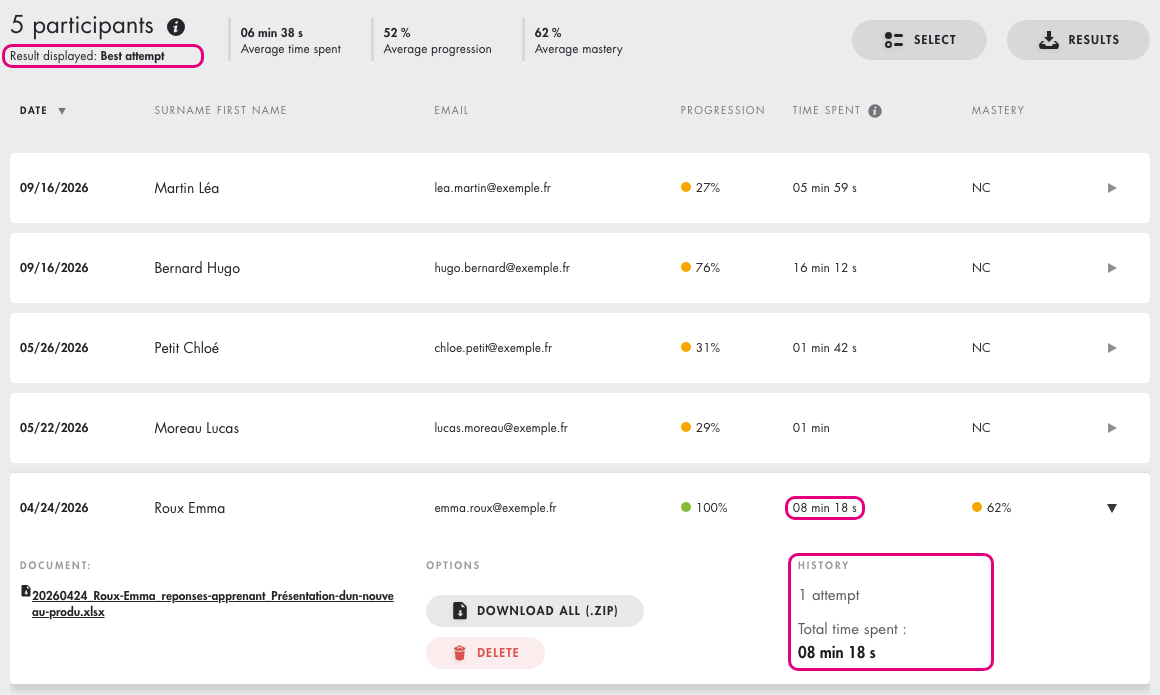
- the "Time spent" column gives the time of the attempt that is counted: the best one by default, or the last one if you choose "Last attempt" in the "Display option" (offered when the end screen lets learners start again);
- "Average time spent", above the list, is the average of these times;
- when you expand a learner's row, the "History" section shows their number of attempts and their "Total time spent" across all attempts.
Click the image to open it in a new tab.
In a training path
In a training path, Teach Up takes the last attempt of each step and adds up the times. The calculation includes:
- time spent in Teach Up courses and assessments;
- time spent in SCORM packages;
- time spent on placement tests.
It also includes durations estimated by the author for some steps:
- video duration;
- in-person sessions;
- consulting external resources (documents, links…).
Not counted:
- time spent in the training path menus;
- inactive time (pause after 5 minutes, as in a course).
When you expand a learner's row, the "History" section gives the time spent on all attempts of all steps; "Download" exports this history in detail.
On a learner's profile
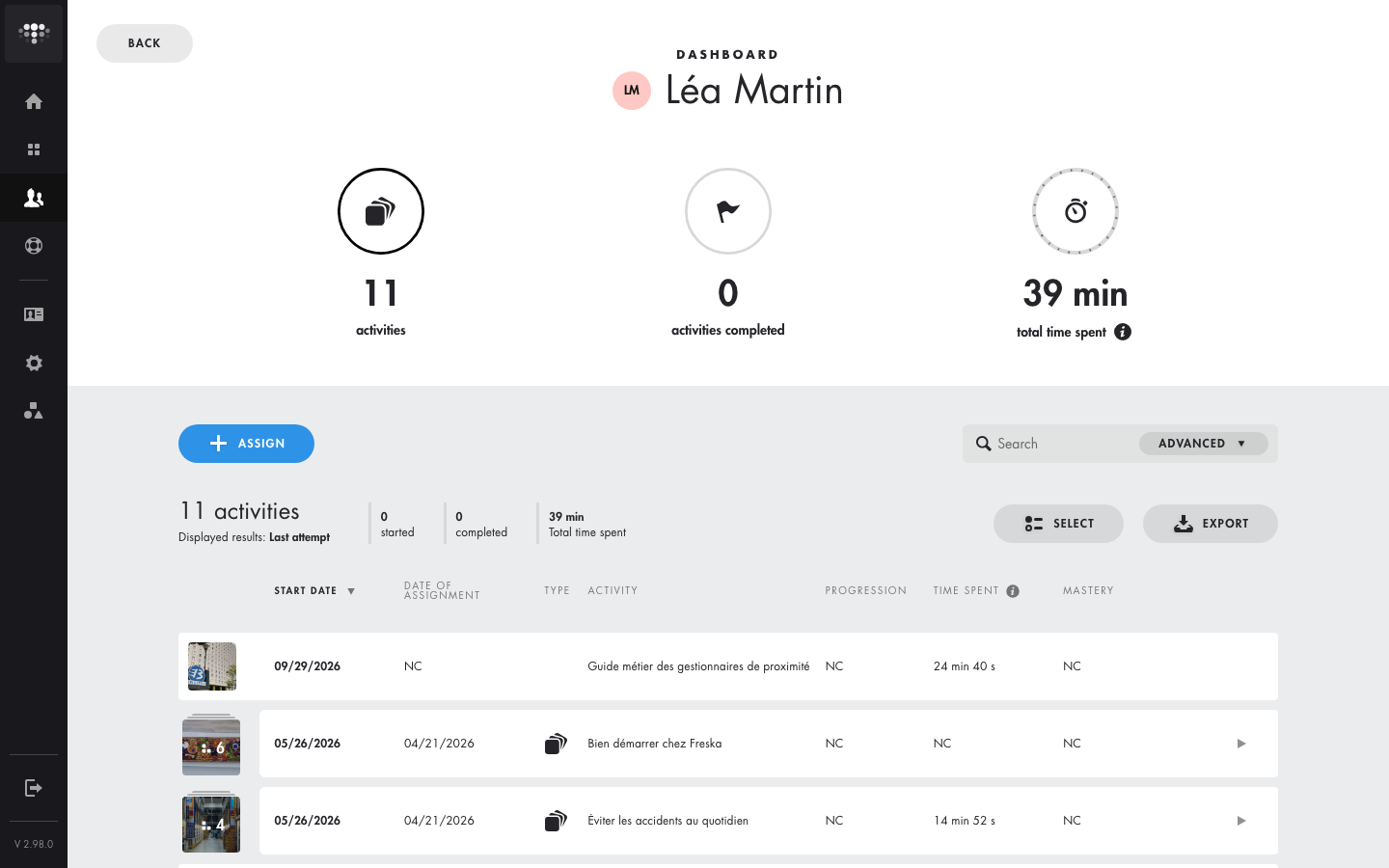
In the "Learners" tab, a learner's profile shows the last attempt of each activity by default. The total time spent at the top adds up these last attempts. See Track learner progress and performance.
Click the image to open it in a new tab.
In the learner space
In their space, learners see the time spent on each course. It is the time of their last attempt, not the total if they took the course several times.
In exports
Excel exports often give two times side by side:
- "Results" export of a course or assessment: the time of the best (or last) attempt, depending on the display option, and the time across all attempts;
- learner profile export and training path "general data" export: the time of the last attempt and the time across all attempts;
- training path "latest results" export: the time of the last attempt, step by step;
- CSV export of all data ("Integrations and advanced options" tab): time spent in seconds, one row per attempt.
With SCORM distribution
When a course is distributed in an LMS via SCORM, Teach Up sends the time spent to the LMS. Depending on the LMS:
- either the LMS shows the time sent by Teach Up;
- or it uses its own timer, which can create gaps: some LMSs count inactive time, and in a training path some don't count in-person sessions or external resources.
If you see a gap, check the time settings in your LMS (see Export and distribute via SCORM).
Why don't two times match?
- Best or last attempt? The course dashboard shows the best one by default; the learner profile and learner space show the last one.
- One attempt or all? "Time spent" counts one attempt; "Total time spent" and the all-attempts export column add them all up.
- Teach Up or the LMS? With SCORM, the LMS may measure time its own way (see With SCORM distribution).
- Screen or export? When in doubt, rely on the Excel exports, which give both times side by side.
Frequently asked questions
Is inactive time counted?
No. After 5 minutes without activity, the timer pauses until the learner clicks "CONTINUE".
Why is the time in my LMS different from Teach Up's?
Some LMSs have their own timer and count inactive time, for example. See With SCORM distribution.
How do I get a learner's total time across all attempts?
In the dashboard, expand their row: "Total time spent" is in the "History" section. In exports, use the all-attempts time column.
Which time is shown on the certificate?
The author chooses between the learner's actual time and a fixed average time. See Configure and retrieve the training certificates.
How is the time of a training path calculated?
Teach Up adds up the time of the last attempt of each step, including durations estimated by the author for videos, in-person sessions and external resources.