.png?width=46&height=30&name=Logo-symbol%20(1).png)
The Coach Expert is a support assistant designed to help learners in their day-to-day work while helping them progress and build lasting skills.
It addresses a common problem: even after a successful training course, employees often find themselves alone when they have to apply what they have learned in real situations, which are often more complex or different from those seen in training.
Unlike a traditional assistant, the Coach Expert guides the learner's thinking and helps them become autonomous. It relies only on your content to guarantee reliable and secure answers.
Table of contents
- Understand how the Coach Expert works
- Create a Coach Expert
- Set up the knowledge base
- Configure the Coach Expert
- Frequently asked questions
The Coach Expert is available to all users who have the "Coach Expert" feature.
Understand how the Coach Expert works
The Coach Expert is a practice companion that supports learners after their training and helps them apply what they have learned to the real situations they face every day.
Learners can ask the Coach Expert for help at any time by asking a question or describing a problem they are facing in the field. The Coach Expert allows them to:
- get on-demand support, whenever they need it;
- receive recommendations adapted to their context;
- identify the most relevant actions to take;
- strengthen the skills acquired during training.
The Coach Expert helps learners turn the knowledge covered in training into effective actions in their day-to-day work.
The Coach Expert relies only on the content you add to its knowledge base. This frames its answers and guarantees reliable support.
The Coach Expert on the learner side
When a learner opens the Coach Expert, they first see a presentation page that includes:
- an introduction text that presents the role of the Coach Expert;
- the areas of expertise on which it can help.
This page helps the learner quickly understand the topics the Coach can help them with.
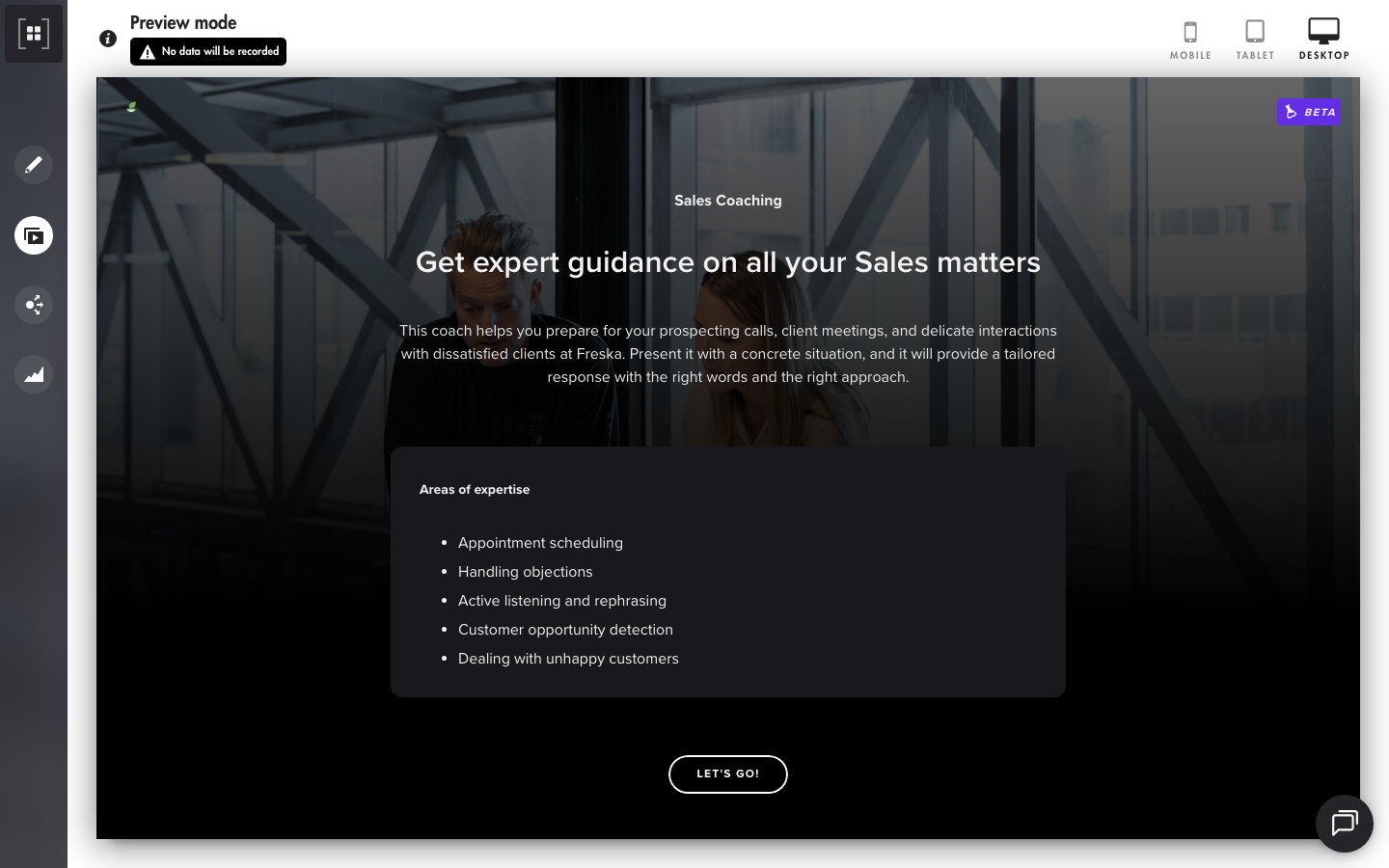
By clicking "Let's go!", the learner then opens the chat interface.
To help them get started, several suggested questions are displayed automatically. The learner can:
- select a suggestion to quickly start a conversation;
- type their own question in the input field;
- ask their question out loud using the microphone button.
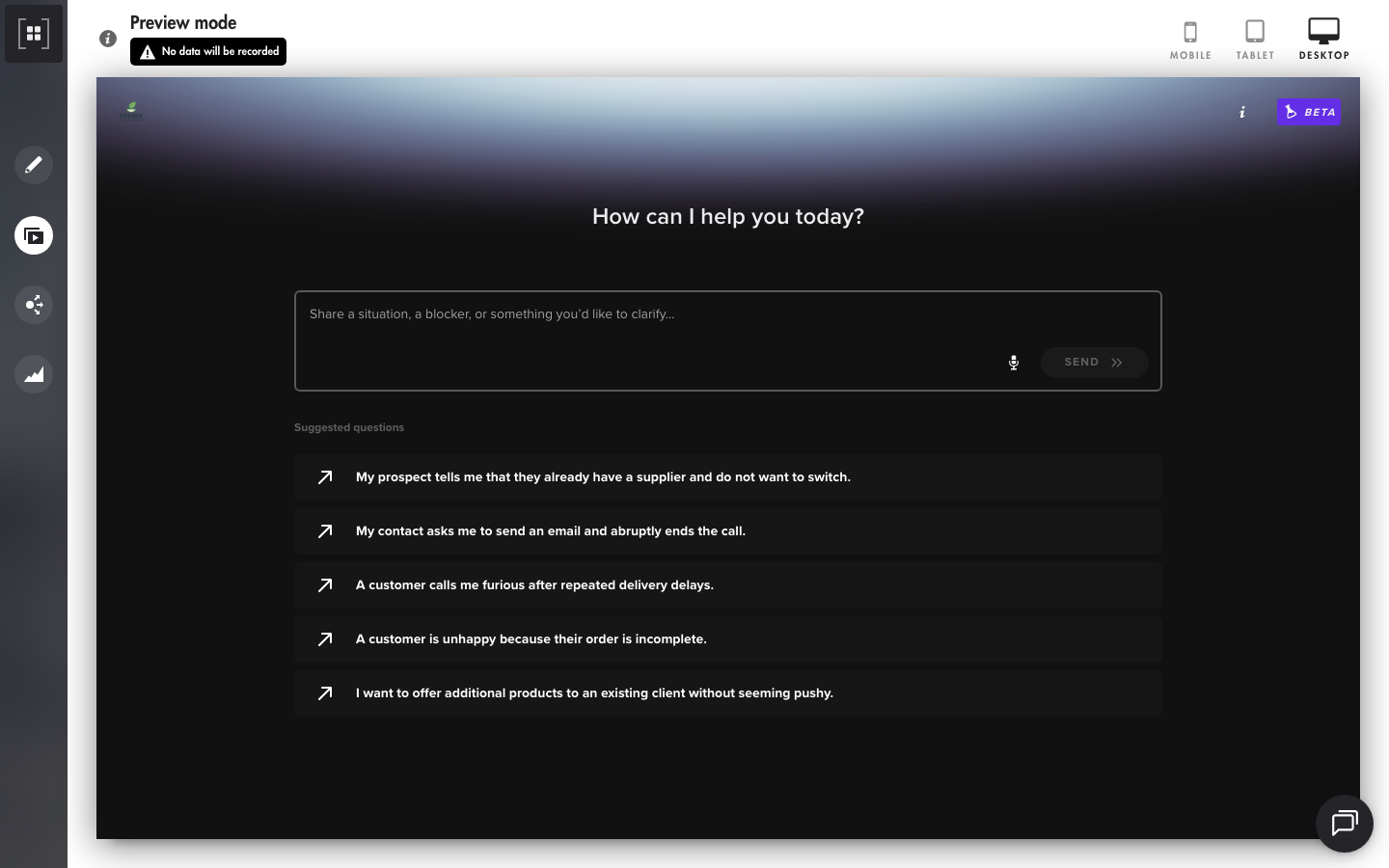
The Coach Expert then analyzes the request and starts a conversation with the learner to help them move forward on their problem.
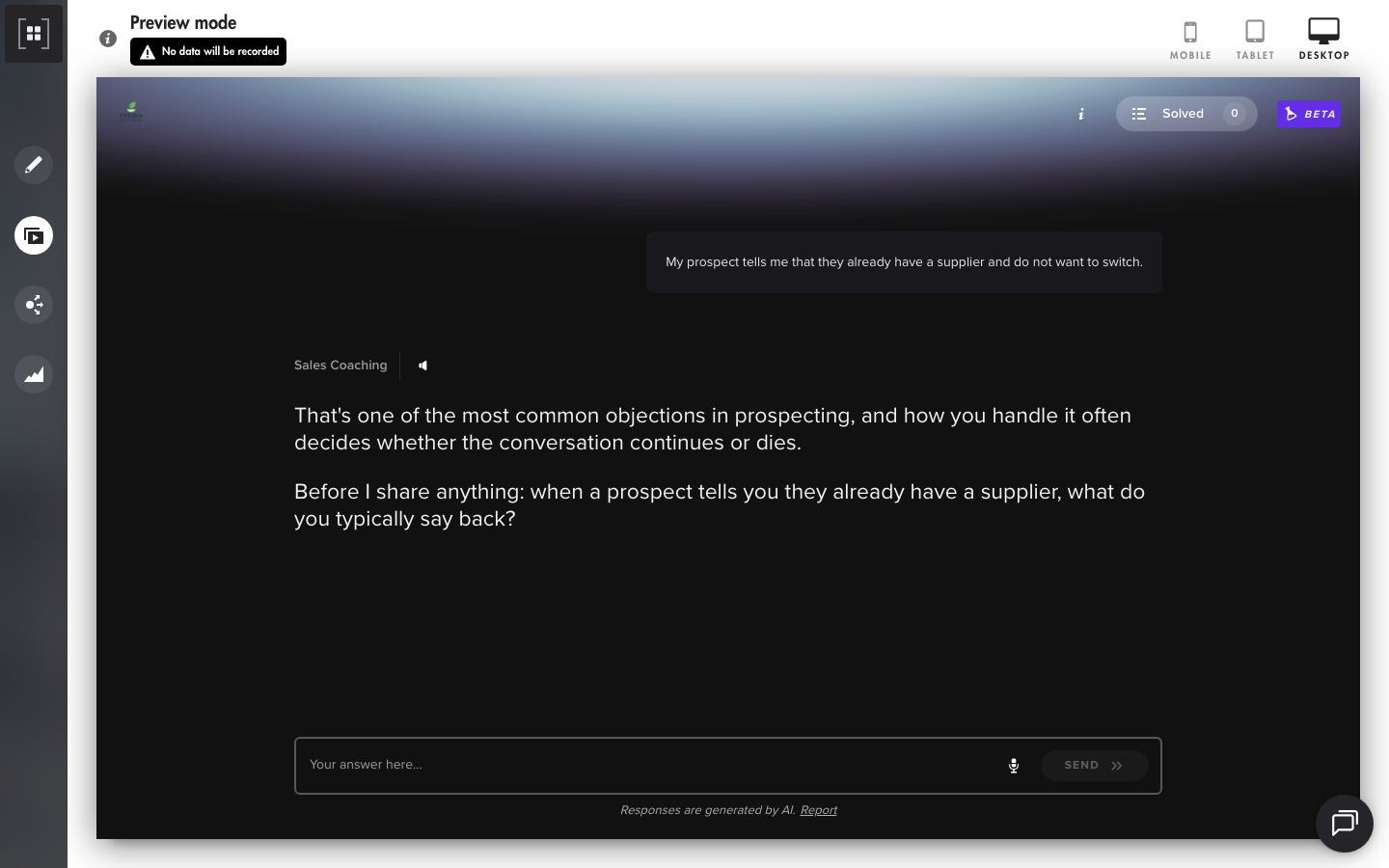
From the Coach Expert interface, the learner can open the "Solved" tab. This space lets them find the history of the problems already handled with this Coach Expert. They can review their previous conversations, find the advice they were given and easily return to topics already covered.
Create a Coach Expert
Access the creation page
To create a new Coach Expert, follow these steps:
- Go to the Teach Up studio.
- Click "My Coach Experts".
- Click "New Coach Expert".
Define the general information
Fill in the first settings of the Coach Expert:
- Select the language from those available.
- Choose a department if the option is enabled on your account.
- Add a title to the Coach Expert. Example: "Ask your expert about all your HR topics".
- Click "Next".
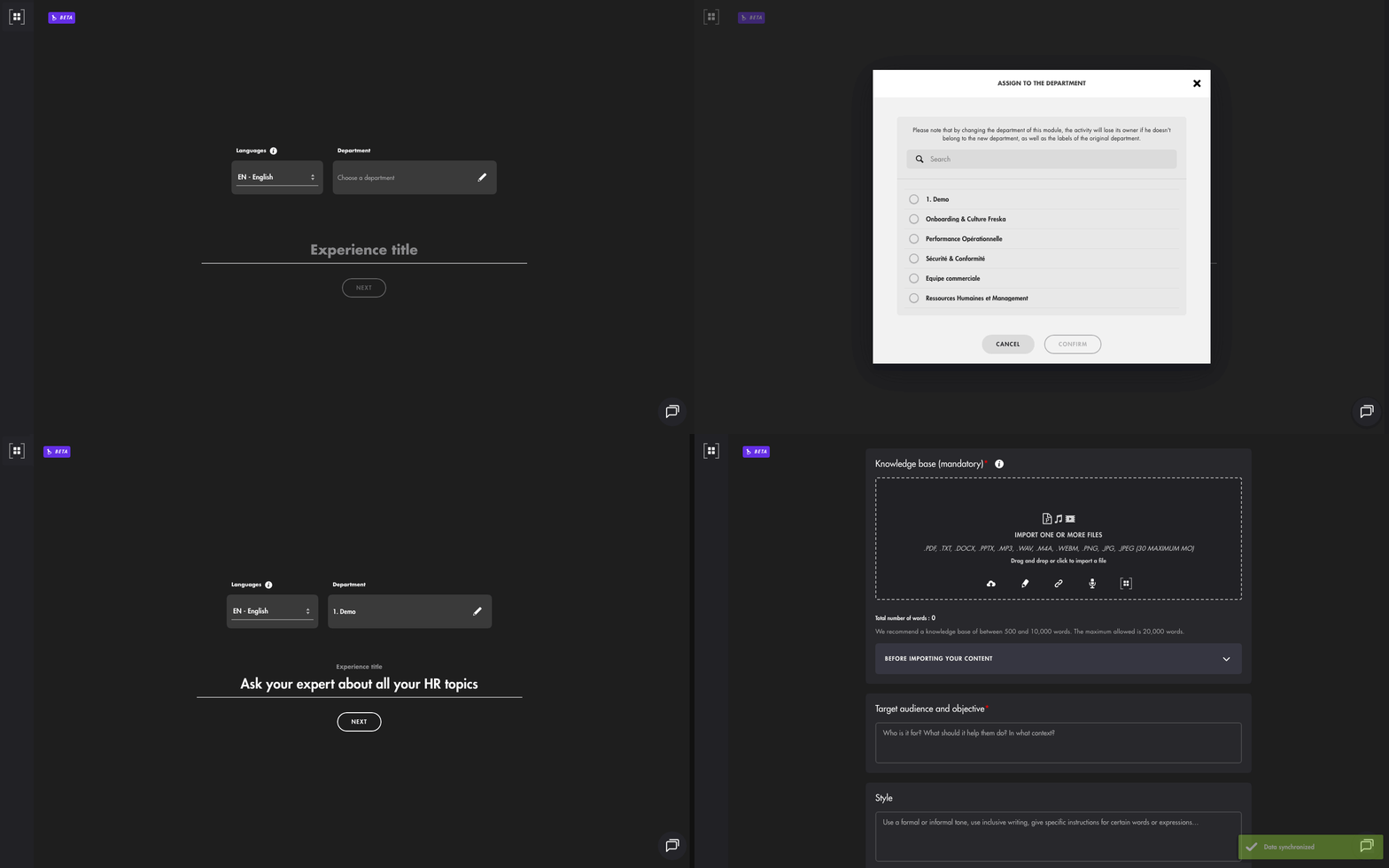
Click on the image to open it in a new tab
Set up the Coach Expert's knowledge base
The knowledge base is mandatory. It allows the Coach Expert to rely on reliable content to answer learners.
Add content
You can add several types of content:
- Import files.
- Add text content.
- Add a web page via a URL.
- Record content orally.
- Import the content of an existing course, assessment or training path.
For courses and assessments: only text content is taken into account. The following elements are not included: images, videos, links, and the knowledge base used to create the course.
For training paths: the Coach Expert takes into account the content of the courses, the content of the assessments and the documents in the training path. However, the following elements are not taken into account: part descriptions, the knowledge bases of the courses, videos, links and imported SCORM packages.
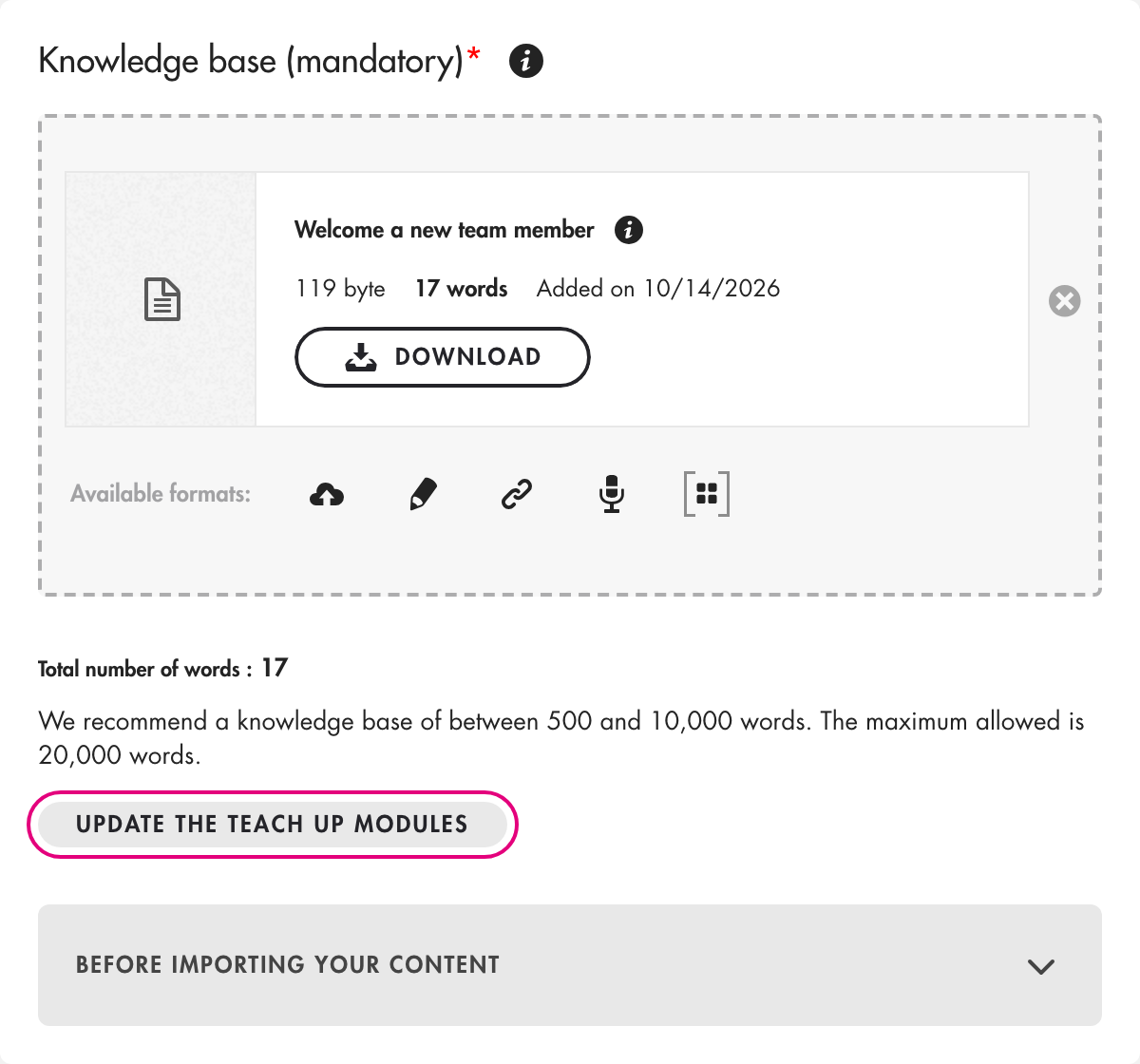
Teach Up also displays the total number of words added. To get quality answers, we recommend using a knowledge base that is complete enough (between 500 and 10,000 words) without being too large.
The knowledge base is currently limited to 20,000 words, or about 40 pages in 12-point font. Beyond this limit, you can no longer add new sources. To guarantee relevant and reliable answers, we recommend creating several Coach Experts when the topics to cover are very different or particularly broad.
Describe the Coach Expert
In the "Target audience and objective" field, describe the role of the Coach and how it should support learners.
Example:
The purpose of this Coach Expert is to help the Human Resources department and managers handle everyday situations. As part of preparing annual reviews and an anti-harassment campaign with a new process in place, we need everyone to be at the same level.
Customize the relational style
The "Style" field is optional. It lets you add instructions on the Coach's tone and attitude.
Example:
Address the learner informally. Always write the company name Freska this way: "Freska".
Once these fields are completed, click "Let's go!".
Configure the Coach Expert
After clicking "Let's go!", a new window opens. Teach Up automatically generates settings, which you can edit at any time.
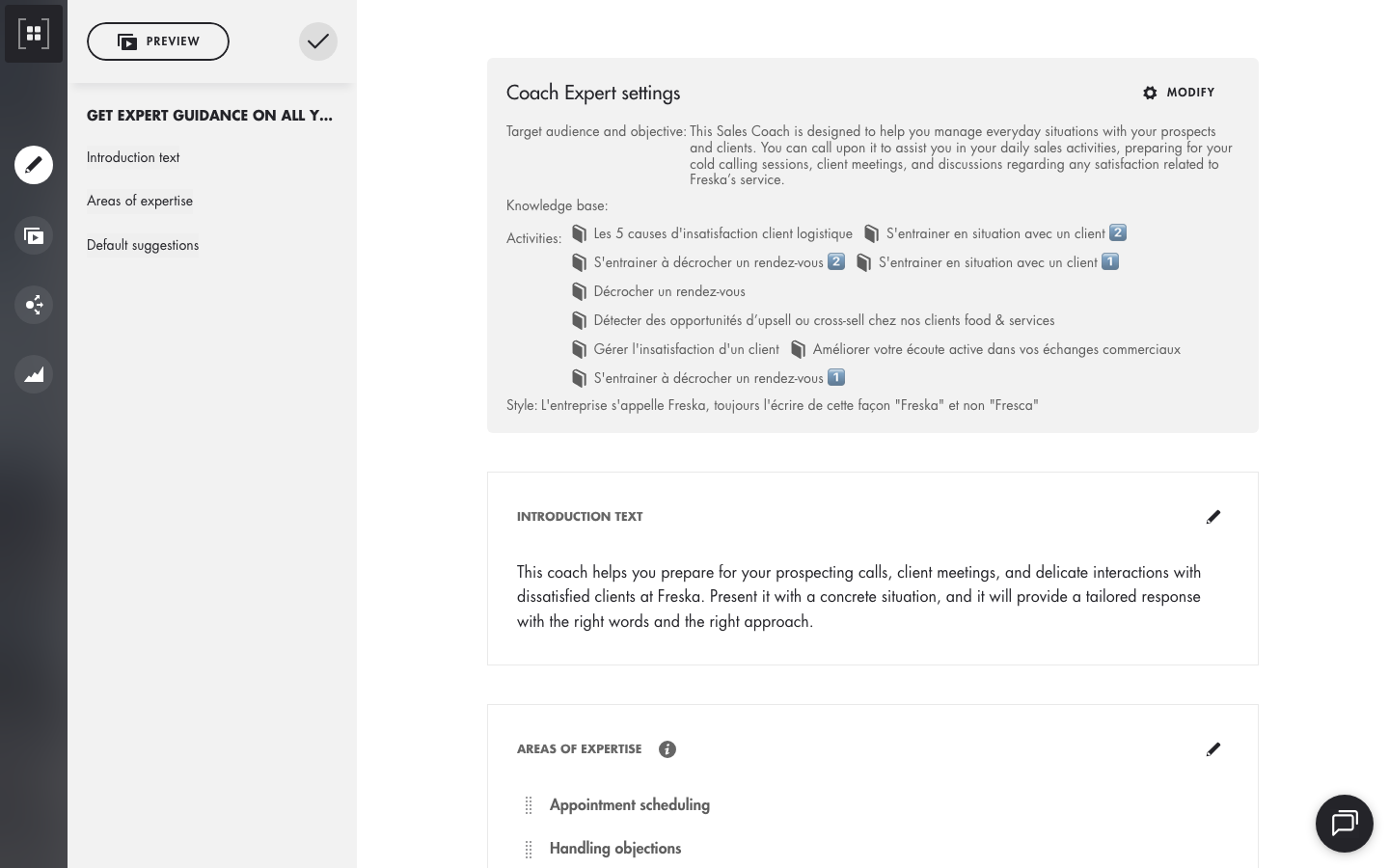
Edit the introduction text
The introduction text is the message displayed to the learner when they open the Coach Expert. By default, Teach Up generates a suggestion that you can adjust.
Example:
This expert supports Freska's HR team and managers in everyday situations: annual reviews, returns from absence, difficult feedback and handling reports. Ask your questions directly and get an answer grounded in Freska's processes and tools.
Define the areas of expertise
The areas of expertise are the topics the Coach Expert can cover with learners.
Teach Up automatically suggests areas, which you can edit, delete or add to.
Examples:
- Giving contextualized feedback
- Annual reviews
- Managing returns after a long absence
- Knowing Freska's anti-harassment procedure
These areas clarify the scope of the Coach Expert.
The introduction text and the areas of expertise are displayed on the same page when the learner opens the Coach Expert.
Add default suggestions
Default suggestions are questions or situations offered to learners to help them quickly start a conversation.
Teach Up automatically suggests them, and you can edit, delete or add to them.
Examples:
- I don't know how to give feedback without putting my employee on the defensive.
- My employee is showing signs of demotivation and I don't know how to react.
- An employee has reported a harassment situation: what steps should I follow?
- I have to welcome back an employee after six months of absence: how should I structure the meeting?
- I can't bring myself to announce bad news to an employee (leave refused, pay rise refused, end of probation period).
Once you have checked the fields, click "Confirm".
On the learner side, the default suggestions are displayed when the learner opens the Coach Expert and has not yet started a conversation with it.
Frequently asked questions
Can the Coach Expert access the internet or external sources?
No, the Coach Expert has no access to the web or to external sources. It relies only on the content in its knowledge base to answer learners. This approach guarantees consistent answers aligned with your organization's content.
Does the Coach Expert adapt its answers to the learner's level?
The Coach Expert adapts its coaching approach based on the conversation and the learner's wording. However, the progress or mastery data available in Teach Up is not used in the current version.
Can the Coach Expert assess the learner's level?
No. The Coach Expert is not an assessment tool: it helps learners answer their on-the-job questions. If a learner asks it to assess their level, it invites them to describe their actual situation instead. To measure learners' knowledge, use an assessment.
Does the Coach Expert recommend other training courses?
No. The Coach Expert relies only on its knowledge base to support learners and does not automatically recommend other training content.
Can learners find their previous conversations with the Coach Expert?
Yes. Conversations are kept in the Coach Expert interface and can be accessed from the conversation history.
Learners can also export:
- a summary of the conversation;
- the full details of the conversation.
Can administrators and authors read learners' conversations with the Coach Expert?
No. The detailed content of conversations is not accessible to administrators or authors. However, they can see the topics covered and analyze usage trends from the Coach Expert dashboards.
What happens when a learner says their problem is not resolved?
The learner can ask the Coach Expert a second time. Depending on the type of request:
- for a question, the Coach offers a new explanation or another way of approaching the topic;
- for coaching, it continues the support with a more direct and concise approach.
If the problem is resolved after this second attempt, it is considered resolved. Otherwise, the coaching ends, but the learner can always start a new conversation.
Can the Coach Expert's answers be edited or approved manually?
No. All answers are generated automatically by Teach Up's artificial intelligence. It is not possible to write, edit or approve answers manually before they are displayed.
Can a learner upload a document for the Coach Expert to analyze?
No, this feature is not currently available.
Can a Coach Expert be added to a training path?
Yes. The Coach Expert is a learning modality in its own right and can be added to a training path. When used in a training path, it is marked as completed as soon as the learner opens it.
Is the Coach Expert a Teach Up learning object in its own right?
Yes. Like a course, an assessment or a training path, the Coach Expert is a standalone learning object.
It can be:
- added to a training path;
- exported as SCORM;
- shared via a direct access link;
- embedded in a course via a direct access link.
Can Coach Expert data be exported?
Yes. In the Coach Expert's "Analyze" tab, click the "Results" button (in the "Participants" or "Problems" tab) to download the results in Excel format. Find more information here.
Is a voice version of the Coach Expert available?
Yes. The learner can dictate their request by clicking the microphone icon ("Start recording") in the input field, and listen to the Coach Expert's answers read aloud using the speaker icon next to the Coach's name.
In which language does the Coach Expert answer?
The Coach Expert answers in the language used by the learner, even if it differs from the language chosen when the Coach Expert was created. For example, a learner who writes in Spanish to a Coach Expert created in French gets an answer in Spanish. If the learner switches language during the conversation, the Coach Expert adapts.
What is the difference between the Coach Expert and a generative AI like ChatGPT?
The Coach Expert does not work like a general-purpose AI that relies on the internet to generate its answers.
It relies only on the knowledge base you provide. Its answers are therefore limited to your organization's content and aligned with your business context.
This approach helps to:
- guarantee consistent answers;
- reduce the risk of incorrect information;
- keep your organization's data secure;
- offer learning support focused on your content.
The Coach Expert is also a learning-focused AI: its goal is to develop learners' skills over the long term by taking the stance of a Socratic coach, unlike a general-purpose AI that gives the answer directly.
Is the Coach Expert GDPR compliant?
Yes. The data used by the Coach Expert is hosted in Europe and is not used to train artificial intelligence models. The content added to the knowledge base and the conversations with the Coach Expert remain within Teach Up's secure environment.
If I edit a course imported into the knowledge base, is the Coach Expert updated?
Not automatically. After editing the course, open the Coach Expert, click "Modify" in "Coach Expert settings", then "Update the Teach Up modules" under the knowledge base: the course's word count is recalculated. Then click "Confirm". The Coach Expert then answers with the updated content of the course.
Click on the image to open it in a new tab.