.png?width=46&height=30&name=Logo-symbol%20(1).png)
Subsections split your assessment into themes. Each has its title, question order, time limit and, if you wish, its own messages depending on the score obtained.
Table of contents
Add a subsection
- At the bottom of the outline, click “Create a subsection”.
- Type the title in “Subsection title” (1). You can also add a background.
The subsection appears in the outline with its questions. Its settings are summarized in the “Sub-section settings” block, below the title.
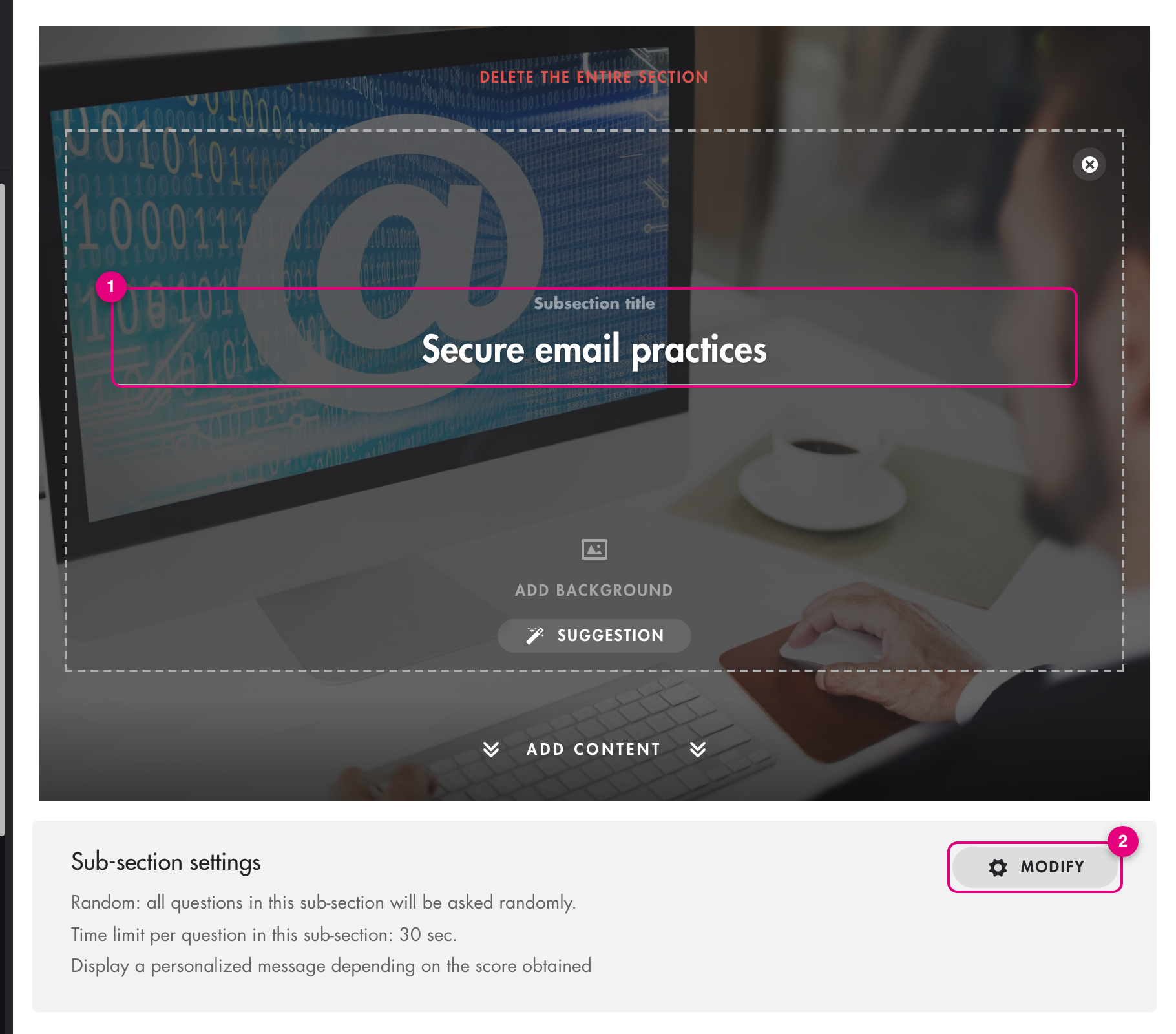
Click on the image to open it in a new tab.
Learners see the title of each subsection, especially next to their score per subsection. Questions placed before the first subsection appear to them in an “Introduction” part.
Configure a subsection
In the “Sub-section settings” block, click “Modify” (2).
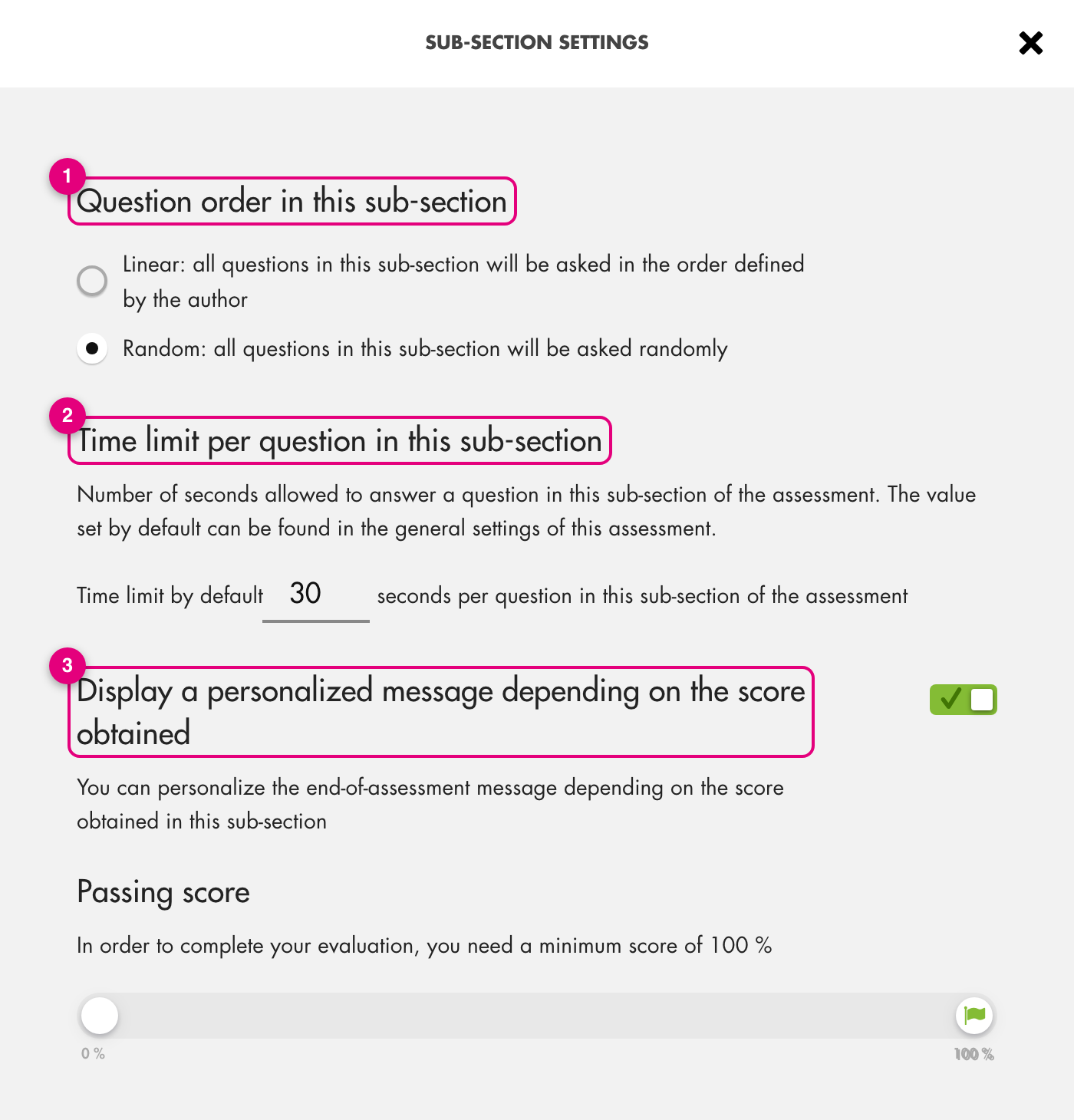
Click on the image to open it in a new tab.
How the settings combine
- Time limit: the question's time limit overrides the subsection's, which overrides the assessment's.
- Question order: “Question order” in the assessment settings, and the order of questions within each subsection. It cannot be set question by question.
- Question types: the types checked in the assessment settings are offered by default for each new question; each question can then be customized. There is no question-type setting per subsection.
Choose the question order
“Question order in this sub-section” (1):
- “Linear”: questions are asked in the order defined by the author;
- “Random”: questions are asked randomly.
Set the time limit
“Time limit per question in this sub-section” (2): enter a time in seconds. If left empty, the subsection uses the time set in the assessment settings.
Display a message depending on the score
Enable “Display a personalized message depending on the score obtained” (3) to set messages based on the score obtained in this subsection. A “Passing score” bar appears; it works like the one in the assessment settings (thresholds, comments).
These messages are shown on the last page if the “Score per sub-section” option is enabled: see Configure the last page of an assessment. The passing score of the assessment itself is set in Configure global assessment settings.
Click “Confirm” to save.
Move a subsection
- In the outline, click the subsection title and hold.
- Drag it above or below another subsection, then release. Its questions move with it.
- Click the save icon at the top left (the check mark turns into a floppy disk until the change is saved).
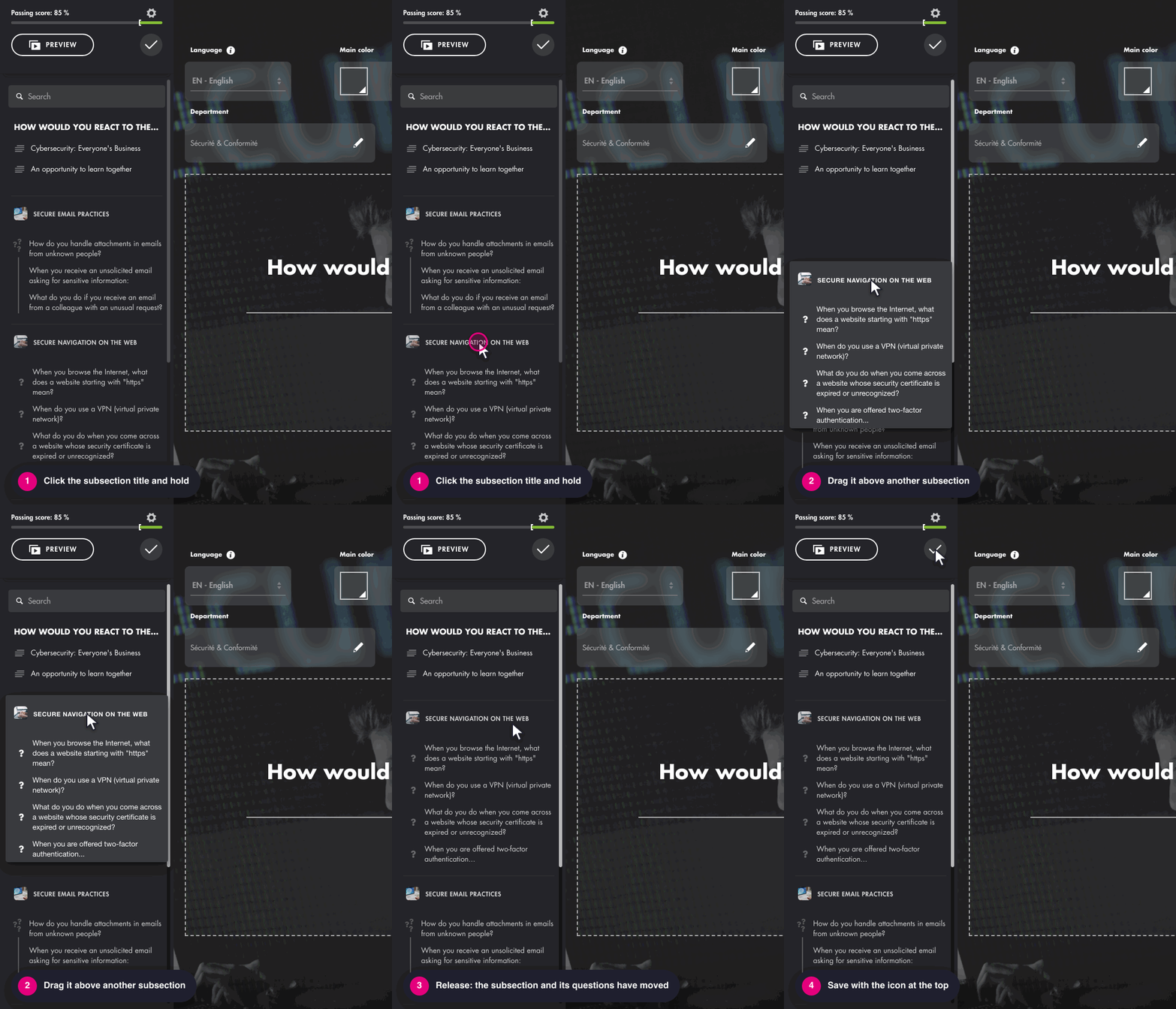
Click on the image to open it in a new tab.
Frequently asked questions
Can I choose question types for a subsection?
No. Types are set in the assessment settings (for new questions) or question by question: see Create and configure a question in an assessment.
What does the learner see at the end of the assessment?
Their score per subsection, with your messages if you set any, and, if the option is enabled, the questions in detail and their correction. See Configure the last page of an assessment.