
The “Teach Up Module” step adds a course or an assessment already created in your studio to your training path. The learner takes it without leaving the training path, and the results appear both in the training path and in the course.
Table of contents
- Add a course or an assessment
- Set up the step
- Set up the advanced options
- What the learner sees
- Frequently asked questions
Add a course or an assessment
- Open the training path, then the section where you want to add the step.
- Click “Add a step”.
- Choose “Teach Up Module”.
- In the “Search for and add a Teach Up module” window, look for the activity (filters by language, labels and type), then click it.
Set up the step
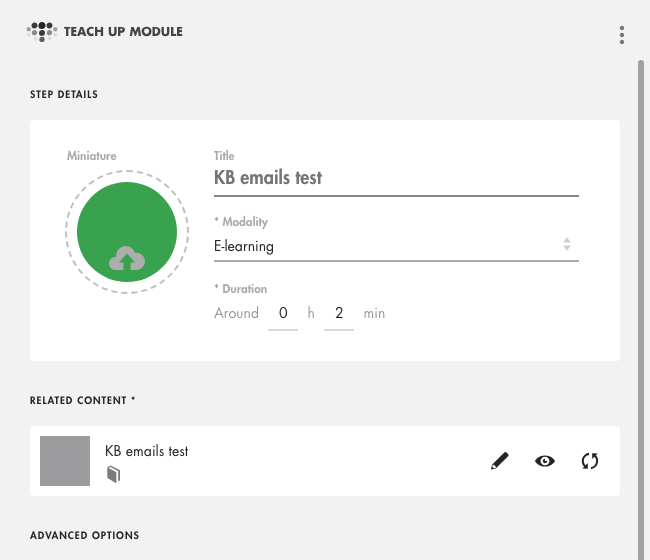
The step panel opens, pre-filled from the activity you chose:
- the “Duration” is taken from the course; for an assessment, enter it yourself;
- the “Title” is optional: if left empty, the tile shows the activity's title;
- the “Modality” is “E-learning” by default, for a course as well as an assessment;
- in “RELATED CONTENT”, the eye icon shows a preview of the activity, and the arrows icon lets you replace it with another one.
Click on the image to open it in a new tab.
Set up the advanced options
In “ADVANCED OPTIONS”, at the bottom of the panel:
- “Conditions of access”: “Always accessible” (default), “Validate first...” (then “…the previous step” or “…all previous steps”), “From…” or “Until…”;
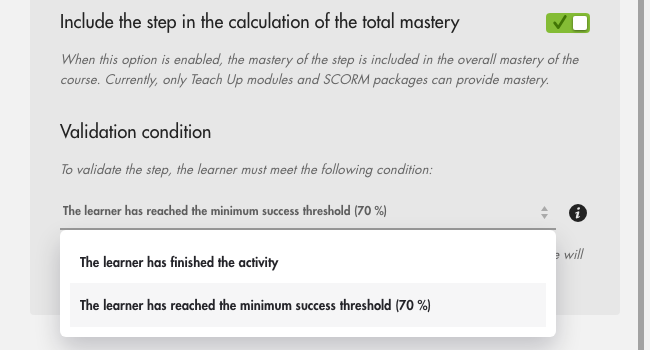
- “Include the step in the calculation of the total mastery”: on by default; the mastery of the course or assessment then counts in the mastery of the training path;
- “Validation condition”: for a course, a single condition: “The learner has finished the activity”. For an assessment, two choices: “The learner has finished the activity” (whatever the score) or “The learner has reached the minimum success threshold”, which uses the assessment's passing score (70% by default, see Configure global assessment settings).
These options are explained in Create a training path.
Click on the image to open it in a new tab.
What the learner sees
The learner clicks the step's tile: the course or assessment opens in the training path. The “BACK TO TRAINING PATH” button at the top takes them back to the list of steps. The step shows “Completed” once the validation condition is met.
Frequently asked questions
Are the results visible in the course dashboard?
Yes. The dashboard of the course or assessment gathers all attempts, including those made in the training path, without showing where they come from. To see only the training path's learners, use the training path dashboard.
Does a learner who has already finished the course have to do it again?
Yes. In a training path, the course has its own progress: a course finished outside the training path is not completed automatically.