.png?width=46&height=30&name=Logo-symbol%20(1).png)
The review link lets you have a course or an assessment reviewed by your client, a subject matter expert or your teammates before you distribute it. Reviewers go through the pages without needing a Teach Up account, mark each page as validated or needing edits, and suggest improvements. You then find all their feedback in one place to finalize your content.
Table of contents
- Access the review link
- Configure the review link
- Share the review link
- Review content as a reviewer
- Handle feedback as an author
- What reviewers see
- Reset the review link
- Frequently asked questions
Access the review link
- Open the course or assessment you want reviewed.
- In the left-hand menu, click "3. Review".
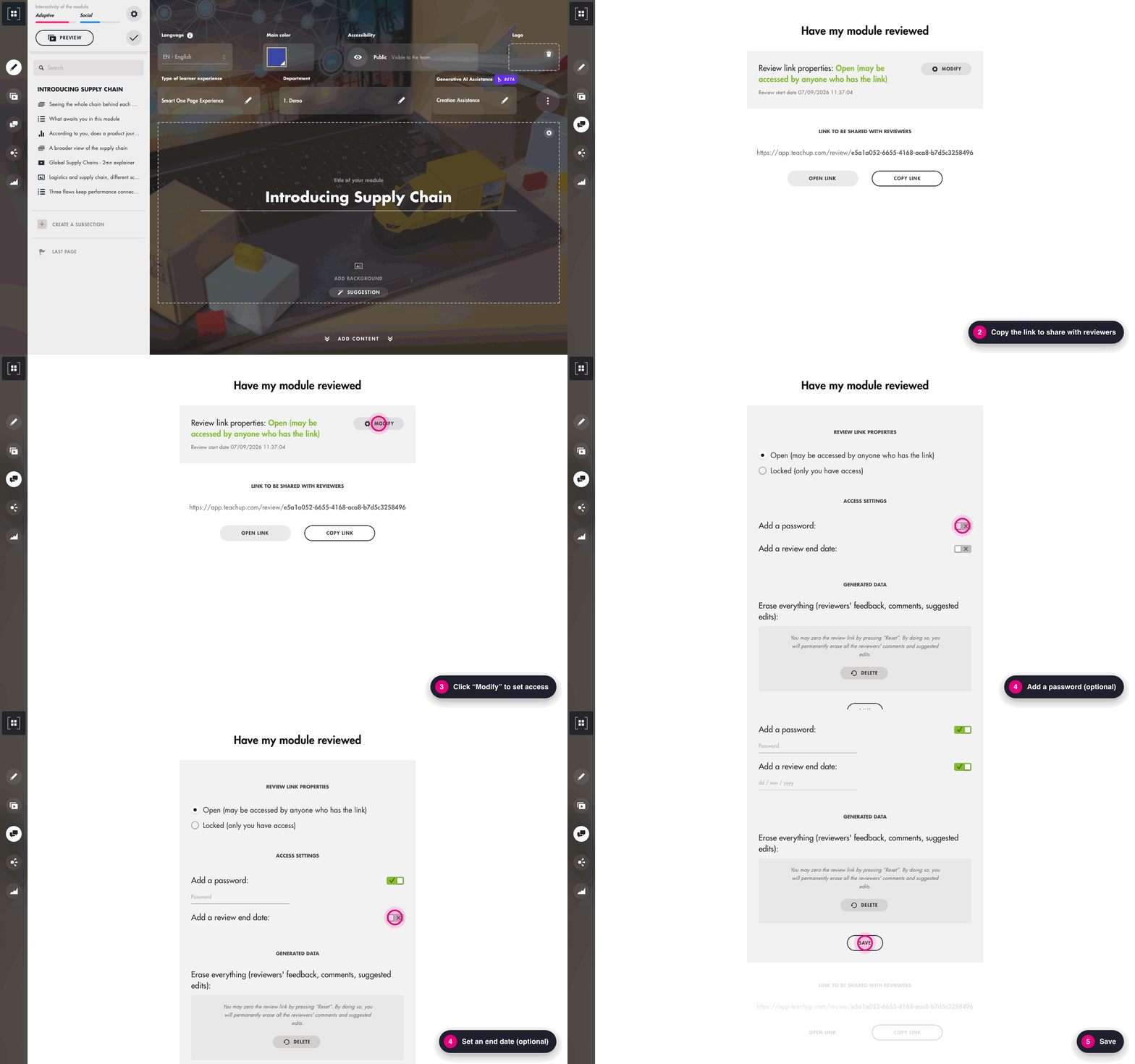
The "Have my module reviewed" page opens. It shows:
- the review link properties (open or locked) and the "Modify" button to configure them;
- the link to be shared with reviewers, with the "Open link" and "Copy link" buttons.
Click the image to open it in a new tab
Configure the review link
On the "Have my module reviewed" page, click "Modify" to open the settings. Once you are done, click "Save".
Open or lock the link
Under "Review link properties", choose:
- "Open": the link may be accessed by anyone who has it;
- "Locked": only you have access.
This lets you decide when the review starts and when it ends.
Add a password
- Under "Access settings", turn on the "Add a password" toggle.
- Enter the password in the Password field.
- Click "Save".
Remember to send the password to reviewers along with the link. You can change it at any time.
Add a review end date
- Turn on the "Add a review end date" toggle.
- Enter the date (dd/mm/yyyy).
- Click "Save".
After this date, the link can no longer be accessed.
Share the review link
- On the "Have my module reviewed" page, click "Copy link".
- Send the link to your reviewers by email or through your usual communication tool.
Make sure the link is "Open" before sharing it. If you added a password, share it too.
Review content as a reviewer
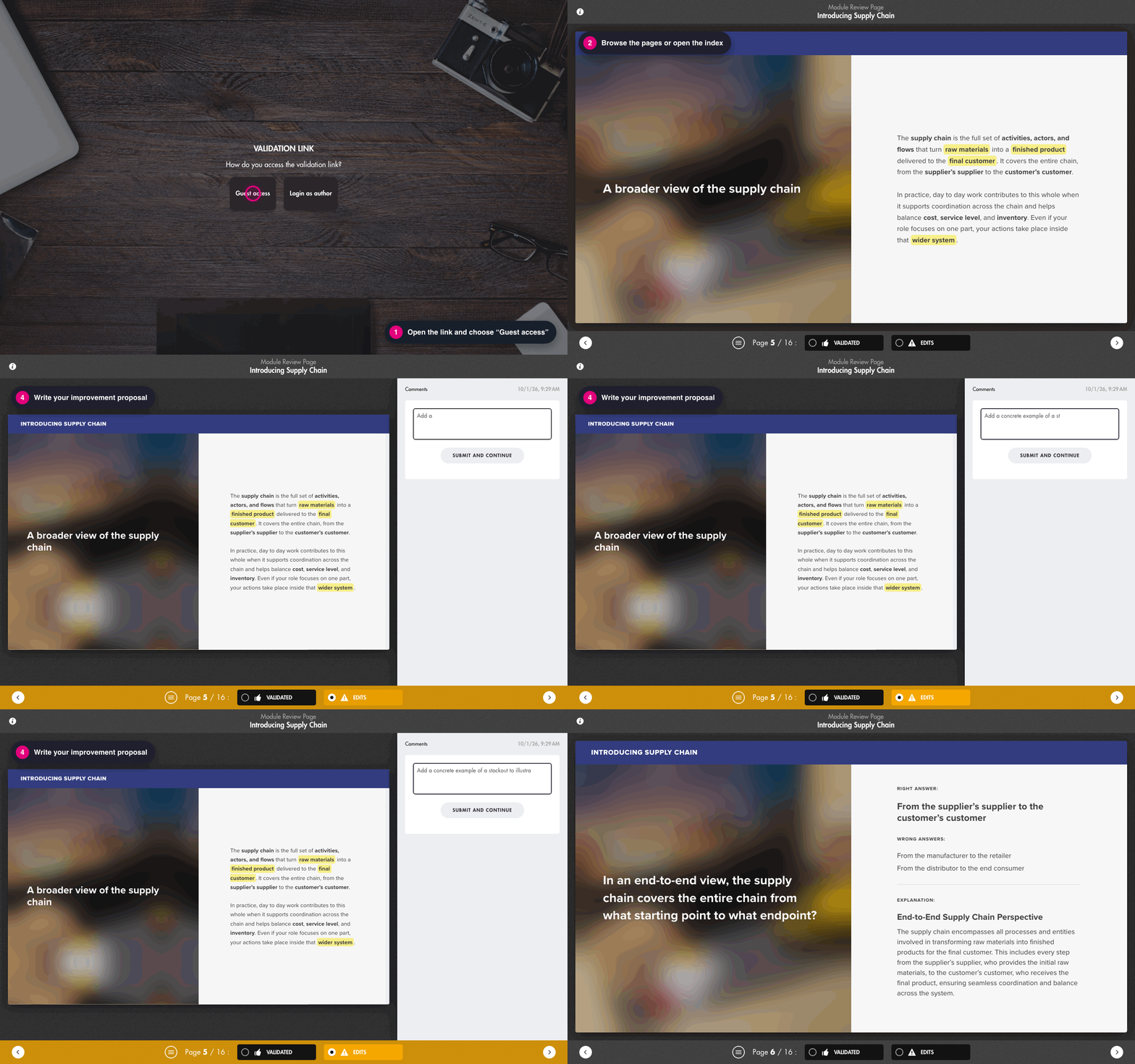
When opening the link, the reviewer is asked "How do you access the validation link?" and chooses "Guest access". No Teach Up account is needed.
Click the image to open it in a new tab
The reviewer can then:
- Browse the pages with the arrows at the bottom of the screen, or open the index (☰ icon) to jump to a specific page.
- Set a status for each page: "Validated" or "Edits".
- If they choose "Edits", write their remark in the Write your improvement proposal here field on the right.
- Click "Submit and continue": the proposal is saved and the next page opens.
Handle feedback as an author
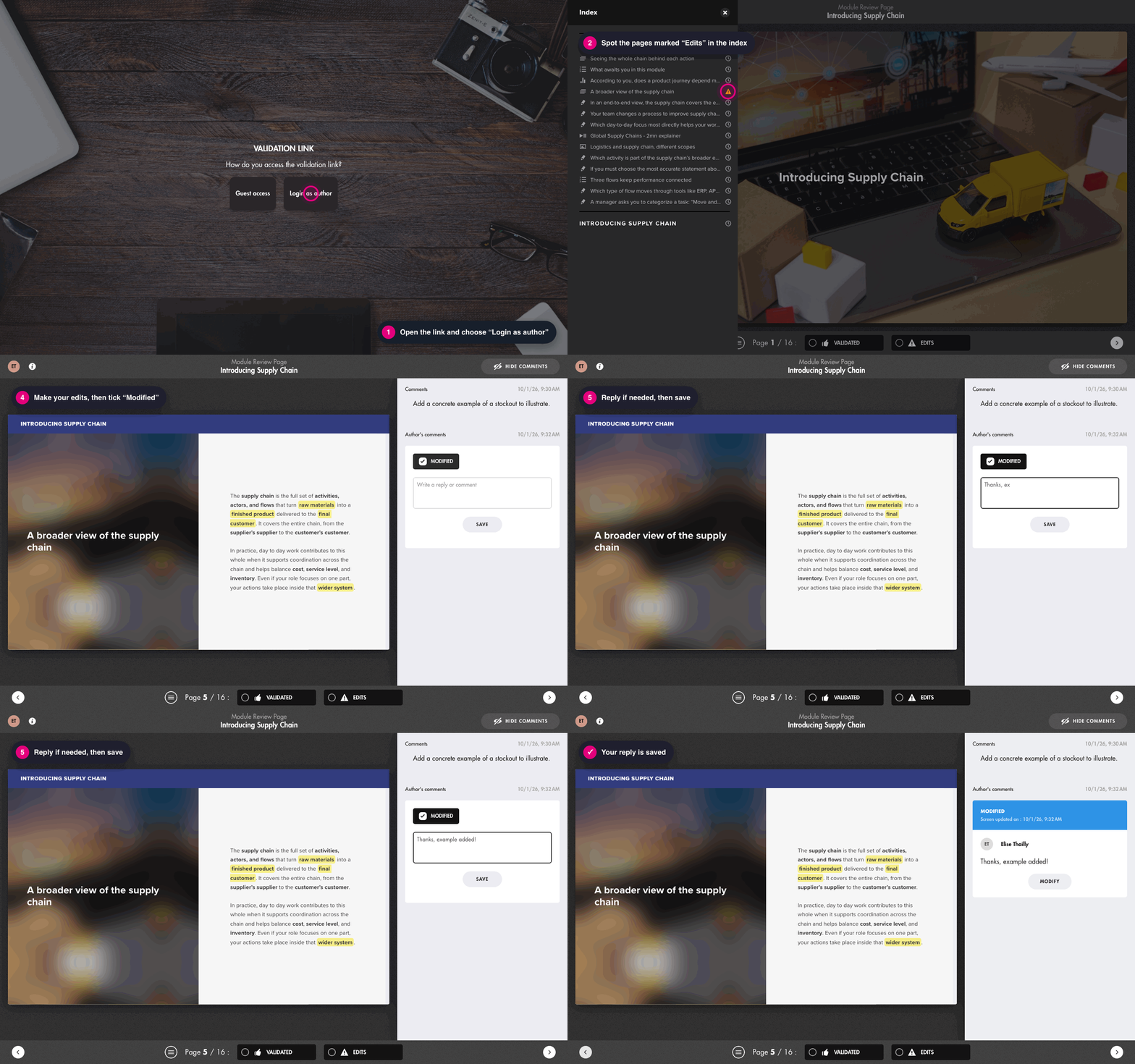
- Open the review link ("Open link" button on the "Have my module reviewed" page) and choose "Login as author".
- Open the index (☰ icon): pages marked "Edits" show a ⚠ icon. Pages without feedback keep the clock icon.
- Click a page to read the reviewers' comments in the right-hand column.
- Make your changes in the course, then come back to the review link and tick "Modified" in the "Author's comments" block.
- If needed, reply to the reviewer in the Write a reply or comment field.
- Click "Save".
The page then shows "Modified" with the update date, so reviewers know their remark has been addressed. The "Hide comments" button, at the top right, lets you view the page without the comments column.
Click the image to open it in a new tab
What reviewers see
The review link shows every page of the content, in order. Reviewers focus on the substance: structure, texts and overall consistency.
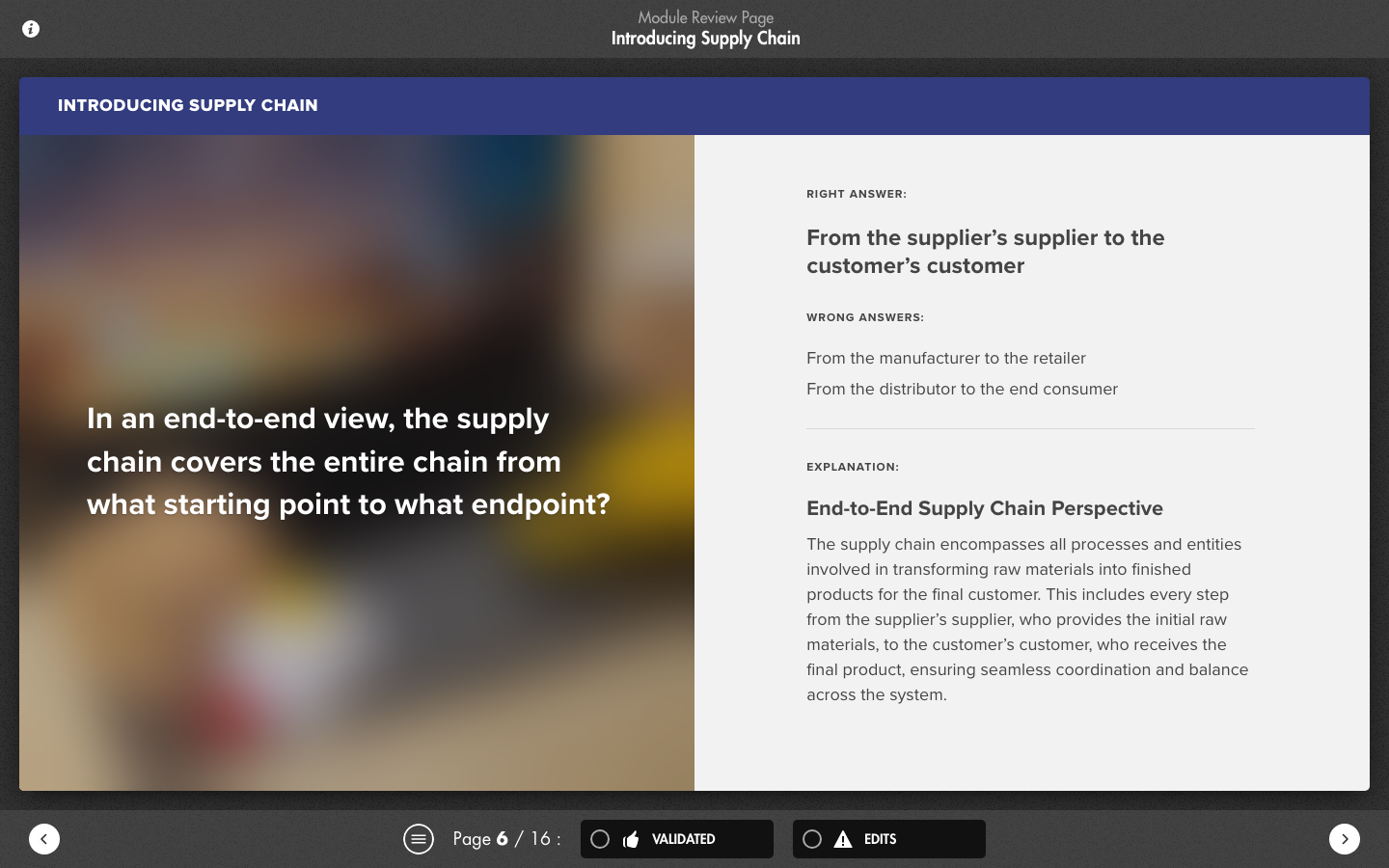
Questions, polls and practice activities cannot be played in the review link: they are displayed as review sheets. For a question, the reviewer sees the right answer, the wrong answers and the explanation.
Click the image to open it in a new tab
To check how activities will look for learners, use the "Preview" button instead.
Reset the review link
To start a new round of reviews from a clean slate:
- On the "Have my module reviewed" page, click "Modify".
- Under "Generated data", next to "Erase everything (reviewers' feedback, comments, suggested edits)", click "Delete".
- Confirm by clicking "Erase data".
The message "Review link has been reset" appears. All reviewer and author comments, as well as page statuses ("Validated", "Edits"), are deleted. Your content is not changed, and the link stays the same.
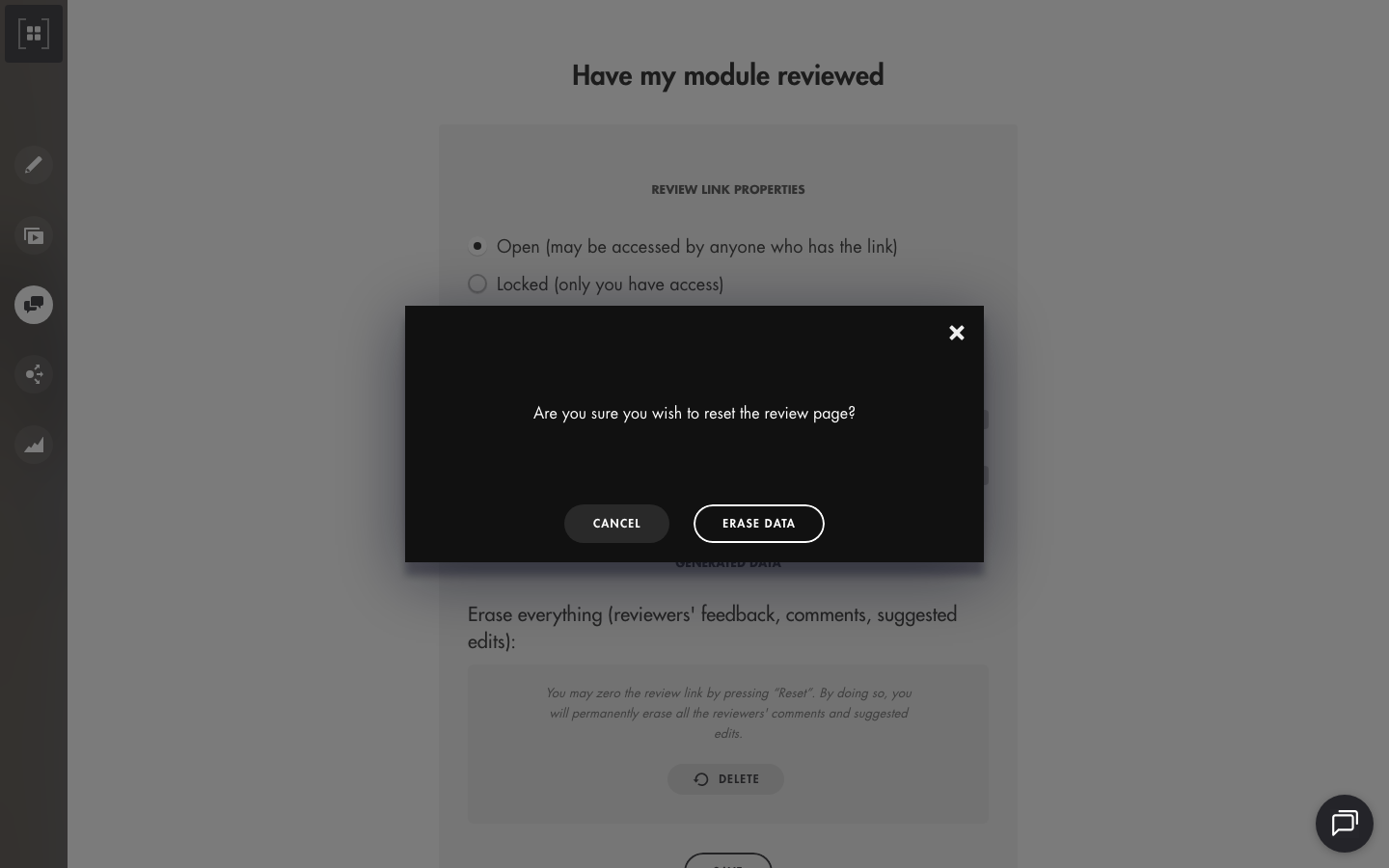
Click the image to open it in a new tab
This action is permanent: deleted comments cannot be recovered.
Frequently asked questions
Do reviewers need a Teach Up account?
No. They choose "Guest access" and review the content without logging in. If you added a password, they will need to enter it.
Do reviewers see my latest changes?
Yes. The review link always shows the latest version of your content: no need to send a new link after your edits.
Why can't I submit an improvement proposal when logged in as author?
As an author, you reply to reviewers' comments in the "Author's comments" block. To submit a proposal yourself, open the link and choose "Guest access".
Can I have an entire training path reviewed at once?
No, a training path cannot be reviewed as a whole. Share the review link of each course in the path to collect feedback.
Why can't reviewers play the activities?
The review link is designed for proofreading. Questions, polls and practice activities appear as sheets (answers and explanation) rather than in playable form. To test the learner experience, use the "Preview" button.