.png?width=46&height=30&name=Logo-symbol%20(1).png)
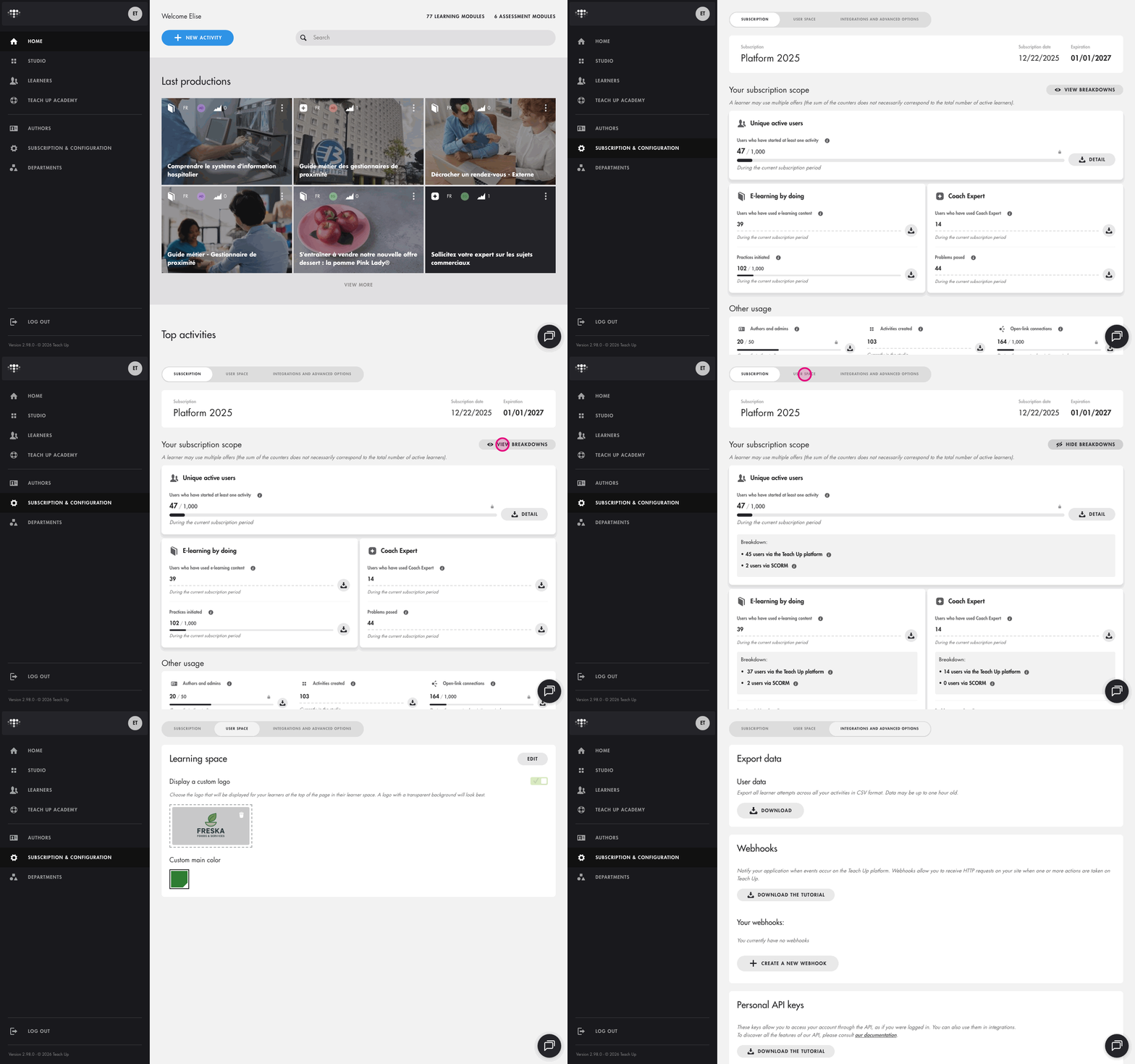
The "Subscription & configuration" page lets you track the use of your Teach Up subscription and configure your account. It is organized into three tabs: Subscription, User space and Integrations and advanced options.
Table of Contents
- Access the Subscription & configuration page
- The Subscription tab: track your counters
- Understand licences
- The User space tab
- The Integrations and advanced options tab
- Frequently Asked Questions
Access the Subscription & configuration page
In the navigation sidebar, click "Subscription & configuration". The page opens on the Subscription tab.
Click on the image to open it in a new tab.
The Subscription tab: track your counters
At the top of the tab, you will find the name of your subscription, its subscription date and its expiration date. Find out about the different plans in the article Understand the Teach Up subscription plans.
The "Your subscription scope" section then shows your usage counters. When a counter is limited by your contract, the limit is displayed next to the value (for example "46 / 1,000").
| Counter | What it measures |
|---|---|
| Unique active users | Unique users who have launched at least one activity since the start of the current subscription period, across all modalities. |
| E-learning by doing | |
| Users who have used e-learning content | Unique users who have accessed at least one e-learning resource (course, assessment, SPOC) since the start of the current subscription period. |
| Practices initiated | Total number of practice sessions launched by your users since the start of the current subscription period. |
| Coach Expert | |
| Users who have used Coach Expert | Unique users who have opened at least one Coach Expert conversation since the start of the current subscription period. |
| Problems posed | Total number of problems opened by your learners in Coach Expert since the start of the current subscription period, all statuses combined. |
| Other usage | |
| Authors and admins | Users who currently have access to the author space to create or edit your content. |
| Activities created | Total number of activities (courses, training paths, assessments…) created by your authors since your very first subscription. |
| Open-link connections | Connections from unidentified users (without an account) to your courses shared via an open link since the start of the current subscription period. |
A learner may use multiple offers: the sum of the counters does not necessarily correspond to the total number of active learners.
To go further:
- the "View breakdowns" button shows, for user counters, the split between users via the Teach Up platform and users via SCORM;
- the "Detail" button and the download icons next to each counter let you download the corresponding details.
At the bottom of the tab, the "Billing information" section can be updated with the "Edit" button.
Understand licences
Learner licences
A learner licence is assigned as soon as a learner starts an activity, whatever the distribution method (assignment, link or SCORM Cloud). It corresponds to the "Unique active users" counter.
- Licences cannot be reused: once used for a learner, a licence remains assigned until the end of the subscription period.
- The counter is reset at each new subscription period.
Annual contract: a one-year contract from 01/01/2025 to 12/31/2025, limited to 200 learners, is reset at renewal on 01/01/2026: 200 learners can use the platform again.
Multi-year contract: for a two-year contract starting on 01/01/2025, the counter is reset every year, on 01/01/2026: each year, a new group of 200 learners can access the content.
Author licences
Author licences correspond to the "Authors and admins" counter. They are rotating seats: a licence used by someone who no longer needs access to the author space can be reassigned to someone else. This covers global administrators, department managers and authors.
Example: if your subscription includes 6 author licences and you have 1 administrator and 5 authors, all licences are in use. If one of the authors no longer needs access, you can assign their licence to another user. To find out more, see the article Manage authors.
Activities
An activity is a course, an assessment or a training path. Depending on your contract, the number of activities may be limited or unlimited; if the limit is reached, creating new activities is blocked.
Example: a training path containing 12 courses and 1 assessment counts as 14 activities.
The User space tab
This tab lets you customize your learners' space, with the "Edit" button:
- Display a custom logo at the top of the learner space (a logo with a transparent background will look best);
- choose a custom main color.
👉 To see what your learners find in their space, read The learner space.
The Integrations and advanced options tab
This tab brings together the technical options of your account:
- Export data (option on demand): download as Excel or CSV the "User data" (all attempts, except activities completed within a training path) and the "Learner sessions" (one row per login session), as well as the "Training data" if your account has the option. Data may be up to one hour old. See Make the most of your data.
- Webhooks and personal API keys: connect Teach Up to your own tools. See the article Use the Teach Up public API and webhooks.
- Default SCORM settings: configure the default SCORM distribution settings for newly created activities (course, assessment, training path and Coach Expert). The settings for each activity remain individually modifiable.
Frequently Asked Questions
How do I know how many licences are still available?
Check the counters in the Subscription tab: for each limited counter, the value used is displayed next to your contract limit.
Can an author licence be reassigned to another user?
Yes, once the licence has been freed up. To do so, you must permanently delete the author: excluding an author is not enough, they are still counted in "Authors and admins".
- In "Authors", click the three dots on the right of the author's row, then "Exclude user" and confirm.
- Click the three dots on their row again (the author is marked "(Excluded)"), then "Delete forever".
The licence can then be assigned to another author.
Does deleting a learner free up a learner licence?
No. This only works for author licences. A learner licence cannot be reused: once a learner has started an activity, the licence remains counted until the end of the subscription period, even if the learner is excluded or deleted forever.