
You have training material (a PDF, a presentation, a Word document…) and you want to turn it into an interactive e-learning course? With Teach Up's AI Assistant, you can get a first complete course in less than 15 minutes: the AI structures your training, writes the content based on your documents, and you keep control over every word.
This guide takes you step by step, from a blank page to previewing your course.
The AI Assistant is available with the « Generative AI » option. If it isn't enabled on your account yet, contact our team.
Table of contents
- Before you start: what you need
- Step 1: create your course (1 min)
- Step 2: give the AI Assistant some context (3 min)
- Step 3: generate the introduction and the plan (1 min)
- Step 4: generate your content (5 min)
- Step 5: review, save and preview (5 min)
- What next?
- Our tips for better results
- Frequently asked questions
Before you start: what you need
Prepare three things before you start:
- One or more reference materials: a PDF, a Word document, a PowerPoint presentation, an audio file… You can import several of them. This is the material the AI will write from. Ideally, together they contain between 500 and 10,000 words.
- One, two or three learning objectives: what your learners should be able to do at the end of the course, depending on the length you want. For a short course, a single well-targeted objective is enough.
- Your audience: who the training is for, in what context, at what level, and in what tone you want to address them. The more precise you are, the better the AI adapts.
Step 1: create your course (1 min)
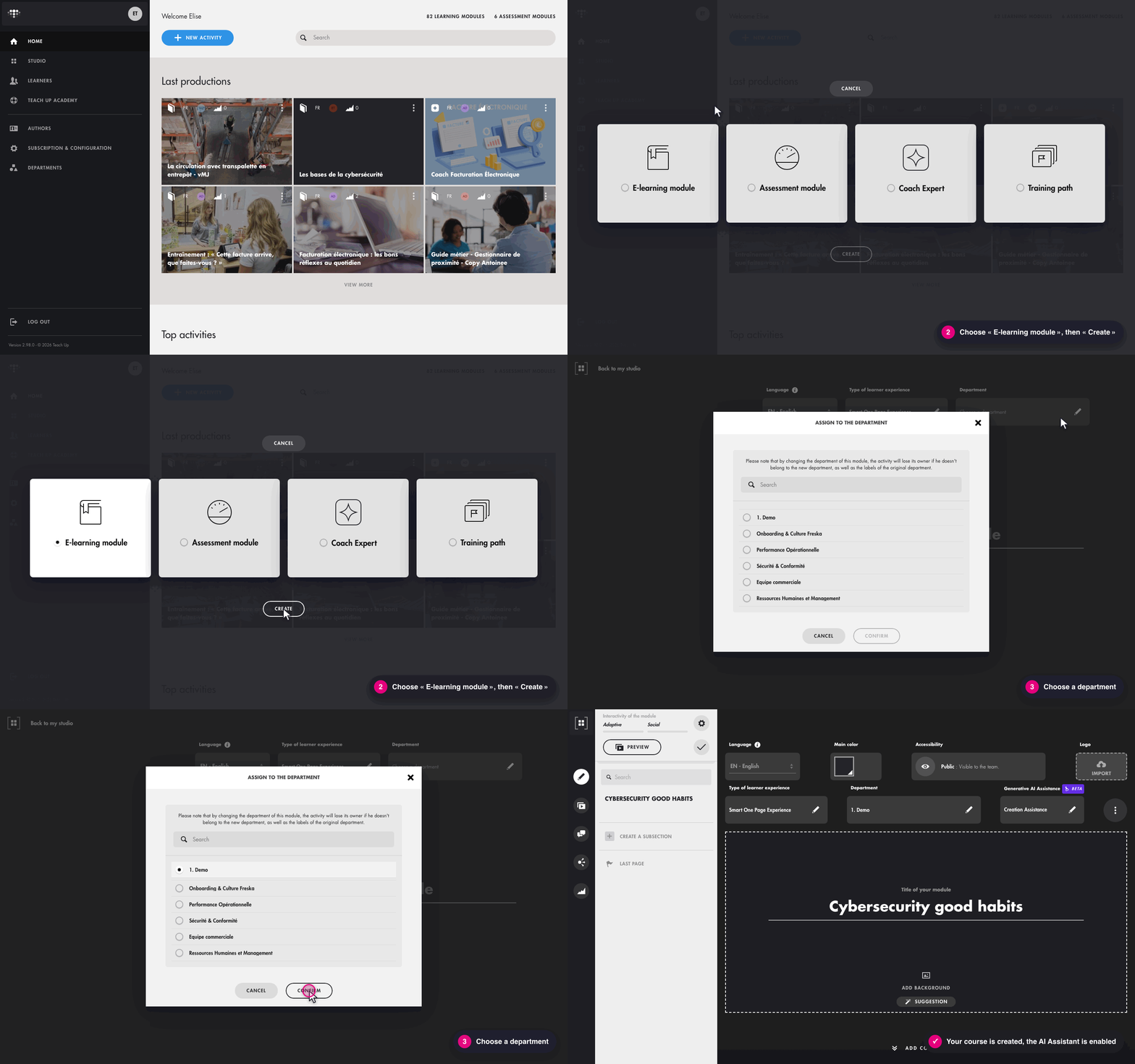
- From your studio home page, click « New activity ».
- Choose « E-learning module », then click « Create ».
- Choose the course's department (pencil icon), then click « Confirm ».
- Enter the title of your training and click « Go! ».
Your course is created. If the « Generative AI » option is enabled on your account, the AI Assistant is already on: you see « Creation Assistance » under « Generative AI Assistance ».
Click on the image to open it in a new tab
Step 2: give the AI Assistant some context (3 min)
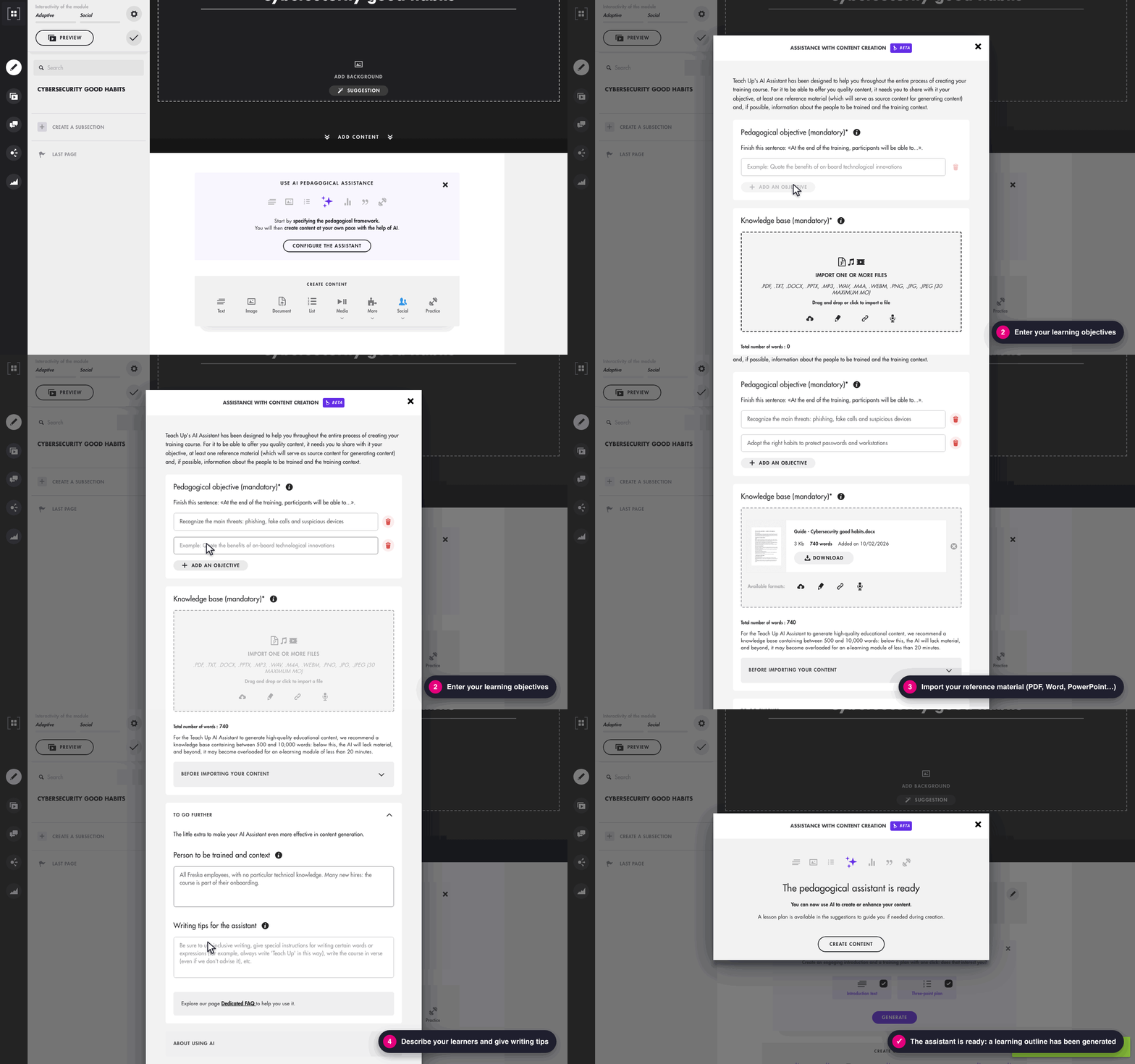
The more the AI knows about your training, the more accurate its content will be. In your course, click « Configure the assistant », then fill in:
- Your learning objectives (mandatory): complete the sentence « At the end of the training, participants will be able to… ». Click « Add an objective » to enter more than one.
Example: « Recognize the main threats: phishing, fake calls and suspicious devices ». - Your knowledge base (mandatory): drag and drop one or more materials, or click to import them (PDF, TXT, DOCX, PPTX, MP3, WAV, M4A, WEBM, PNG, JPG, JPEG, 30 MB maximum). You can also write a text, add a link or record your voice. The total number of words is displayed: aim for 500 to 10,000 words.
- To go further (optional, but strongly recommended): the more detailed your instructions, the better suited the content the AI produces. Feel free to write several lines.
- « Person to be trained and context »: describe your audience and the situation the training is part of.
- « Writing tips for the assistant »: specify the tone, style, target length and terms to use.
- Click « Confirm ».
Example, for a course on expressing disagreement:
Person to be trained and context: « Mixed audience: this course is for all Freska employees who want to collaborate more easily with their colleagues, customers, manager and partners. We are welcoming many new employees and the annual review period is coming up. This course should fit into this period, which can bring tensions or disagreements, to help everyone stay calm and be able to express disagreement with confidence. »
Writing tips for the assistant: « Informal tone, emojis, short sentences. Always write the name of the “DESC” method in capital letters and always mention the company “Freska”. Short course, 10 minutes maximum: concise, but placing the learner in specific situations. Share examples to illustrate the points. »
The assistant analyzes your documents for about a minute, then displays « The pedagogical assistant is ready ». Along the way, it has generated a lesson plan: the main themes of your course. Click « Create content ».
Click on the image to open it in a new tab
Step 3: generate the introduction and the plan (1 min)
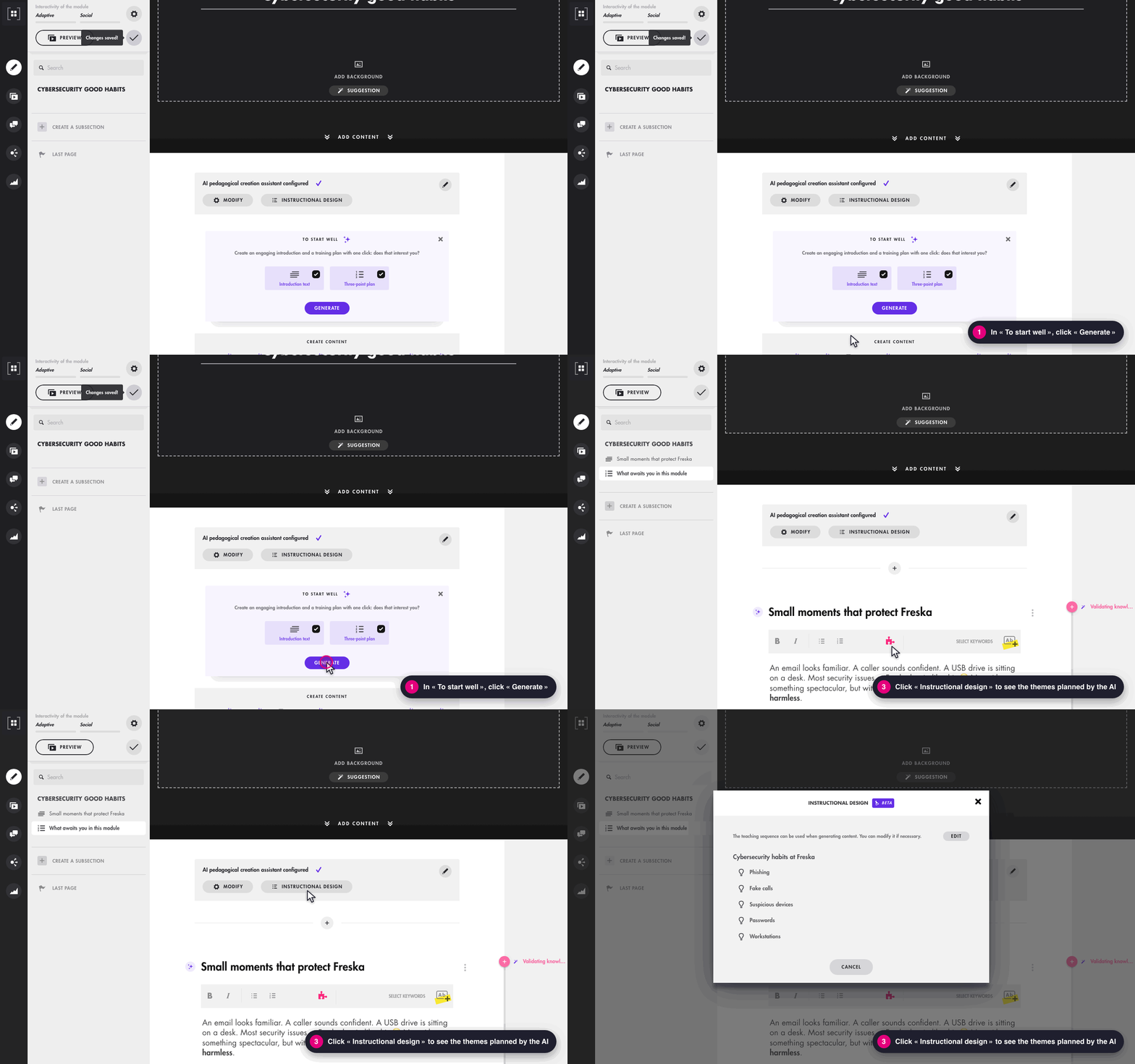
In the « To start well » box, keep « Introduction text » and « Three-point plan » selected, then click « Generate ».
In a few seconds, your course opens with an engaging introduction and a plan announcing the three main parts of the training.
To see the themes planned by the AI, click « Instructional design ». You can edit them if needed: they will guide you through the next steps.
Click on the image to open it in a new tab
Step 4: generate your content (5 min)
You will now fill your course, one content at a time. For each content:
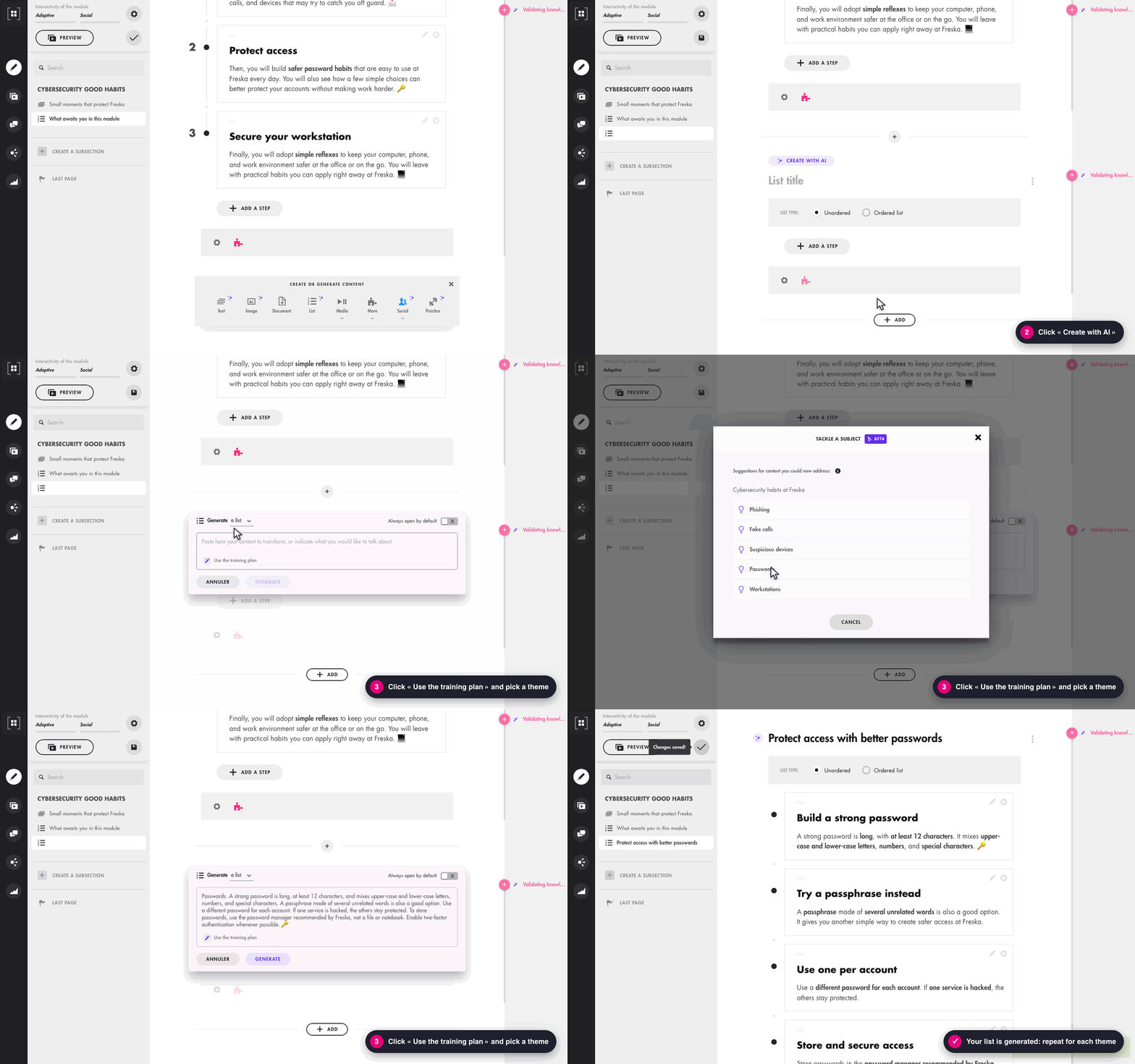
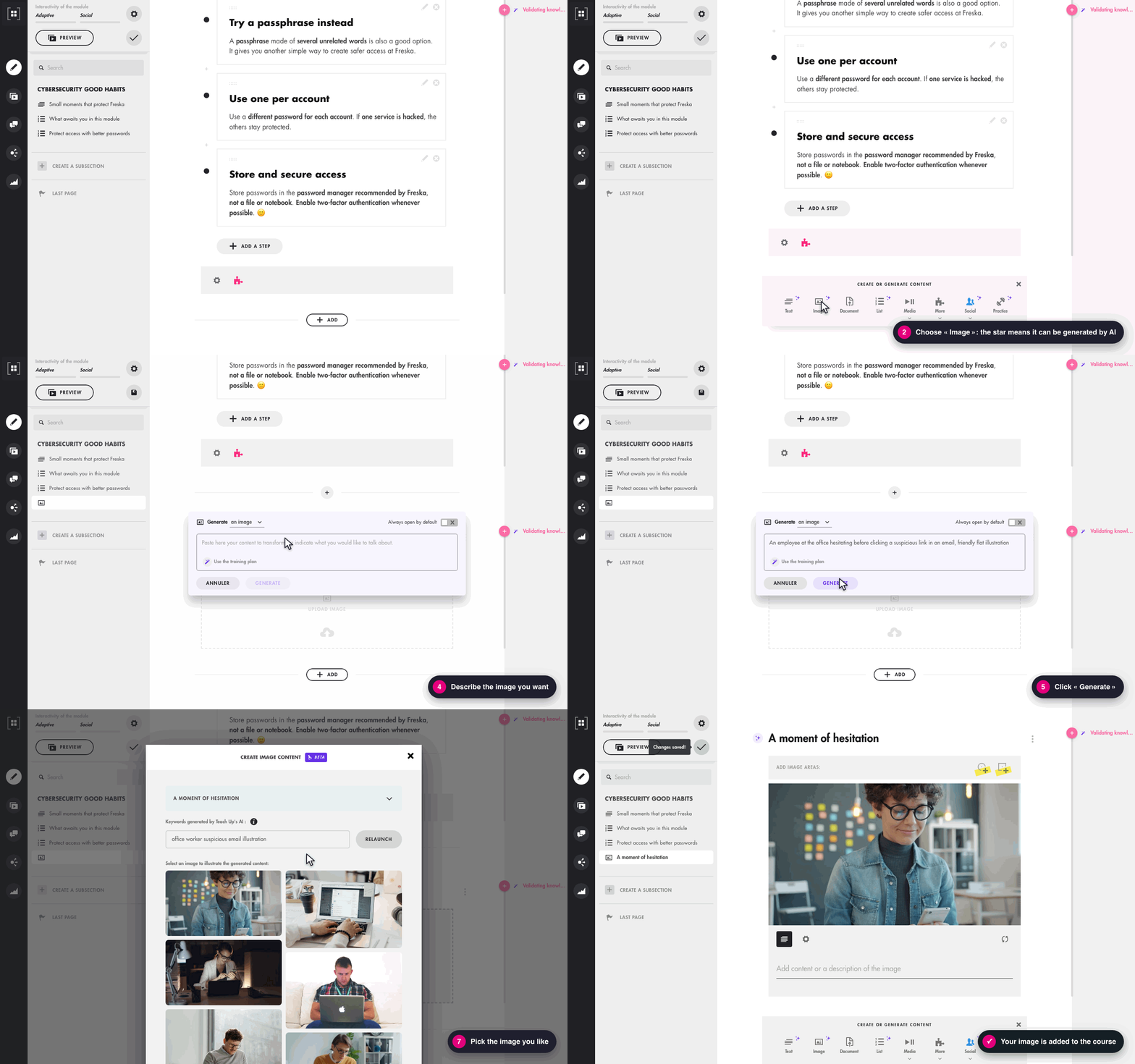
- At the bottom of the course, click « Add » and choose a content type. Types marked with a purple star can be generated by the AI: text, image, list, poll, contribution wall and practice.
- Click « Create with AI ».
- Tell the AI what to talk about, either:
- click « Use the training plan », select a theme, then click « Choose »;
- or type your topic directly, or paste a text to transform.
- Click « Generate ».
The content appears in your course in a few seconds. Repeat for each theme of the plan: with 4 or 5 contents, you get a complete and varied course.
Click on the image to open it in a new tab
Vary the types of content. For an image, describe what you want to show: the AI suggests a title, keywords and a selection of matching photos. Pick the one you like, then click « Add ».
Click on the image to open it in a new tab
Think about questions too: they make your course interactive and let learners check what they remember. Find out how to create them in Create and configure a knowledge question in a course.
Step 5: review, save and preview (5 min)
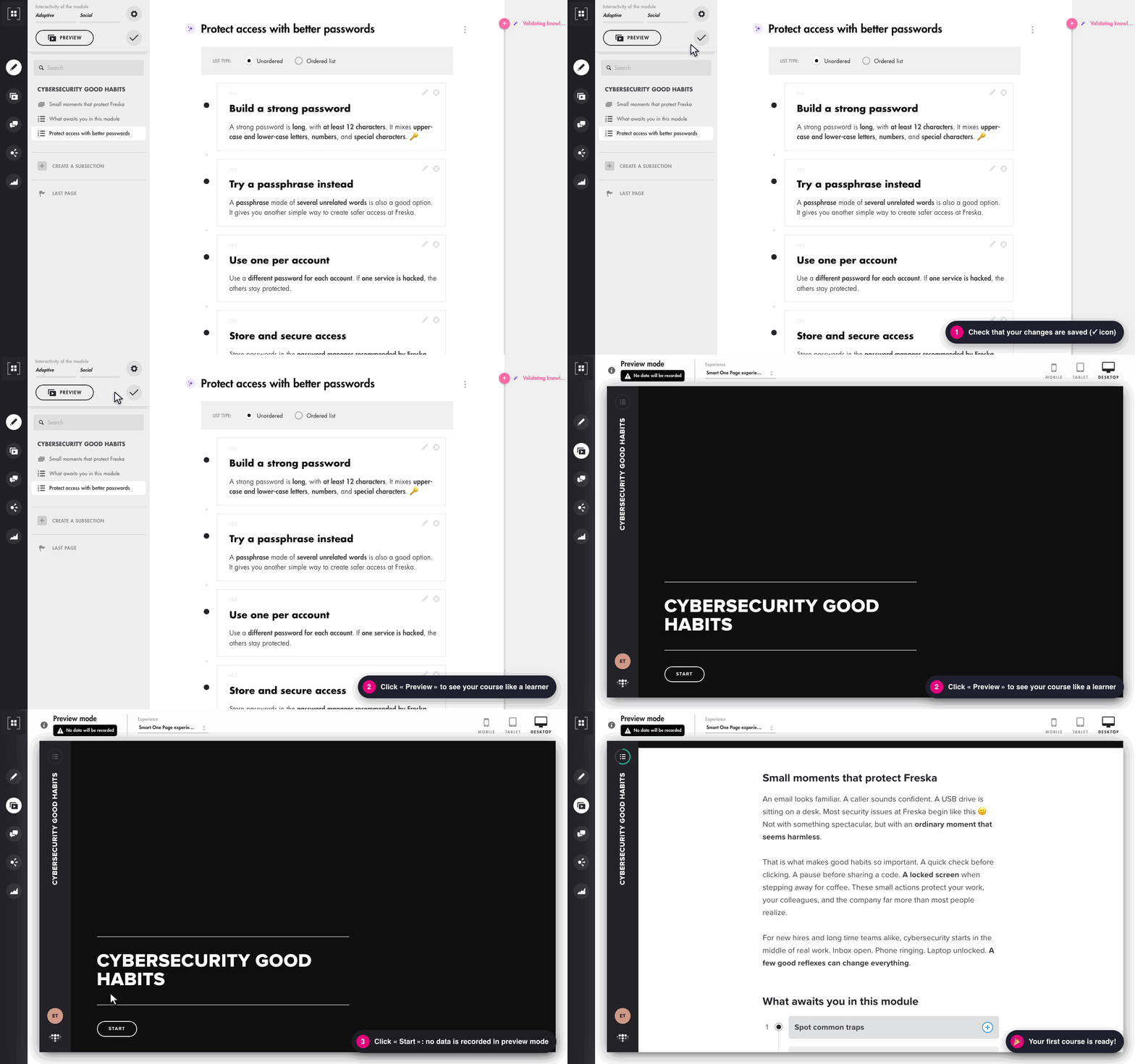
- Review each content: click in a block to edit a title or a text, like in a word processor. The AI saves you time, but you have the final say.
- Save: at the top left, the ✓ icon means your changes are saved. If a floppy disk icon is displayed, click it to save.
- Preview: click « Preview » to see your course exactly as your learners will, on a computer, tablet or phone. This preview mode doesn't record any data.
Click on the image to open it in a new tab
Congratulations, your first course is ready! 🎉
What next?
- Have it reviewed by an expert or a colleague with the review link.
- Distribute it to your learners by assigning them or with a direct access link.
- Go further with the AI Assistant: all its settings are described in Generate content within a course with the AI Assistant.
Our tips for better results
- Precise objectives: start with an action verb (recognize, apply, react…). A vague objective gives vague content.
- Focused material: keep to the core of the topic. Between 500 and 10,000 words, the AI has enough material without being overwhelmed, for a course of less than 20 minutes.
- A detailed audience and detailed instructions: audience, context, tone, length, terms to use… The more you guide the AI, the more the content matches your expectations.
- A short course: 4 to 6 contents are often enough. Several short courses are better than one very long one.
- A systematic review: check facts, figures and your organization's own vocabulary.
Frequently asked questions
Do I need to know how to write a training course to use the AI Assistant?
No. The AI Assistant relies on your material and objectives to suggest a structure and learning content. Your role is to give it the right context, then review and adjust.
Where does the generated content come from?
The AI relies on the documents in your knowledge base. To learn more about how AI works in Teach Up, see Generative AIs in Teach Up.
Can the AI make mistakes?
Yes, like any generative AI tool. That's why every content remains fully editable: always review it before distributing your course.
Do I need to configure the assistant again for each new content?
No. Once configured, the assistant is available throughout the course. To adjust your objectives or documents, click « Modify » in the « AI pedagogical creation assistant configured » box.
Can I mix generated content and content created by hand?
Yes. You can add content without the AI or edit generated content at any time.