
Teach Up sends automatic emails to authors, administrators and learners: account creation, assignment, reminders, forms… This article lists them all, so you know what your users receive and which addresses to allow.
Table of contents
- All emails at a glance
- Emails sent to authors and administrators
- Emails sent to learners
- Subscription emails
- Emails sent by forms
- Frequently asked questions
All emails at a glance
| Recipient | Sent when… | Customizable? | |
| Author account creation | New author or administrator | an administrator invites them | No |
| Password reset | Author or learner | they click « Forgot password » | No |
| Copy of an activity received | Receiving author | an author sends them a copy | No |
| Activity transfer | Sending and receiving authors | an author transfers an activity | No |
| Newsletter | Active authors and administrators | every month | No |
| Onboarding emails | New authors and administrators | weekly after sign-up (6 emails) | No |
| Assignment | Learner | an activity is assigned to them | No |
| Reminder | Targeted learners | according to the reminder rules | Yes: subject and message |
| Quota alert | Administrators | a subscription quota reaches 70%, 90% and then 100% | No |
| Form: automatic sending | Addresses chosen by the author | a learner submits the form | Yes: subject and message |
| Form: copy sent by the learner | Addresses entered by the learner | a learner submits the form | No |
Addresses to allow: most emails are sent from noreply@teachup.com, reminders from notifications@teachup.com, and the newsletter and onboarding emails from csm@teachup.com. If your users don't receive anything, ask your IT department to allow these addresses.
Emails sent to authors and administrators
Author account creation
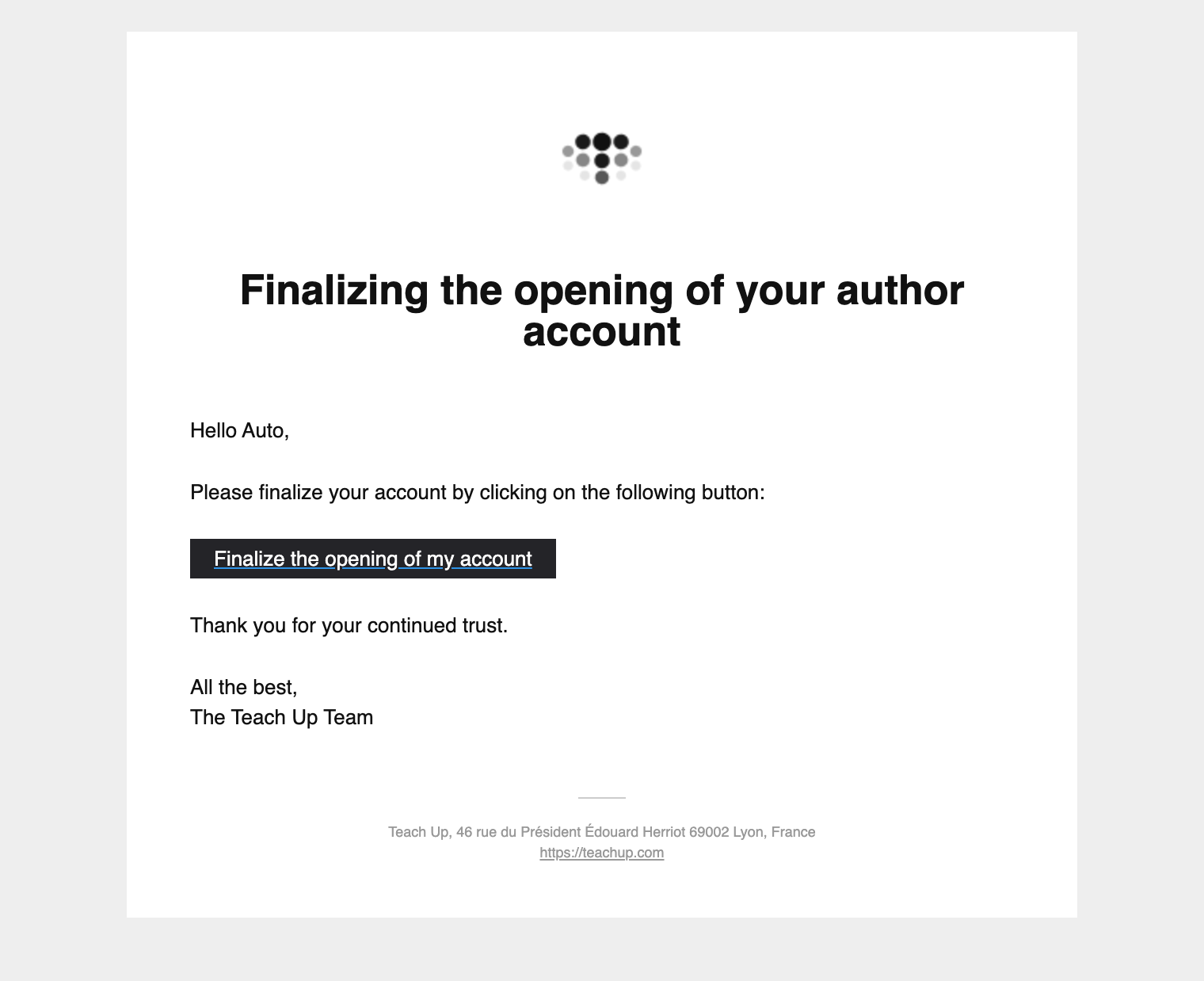
When an administrator adds an author from the « Authors » tab, the new author receives the email « Finalizing the opening of your author account ». The « Finalize the opening of my account » button lets them create their password.
- From: noreply@teachup.com
- Sent: when an administrator invites the author
- Recipient: the new author or administrator
Click on the image to open it in a new tab
👉 The account creation steps are described in First-time login on Teach Up.
Password reset
This email lets the user create a new password if they forgot it. It is sent to authors and learners alike. The link expires after one hour.
- From: noreply@teachup.com
- Sent: after clicking « Forgot password » on the login page
- Recipient: the author or learner who made the request
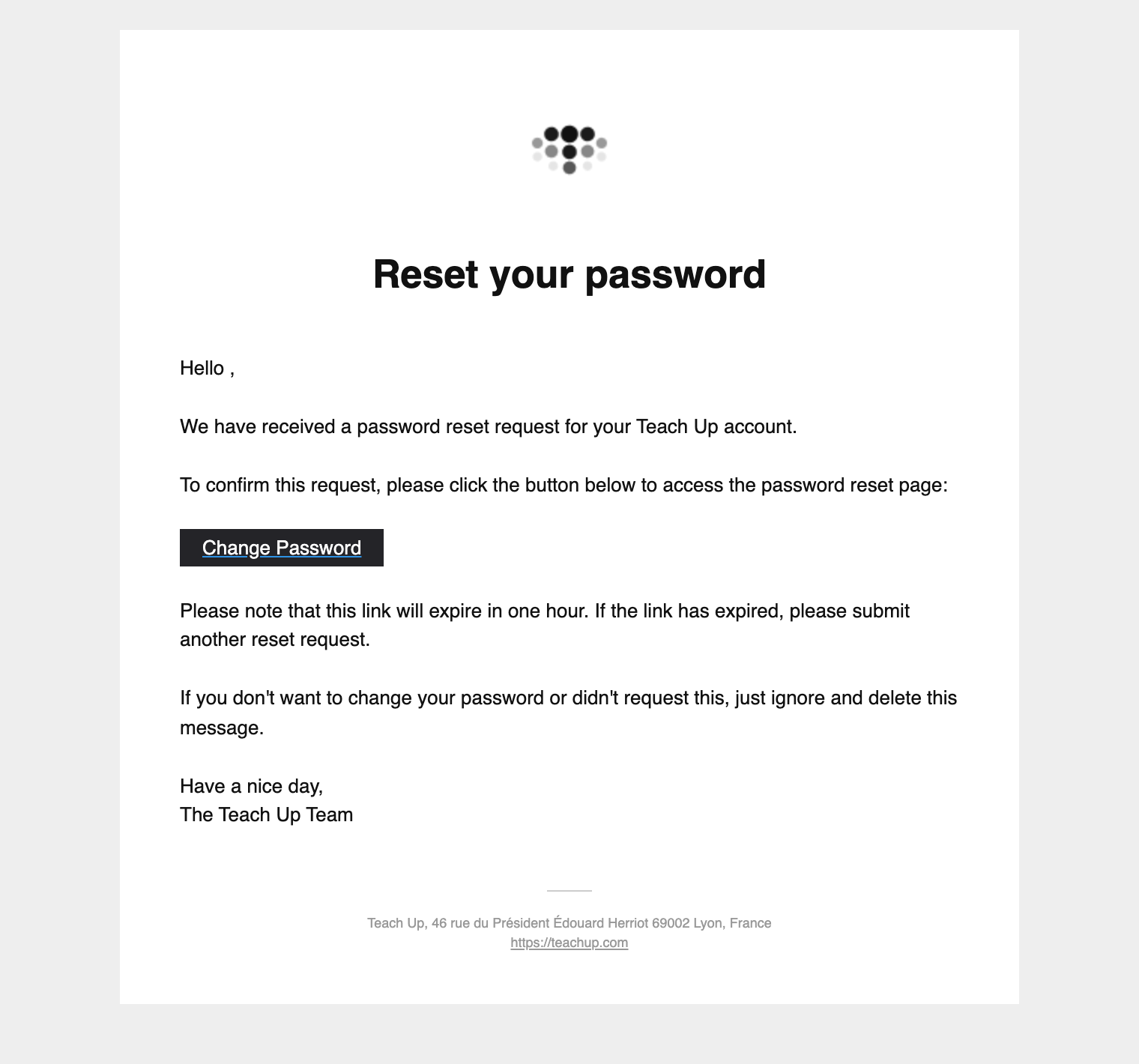
Subject: « Teach Up - Your password reset ». Click on the image to open it in a new tab.
Copy of an activity received
When an author uses « Send a copy to… » on an activity, each recipient receives an email telling them that modules have been shared with them. The copy appears in their studio with private visibility; the original author keeps their activity.
- From: noreply@teachup.com
- Sent: when the copy is sent
- Recipient: each author receiving the copy
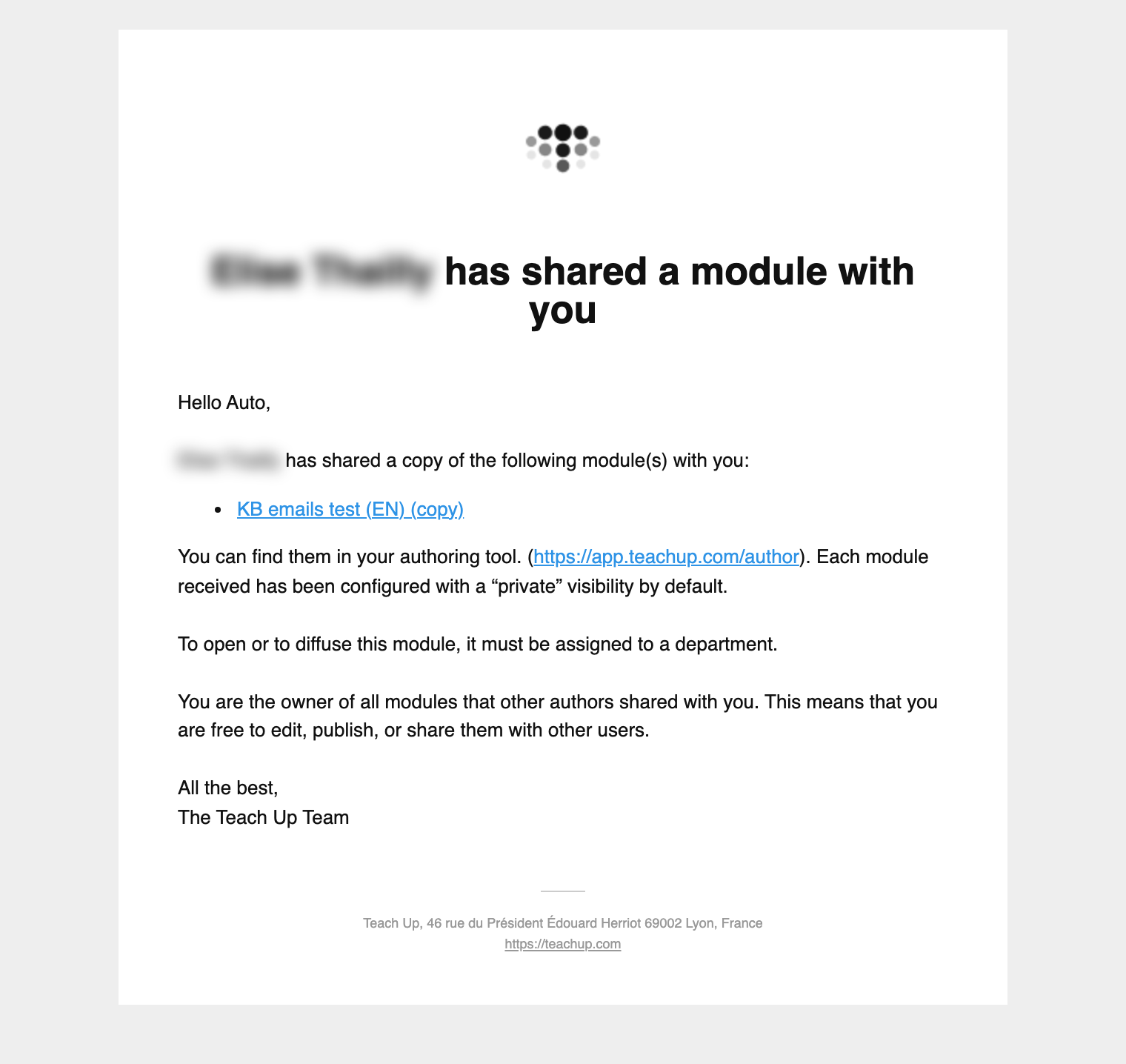
Subject: « … has shared a module with you ». Click on the image to open it in a new tab.
Activity transfer
When an author uses « Transfer the module to… », the activity leaves their studio and moves to the recipient's. Two emails are sent:
- to the sender, a confirmation summarizing the transferred module(s);
- to the recipient, a notification with a link to the activity.
- From: noreply@teachup.com
- Sent: when the activity is transferred
- Recipients: the sending author and the receiving author
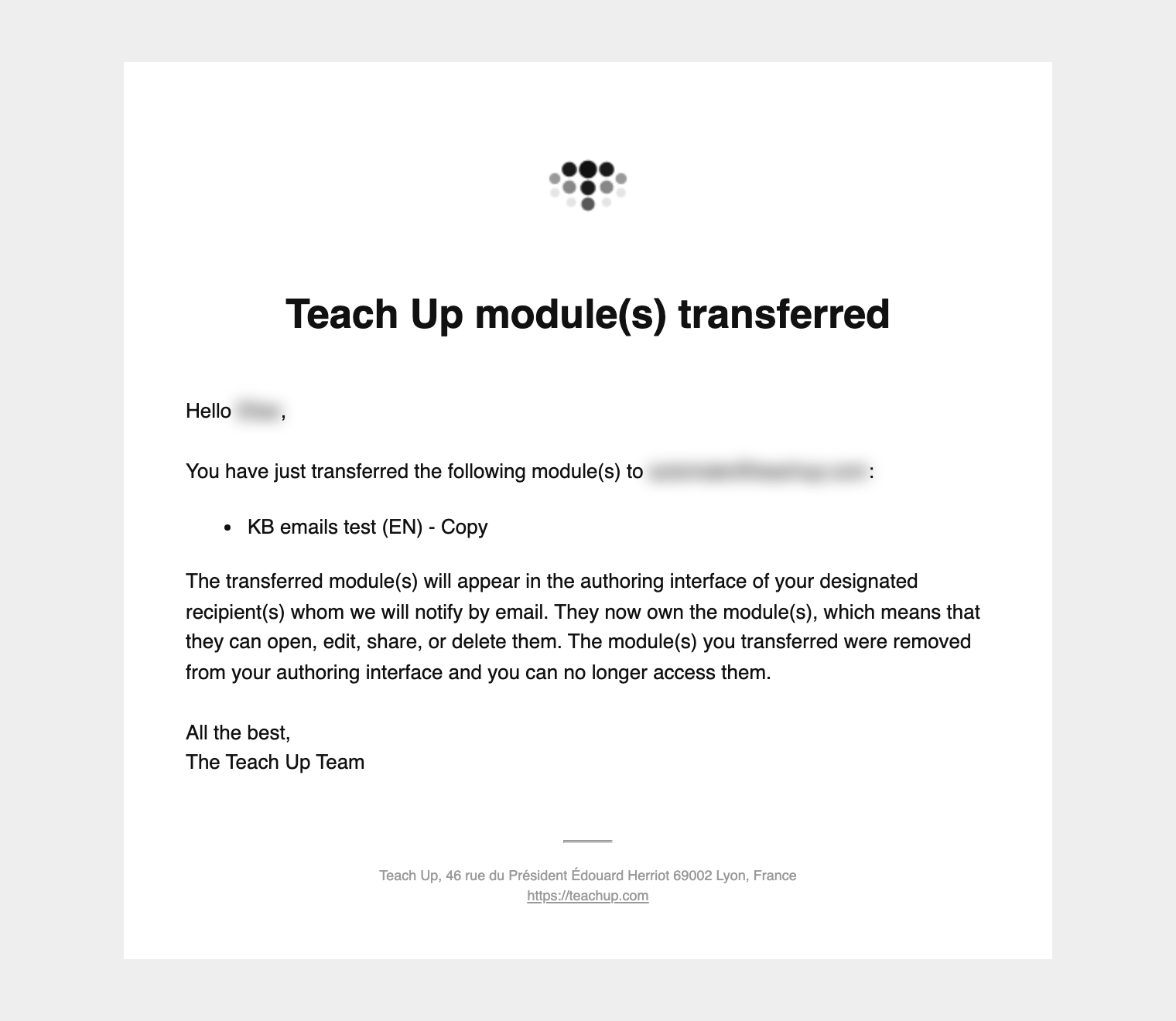
Email received by the sender: « Teach Up module(s) transferred ». Click on the image to open it in a new tab.
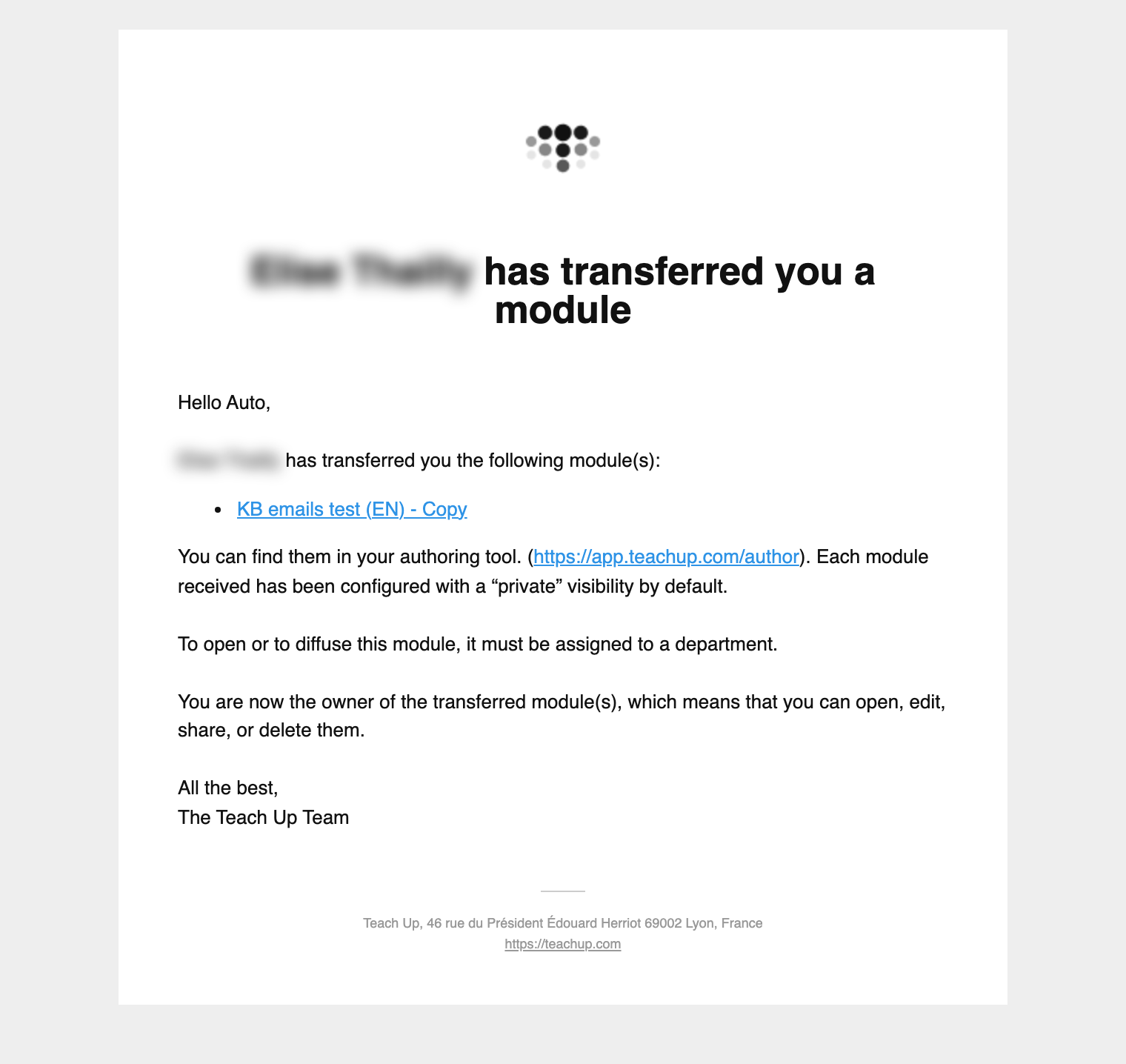
Email received by the recipient: « … has transferred you a module ». Click on the image to open it in a new tab.
Teach Up newsletter
Every month, the newsletter presents product updates, news and design tips.
- From: csm@teachup.com
- Sent: once a month
- Recipients: active authors and administrators
Onboarding emails
After signing up, new authors receive a series of emails to get started with Teach Up, beginning with an invitation to follow the digital onboarding path.
- From: csm@teachup.com
- Sent: 6 emails in total, one per week after sign-up
- Recipients: new authors and administrators
Emails sent to learners
Teach Up doesn't send advertising or newsletters to learners: only emails related to their access and their activities. If needed, they also receive the password reset email.
Assignment
When an activity is assigned to a learner, they receive an email with a link to each new activity. If several activities are assigned at once, the learner receives a single email grouping them.
- From: noreply@teachup.com
- Sent: as soon as the assignment is made, from the « Learners » tab or the activity's « Distribute » tab
- Recipient: each assigned learner
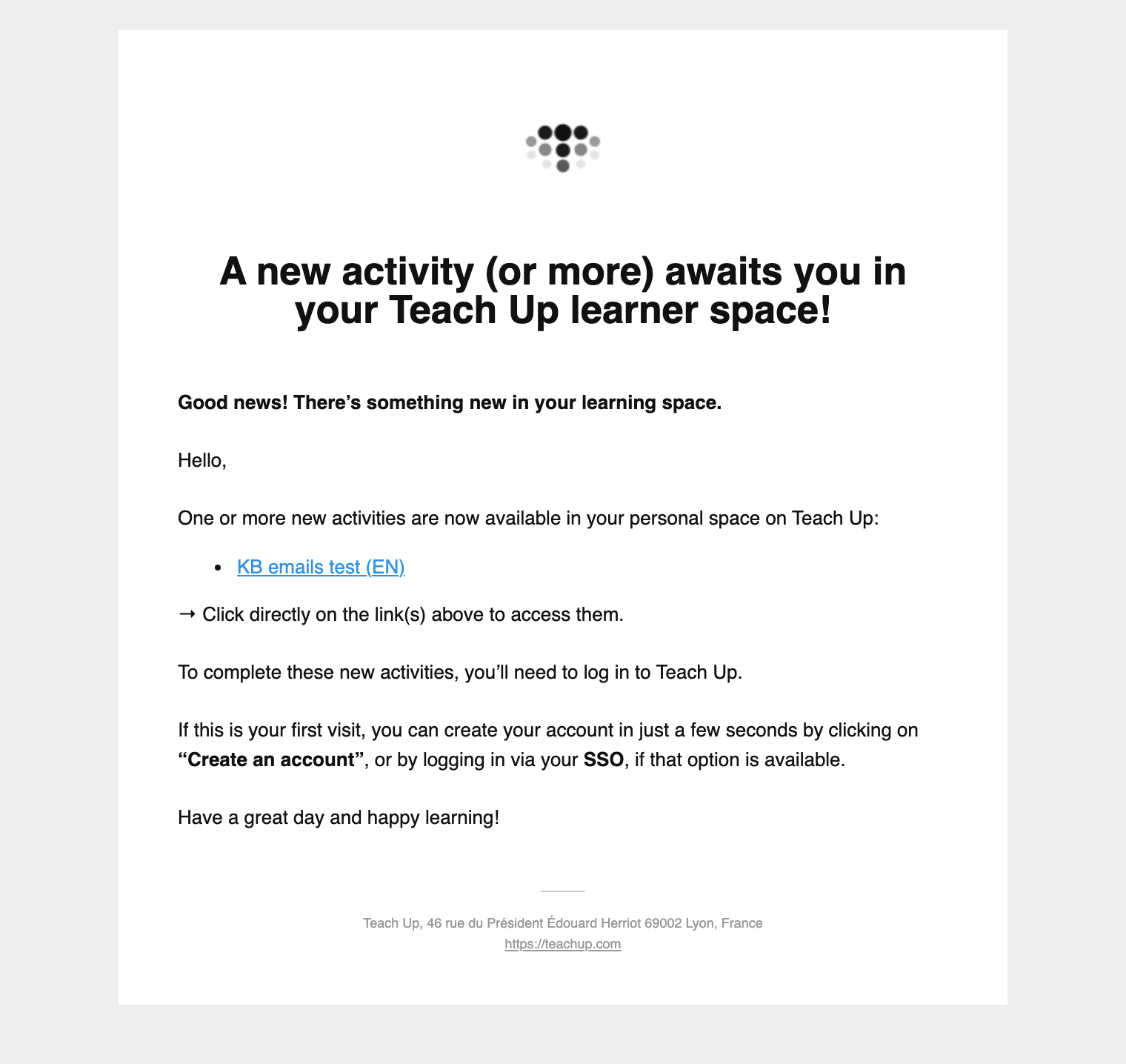
Subject: « A new activity (or more) awaits you in your Teach Up learner space! ». Click on the image to open it in a new tab.
👉 See Distribute by assigning learners and First-time login on Teach Up.
Reminder
The author schedules reminders to encourage learners to start or finish an activity. They choose the targeted learners, the sending time, the subject and the message. The email contains a button to the activity and, at the bottom, a link to stop receiving reminders.
- From: notifications@teachup.com
- Sent: according to the reminder rules (fixed date, delay after assignment, inactivity…)
- Recipients: the learners targeted by the reminder
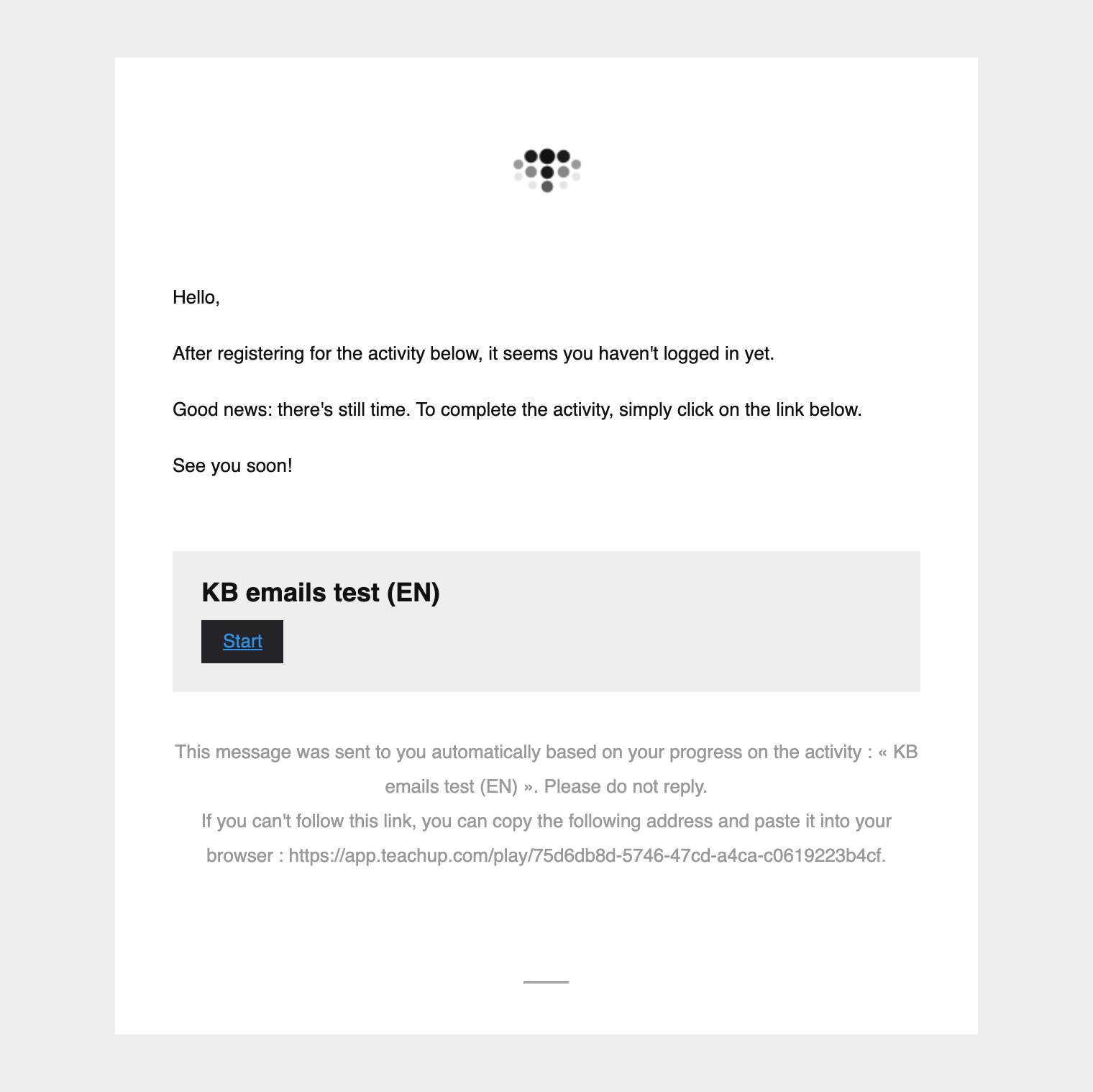
Example: default reminder « Why not start your new activity? ». Click on the image to open it in a new tab.
To check the rendering before sending, click the three dots of the reminder, then use the option to send a sample email: the sample is sent to you.
👉 See Set up automatic reminders.
Subscription emails
Teach Up warns administrators when the subscription is close to its limits, so they have time to act.
Quota alerts
Administrators receive an alert when one of the subscription quotas reaches 70%, then 90%, then 100%. The quotas concerned are:
- unique active learners;
- open link connections;
- learners who used E-learning by doing;
- Practices played (E-learning by doing);
- learners who used Coach Expert;
- problems submitted (Coach Expert).
The email recalls the subscription threshold and suggests restricting access for inactive users from the administration interface, or contacting Teach Up to increase the quota.
- From: noreply@teachup.com
- Sent: at 70%, 90% and then 100% of each quota
- Recipients: the account administrators
Once the Practice quota is reached, learners can no longer access courses containing Practices: they see the « Module temporarily unavailable » screen, which invites them to contact their administrator. To unblock the situation, disable Practices or purchase additional credits. See Insert and configure a Practice.
👉 To track your usage, see Understand and track my subscription.
Emails sent by forms
A Form content can send the learner's answers by email. These options are set in the form's retrieval options (gear icon of the form). In all cases, the answers remain available in the course dashboard.
Automatic sending of the form
With the automatic sending option, each submitted form is sent to the addresses you entered, with the subject and message you wrote. The email contains the completed form as a PDF and, if any, the documents you added.
- From: noreply@teachup.com
- Sent: each time a learner submits the form
- Recipients: the addresses defined by the author
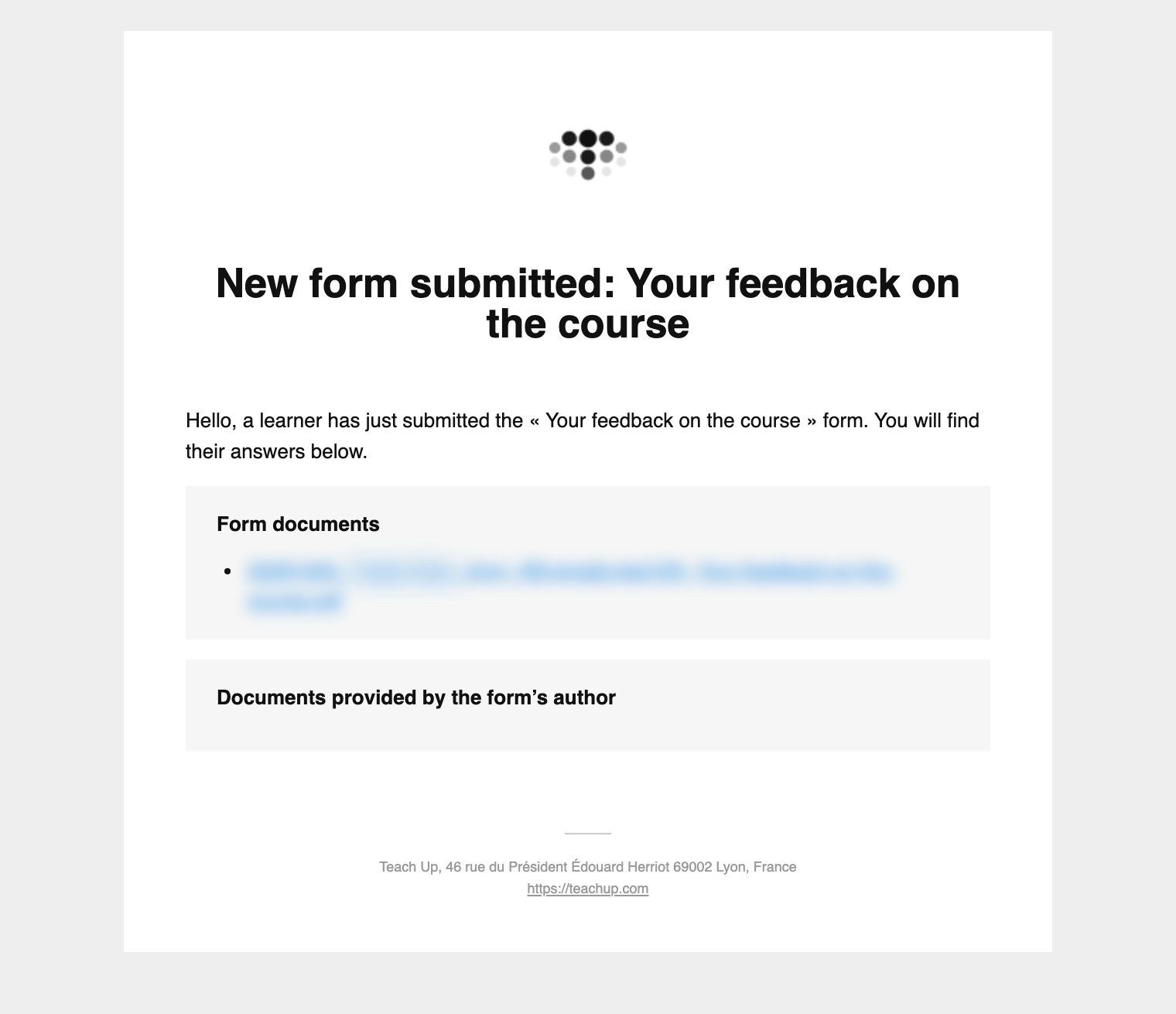
Subject: « New form submitted: » followed by the form title (customizable). Click on the image to open it in a new tab.
Copy sent by the learner
With the option allowing the user to send their form to the contacts of their choice, the learner sees a field to send a copy to the addresses of their choice when filling in the form. Each address receives an email with the completed form as a PDF. Its text can't be customized.
- From: noreply@teachup.com
- Sent: when the form is submitted
- Recipients: the addresses entered by the learner
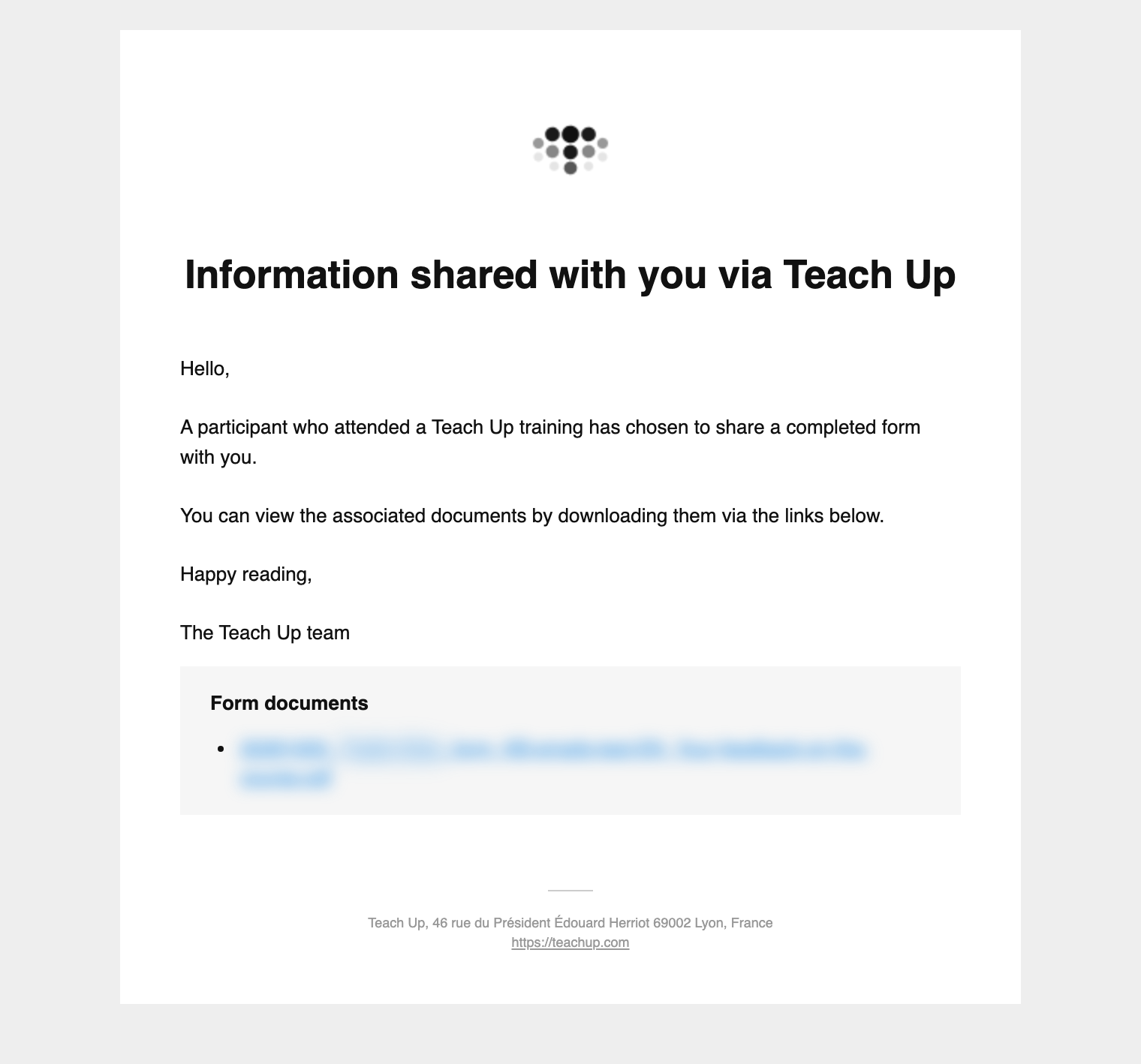
Subject: « Information shared with you via Teach Up ». Click on the image to open it in a new tab.
Frequently asked questions
Can the emails sent by Teach Up be customized?
Yes for reminders and for the automatic sending of forms: you write the subject and message. The other emails, including the assignment email, can't be customized for now.
Can the assignment email be disabled?
No, it is not possible to disable the assignment email sent to learners.
Do learners receive a newsletter?
No. They only receive emails related to their activities and their account.
A new author's invitation email arrived in French. Why?
This email is sent in the interface language of the administrator who sends the invitation. For it to be sent in English, the administrator must have their interface in English when inviting. The new author can then choose their own language in their profile.
Is a learner notified when an assignment is removed?
No, no email is sent. See Distribute by assigning learners.
My learners don't receive the emails: what should I do?
Ask them to check their spam folder, then have your IT department allow noreply@teachup.com and notifications@teachup.com.